Electronics / Voice Communication Systems
User Guide for Sena 10R Bluetooth Communication System
Comprehensive user guide for the Sena 10R motorcycle Bluetooth communication system. Includes instructions for installation, device pairing, intercom setup, and troubleshooting.
Table of contents
Manual images
Click an image to enlargeQuick Guide from the Manual
The Sena 10R is a low-profile Bluetooth communication system designed for motorcycle riders. It supports Bluetooth 4.1, 4-way intercom, music sharing, and advanced noise control. The system is operated using three buttons: the Center Button, the (+) Button, and the (-) Button.
Installation
Main Unit: Clean the left side of the helmet. Use the provided hook and loop fasteners or double-sided adhesive tape to attach the main unit. Maximum adhesion occurs after 24 hours.
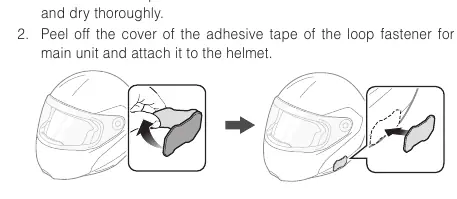
Speakers: Attach the hook and loop fasteners to the ear pockets inside the helmet, then attach the speakers.
Microphones: Choose between the Wired Boom Microphone or the Wired Microphone based on your helmet type. Attach the microphone to the inside of the helmet shell or chin guard using the provided fasteners.
Battery Pack: Attach the battery pack holder to the back of the helmet using adhesive tape. Slide the battery pack into the holder until it clicks.
Getting Started
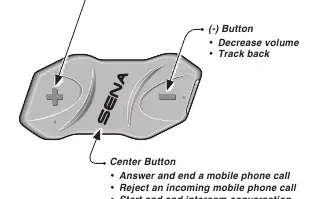
- Powering On/Off: Press the Center Button and the (+) Button simultaneously.
- Charging: Connect the USB power & data cable to a computer or wall charger. The LED turns red while charging and blue when fully charged (approx. 2.5 hours).
- Volume Adjustment: Tap the (+) or (-) Button.
Pairing with Bluetooth Devices
Mobile Phone: Enter the configuration menu by holding the Center Button for 10 seconds. Tap the (+) Button until you hear "Phone pairing". Follow the voice prompts and enter 0000 for the PIN if requested.
Intercom Pairing: Turn on two 10R headsets. Press and hold the Center Button for 5 seconds until you hear "Intercom pairing". Tap the Center Button on one of the units to establish the connection.
Intercom Usage
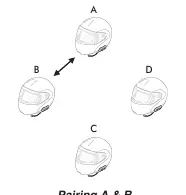
- Two-way: Tap the Center Button to start/end conversation with the first friend. Tap twice for the second friend, and three times for the third.
- Three-way/Four-way: You can add participants by establishing multiple intercom connections.
- Group Intercom: Tap the (+) and (-) Buttons simultaneously to begin.
Universal Intercom
The 10R can connect to non-Sena Bluetooth headsets that support the Hands-Free Profile (HFP). Use the "Universal Intercom Pairing" option in the configuration menu to pair with non-Sena devices.
Configuration and Troubleshooting
Settings: Use the Sena Device Manager or Sena Motorcycles App for advanced configuration, including Audio Source Priority, VOX settings, and firmware updates.
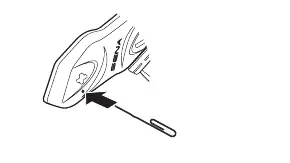
Fault Reset: If the unit is not working properly, use a paper clip to press the pin-hole reset button located below the (+) Button.
Factory Reset: Use the Factory Reset option in the configuration menu to restore default settings.
Manufacturer information
SENA
Practical help
Common problems
Intercom failure
Ensure the intercom friend is within range and not already in a conference call or mobile phone call.
Intercom disconnection
The unit will attempt to reconnect every 8 seconds. Tap the Center Button to stop the attempt.
Cannot hear GPS instructions during phone call
Note that GPS voice instructions may not be audible during an active phone call.
Before use
- Charge the unit fully (approx. 2.5 hours).
- Install the main unit, speakers, and microphone securely.
- Pair your mobile phone or GPS device.
- Update firmware via Sena Device Manager if necessary.
Specs in practice
- Bluetooth 4.1
- Standard for wireless connectivity with mobile devices and other headsets.
- Advanced Noise Control
- Reduces background noise during intercom conversations.
- Audio Multitasking
- Allows hearing two audio sources (e.g., GPS and intercom) simultaneously.
Images and diagrams
- Button layout: Center Button, (+) Button, (-) Button.
- Installation steps for main unit, speakers, and microphone.
- Intercom pairing and connection diagrams.
Model compatibility
- Compatible with other Sena headsets.
- Universal Intercom allows connection with non-Sena Bluetooth headsets (HFP support required).

Manual page author
Emily Carter
User documentation editor
Prepares concise manual descriptions and highlights the most useful setup, operation, and maintenance information for readers.