Automotive / Motorcycle Communication
User Manual for SENA 10U Bluetooth Headset
Quick start guide for the SENA 10U Bluetooth headset. Learn how to install, pair, operate phone and music functions, use the intercom, and troubleshoot your device.
Table of contents
Manual images
Click an image to enlargeQuick guide from the manual
This guide provides essential instructions for the SENA 10U Bluetooth headset, designed for specific motorcycle helmets including Shoei GT-Air, Shoei Neotec, Shoei J-Cruise, and Arai Full-face helmets. Before using the device, ensure you remove the plastic tape from the battery slot.
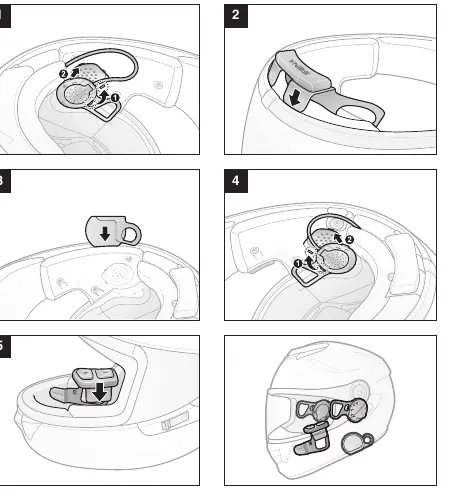
Installation
Installation procedures vary depending on your specific helmet model. Please refer to the installation diagrams provided in the full manual for your specific helmet type (Shoei GT-Air, Neotec, J-Cruise, or Arai). Ensure the headset is securely mounted and the microphone and antenna are positioned correctly.
Charging
To charge the headset, connect it to a power source. The LED indicator provides status updates:
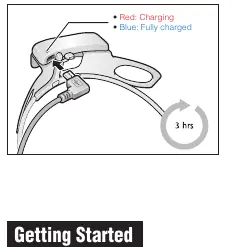
- Red: Charging in progress.
- Blue: Fully charged.
A full charge typically takes approximately 3 hours.
Power On/Off
Headset: Press the (+) button and (-) button simultaneously for 1 second to power on or off.
Remote Control: Press the center button to power on.
Button Operation
The device uses various button combinations for control:
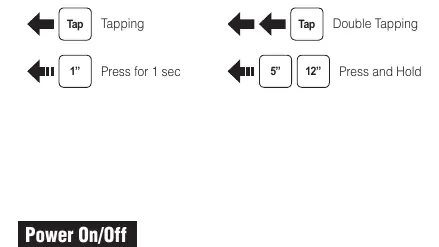
- Tapping: Pressing a button briefly.
- Double Tapping: Pressing a button twice quickly.
- Press and Hold: Pressing a button for 1, 5, or 12 seconds depending on the desired function.
Remote Control Pairing
Note: You can control the headset using the Remote Control only after you pair them together.
- On the Remote Control, press the (+) button for 8 seconds.
- On the Headset, press the (+) button for 10 seconds.
- Follow the pairing sequence as indicated in the diagrams.
Phone and Music Pairing
- Select "Sena 10U" in your smartphone's Bluetooth settings.
- Enter "0000" if prompted for a PIN.
- Use the center button on the remote to play/pause music.
- Use the (-) and (+) buttons to skip tracks.
Intercom Pairing
To pair with another headset:
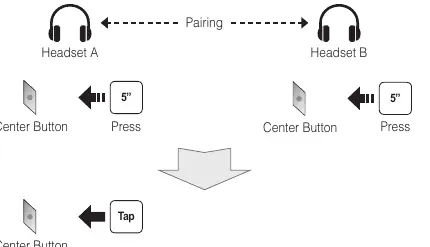
- Press the center button on both headsets for 5 seconds.
- Tap the center button on one of the headsets to initiate pairing.
- Use the center button to start or end intercom conversations with friends.
Radio Functions
The headset includes an FM radio feature:
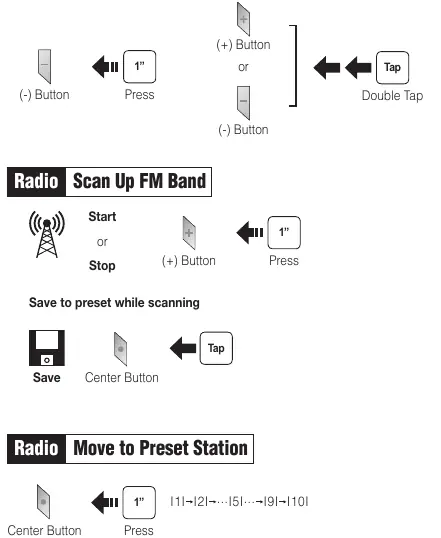
- On/Off: Press the (-) button for 1 second.
- Seek Stations: Use the (+) or (-) buttons.
- Scan Up FM Band: Press the (+) button for 1 second.
- Save/Delete Presets: Use the center button and (+) or (-) buttons to manage your saved stations.
Settings and Configuration
You can configure the headset using the Sena Device Manager on your computer or the Sena Smartphone App. Download the app from the Google Play Store or Apple App Store, pair your phone, and access the settings menu to customize your device.
Troubleshooting
- Remote Control Disconnection: If the remote disconnects, replace the battery or re-pair the device. You can still use the headset buttons in the meantime.
- Factory Reset: Use the Factory Reset option in the configuration menu to restore default settings.
- Fault Reset: If the device is not working properly, gently push the pin-hole reset button located on the left speaker or battery.
Manufacturer information
SENA
Practical help
Common problems
Remote Control Disconnection
Replace the remote control's battery or perform the pairing process again.
Device not working properly
Perform a fault reset by gently pushing the pin-hole reset button located on the left speaker or battery.
Before use
- Remove the plastic tape from the battery slot.
- Charge the device until the LED turns blue.
- Pair the remote control with the headset before attempting to use remote functions.
Images and diagrams
- Installation steps vary by helmet model; ensure you follow the diagram specific to your helmet (Shoei GT-Air, Neotec, J-Cruise, or Arai).
- Button operations rely on specific durations (1s, 5s, 12s) and actions (Tap, Double Tap, Press and Hold).
Model compatibility
- Compatible with Shoei GT-Air, Shoei Neotec, Shoei J-Cruise, and Arai Full-face helmets.

Manual page author
David Miller
Documentation analyst
Organizes user manual content into clear summaries, with attention to model details, product context, and everyday usability.