Automotive / Motorcycle Communication
User Manual for SENA Smart HJC 10B Motorcycle Communication System
Quick start guide and user manual for the SENA Smart HJC 10B motorcycle communication system. Learn how to install, pair via Bluetooth, operate intercom, and troubleshoot your device.
Table of contents
Manual images
Click an image to enlargeQuick guide from the manual
The SENA Smart HJC 10B is a Bluetooth communication system for motorcycle helmets. This guide covers the basic setup, installation, and operation. For the full version of the user guide and firmware updates, visit www.smarthjc.com/bt.
Installation
The installation process differs based on your helmet type. Ensure you follow the specific steps for your model:
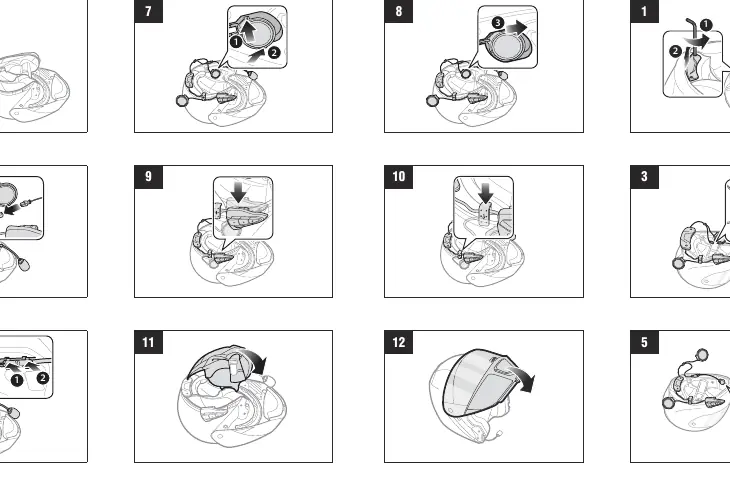
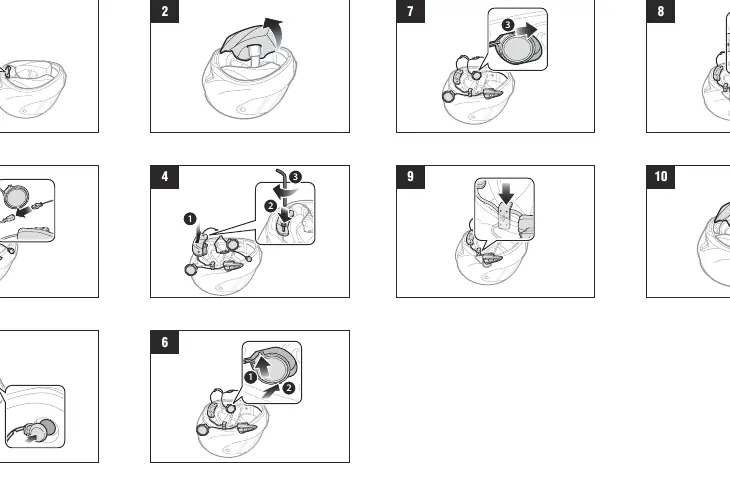
- Modular/Open Face Helmet: Follow the dedicated installation sequence provided in the manual, ensuring the wired boom microphone is correctly positioned.
- Full Face Helmet: Use the wired microphone configuration suitable for full-face helmets.
Button Operations
The device is controlled using the (+) Button, Center Button, and (-) Button. Operations include:
- Power On/Off: Press the (+) Button and Center Button simultaneously for 1 second to power on. Tap both to power off.
- Volume: Tap the (+) or (-) button to adjust volume.
- Mobile Phone: Tap the Center Button to answer calls. Press for 2 seconds to end/reject. Press for 3 seconds for voice dial.
- Music: Press the Center Button for 1 second to play/pause. Use (+) or (-) buttons for track control.
Bluetooth Pairing
To pair with a phone, MP3 player, or GPS:
- Press the Center Button for 12 seconds to enter configuration mode.
- Tap the (+) button.
- Select "SMART HJC 10B" in your mobile phone's Bluetooth settings.
- If prompted, enter 0000 as the PIN.
Intercom Setup
To pair with another headset:
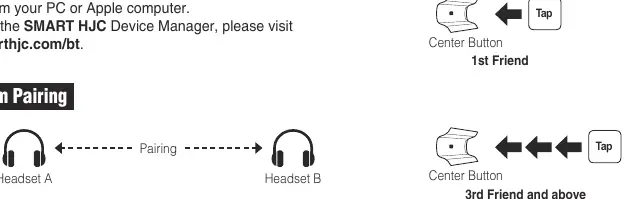
- Press the Center Button on both headsets for 5 seconds until the status LED flashes red.
- Tap the Center Button on one of the headsets to initiate pairing.
- To start or end an intercom conversation, tap the Center Button.
Troubleshooting and Maintenance
- Factory Reset: If you need to restore default settings, use the Factory Reset option in the configuration menu.
- Fault Reset: If the device is not working properly, gently insert a paperclip into the pinhole located next to the screw and press the Fault Reset Button.
- Battery Charging: Ensure the headset is turned off while charging.
Official resources from the manual
Manufacturer information
SENA
Practical help
Common problems
Device not working properly
Perform a fault reset by inserting a paperclip into the pinhole next to the screw and pressing the Fault Reset Button.
Need to restore factory default settings
Access the configuration menu by pressing the Center Button for 12 seconds, then select the Factory Reset option.
Battery charging issues
Ensure the headset is turned off before connecting the charging cable.
Before use
- Charge the device fully before first use.
- Update the firmware using the SMART HJC Device Manager on your PC or Mac.
- Identify your helmet type (Modular/Open Face or Full Face) to use the correct microphone setup.
- Pair your mobile phone via Bluetooth settings.
- Check the status LED to confirm power and pairing states.
Specs in practice
- Bluetooth 3.0
- Wireless connectivity standard for phone, GPS, and intercom communication.
- Intercom Range
- Up to 400 meters (0.25 miles) in open terrain.
- Advanced Noise Control
- Technology that reduces background noise during intercom and phone calls.
Images and diagrams
- Installation diagrams illustrate the routing of microphone and speaker cables inside the helmet lining.
- Button operation icons clarify the difference between tapping, double-tapping, and holding buttons for specific durations.
Model compatibility
- Compatible with specific HJC helmets; check the QR code on the product box for a list of compatible models.

Manual page author
David Miller
Documentation analyst
Organizes user manual content into clear summaries, with attention to model details, product context, and everyday usability.