Industrial / Programmable Logic Controllers
Operating Instructions for Siemens SIMATIC ET 200SP Open Controller CPU 1515SP PC2
Comprehensive operating instructions for the Siemens SIMATIC ET 200SP Open Controller CPU 1515SP PC2. This guide covers installation, wiring, commissioning, maintenance, and technical specifications for the device.
Quick answers from the manual
Quick answer
- The CPU 1515SP PC2 is a PC-based automation device for control and visualization. It requires TIA Portal V18 or higher for configuration and runs on Windows 10 IoT Enterprise. p. 21, 52
Key actions
- Installing the device p. 39
- Commissioning p. 48
- Backing up data p. 68
First start
- Connect power, monitor, keyboard, and mouse. Follow on-screen instructions to set language, region, and administrator password. p. 50, 51
Problems and fixes
CPU does not work
Check power supply.
p. 116Maintenance and reset
- Create a bootable Restore USB stick to restore the delivery state. p. 68, 70
Technical specifications
| Parameter | Value | Meaning | Pages |
|---|---|---|---|
| Supply voltage | 24 V DC | 19.2 to 28.8 V DC | p. 90 |
Where to find it in the PDF
- Introduction p. 7
- Installation p. 39
- Commissioning p. 47
- Technical specifications p. 79
Table of contents
Manual images
Click an image to enlargeQuick guide from the manual
The Siemens SIMATIC ET 200SP Open Controller CPU 1515SP PC2 is a PC-based automation device designed for control and visualization in industrial environments. This manual provides essential information for installation, commissioning, and maintenance. Ensure the device is installed in a suitable enclosure with at least IP54 protection. Always disconnect the power supply before installing or removing modules to prevent hazardous system states.
Product overview
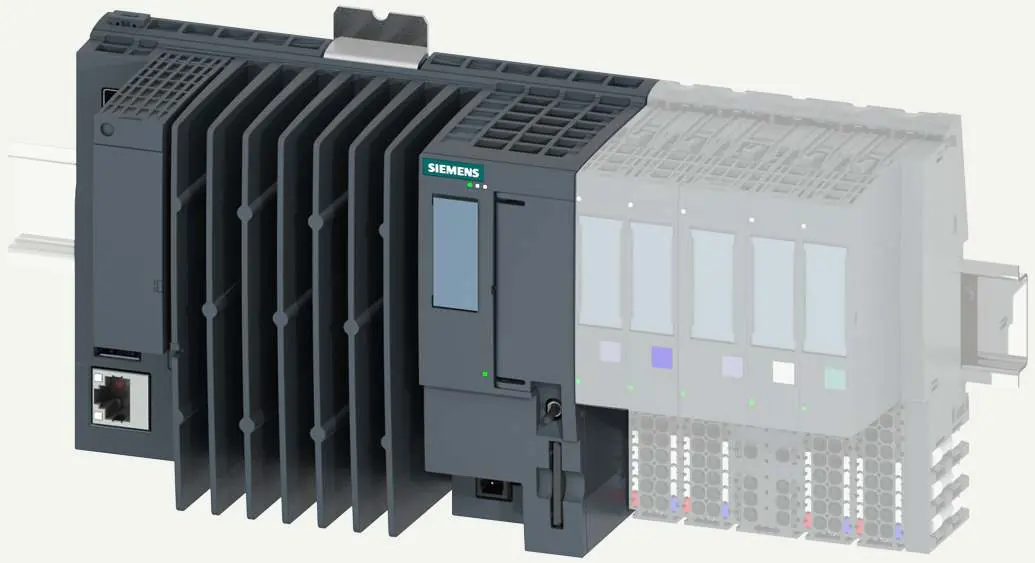
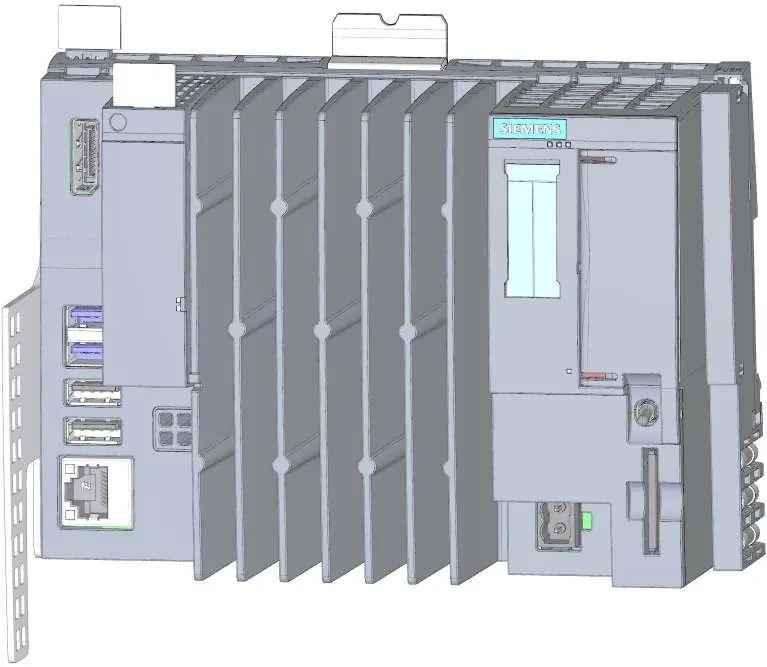
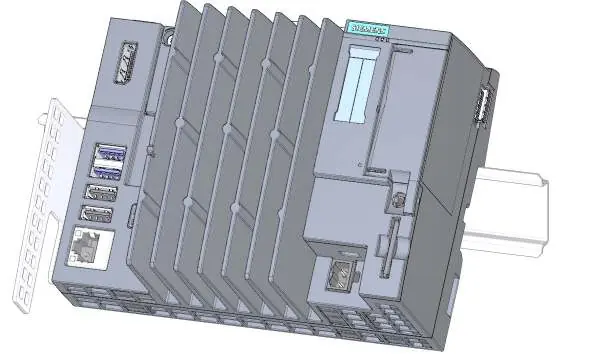
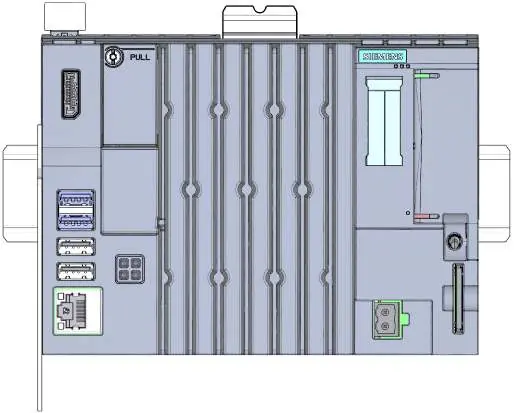
The CPU 1515SP PC2 is a modular system mounted on a standard EN 60715 rail. It features a removable CFast card for storage, multiple Ethernet and USB interfaces, and a DisplayPort connection. The system is designed for fan-less operation and high robustness in industrial settings.
Installation
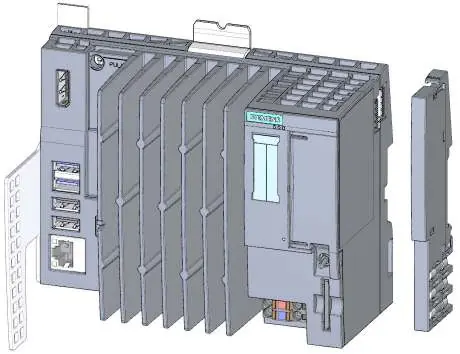
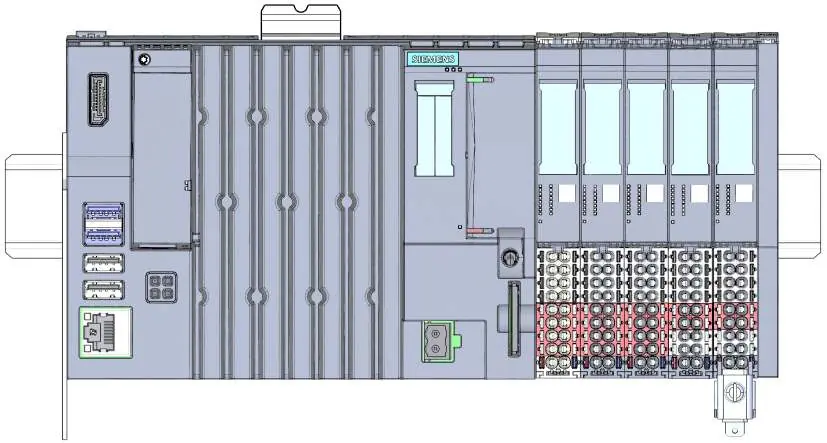
Install the CPU on a mounting rail. Ensure minimum clearances of 20 mm above and 10 mm to the side for proper ventilation. Fix the strain relief to the top and bottom of the left-hand side of the CPU using the supplied screws to prevent cables from detaching due to vibration.
Wiring
The CPU requires a 24 V DC supply voltage. Connect PROFINET IO devices via the X1 PN(LAN) interface using an approved BusAdapter. Use Category 5e Ethernet cables for 1000 Mbps operation. Always secure USB and PROFINET cables to the strain relief using cable ties, especially in environments with high vibration.
Commissioning
Before first use, ensure the CPU is mounted, the CFast card is inserted, and no USB data carriers are connected. Connect a monitor via DisplayPort and a keyboard/mouse via USB. Upon power-up, the device will prompt for basic settings and an administrator password. The system is pre-installed with Windows 10 IoT Enterprise and the S7-1500 Software Controller.
Maintenance
Regular maintenance includes BIOS updates, data backups, and managing the CFast card. Use the SIMATIC IPC Image & Partition Creator for backups. The "Unified Write Filter" (UWF) can be enabled to protect the CFast card from frequent write cycles. If the device needs to be sent for repair, back up your data and license keys, then remove the CFast card and SD/MMC cards.
Troubleshooting
The CPU features LED indicators (RUN/STOP, ERROR, MAINT, POWER) to display the operating state and diagnostics. If the CPU does not work, check the power supply. If time/date settings are incorrect, check Windows settings. If USB devices fail, ensure the USB power supply is not overloaded.
Manufacturer information
Siemens AG
Practical help
Common problems
CPU does not work
Check the power supply.
Time and/or date of the CPU is not correct
Check the settings in Windows.
USB device is not working
USB power supply is overloaded; use an external power supply for the USB device.
Before use
- Ensure the mounting rail is fitted.
- Check packaging and contents for visible damage.
- Ensure the supplied CFast card is inserted.
- Ensure no data carriers are connected via USB.
- Connect a monitor using a DisplayPort cable.
- Connect a keyboard and a mouse to the CPU via USB.
Specs in practice
- Supply voltage
- 24 V DC (19.2 to 28.8 V DC).
- Operating temperature
- -20 °C to 60 °C (horizontal) or 50 °C (vertical) depending on configuration.
Images and diagrams
- Block diagram shows X1/X2 interfaces, USB ports, power supply, and LED indicators.
- Dimension drawings provide front and side views for cabinet installation.
Model compatibility
- Requires TIA Portal V18 or higher.
- Compatible with ET 200SP modules.
- Requires Windows 10 IoT Enterprise (64-bit LTSC 2021).

Manual page author
Emily Carter
User documentation editor
Prepares concise manual descriptions and highlights the most useful setup, operation, and maintenance information for readers.