Industrial / Process Controllers
SIMATIC ODK 1500S V2.5 SP4 Programming and Operating Manual
Comprehensive programming and operating manual for the SIMATIC Open Development Kit (ODK) 1500S V2.5 SP4. This guide covers installation, licensing, developing custom CPU function libraries for Windows and Realtime environments, creating...
Table of contents
Manual images
Click an image to enlargeQuick guide from the manual
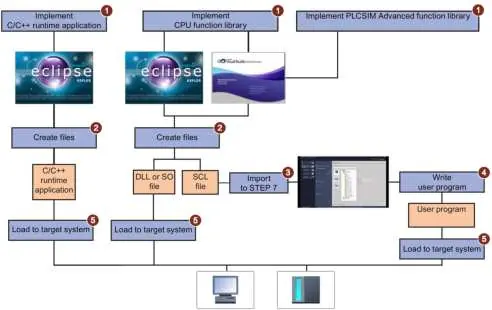
The Open Development Kit (ODK) 1500S allows you to program custom functions and generate files that can be called directly by STEP 7. The general development workflow involves:
- Implement: Write your function in Visual Studio (for Windows/PLCSIM) or Eclipse (for Realtime).
- Create: Generate the DLL or SO file and the corresponding SCL file.
- Import: Import the SCL file into your STEP 7 project.
- Write: Integrate the ODK instructions into your user application.
- Load: Load the user program into the CPU and the DLL/SO file into the target system.
Product Overview
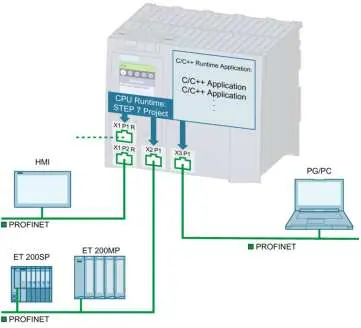
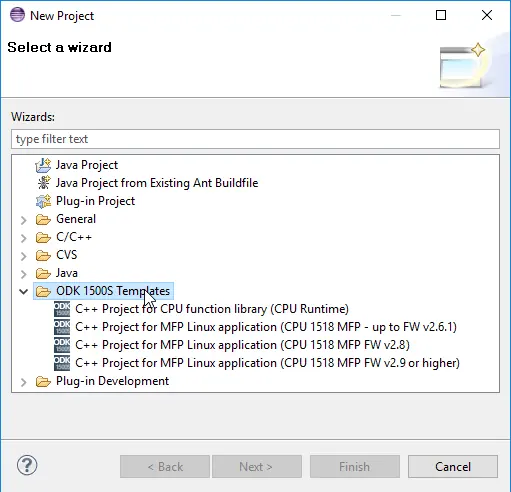
ODK 1500S supports two main environments:
- Windows Environment: Executes on a Windows PC, allowing access to Windows resources and external hardware/software components. Uses DLL files.
- Realtime Environment: Executes directly on the CPU, allowing synchronous function calls. Uses SO files.
Installation and Licensing
Before installation, ensure your PC meets the system requirements (Windows 8.1/10/11, 4GB RAM, Intel Core i5). The installation includes project templates for Visual Studio and Eclipse. A product-specific license key is required, managed via the Automation License Manager.
Developing CPU Function Libraries
The interface description is defined in the <project>.odk file. Key parameters include:
- Context: Defines if the library runs in 'user' or 'system' context (Windows) or 'realtime' context.
- STEP7Prefix: Defines the string preceding your functions in STEP 7.
- Trace: Enables/disables trace functionality for debugging.
Executing Functions
Functions are loaded and unloaded using specific instructions in the STEP 7 user program:
- <STEP7Prefix>_Load: Activates the loading of the CPU function library.
- <STEP7Prefix>_Unload: Unloads the library.
- <STEP7Prefix>SampleFunction: Executes the custom function.
Debugging and Troubleshooting
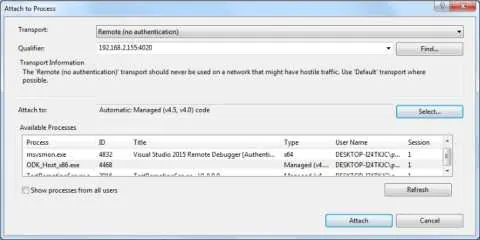
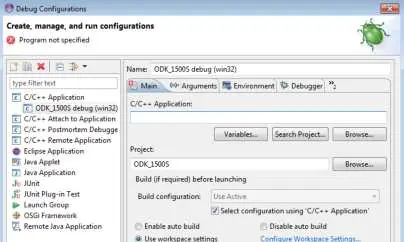
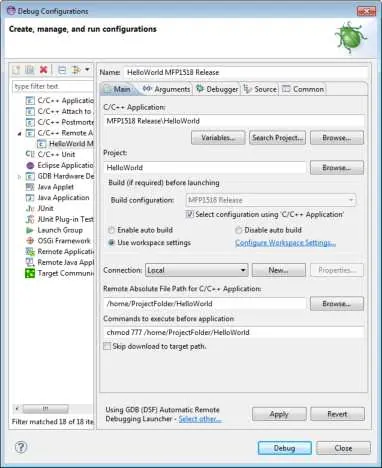
The ODK supports remote debugging via Visual Studio for Windows-based libraries. For Realtime environments, a Post Mortem analysis tool is available to evaluate system state after an exception. Use the GetTrace function block to read trace buffers for diagnostic purposes.
Manufacturer information
Siemens AG
Practical help
Common problems
CPU function library could not be loaded
Verify the DLL/SO file is valid, ensure 32/64-bit compatibility, check if the ODK version is supported, and ensure the ODK service is running.
Insufficient memory for loading
Check the available memory for the specific CPU model and ensure the SO file size does not exceed the limit.
Communication disturbance
If a communication error occurs, ensure the ODK service is running or restart Windows.
Before use
- Ensure PC meets system requirements (Windows 8.1/10/11, 4GB RAM, Intel Core i5).
- Install SIMATIC STEP 7 Professional (TIA Portal) V15 or higher.
- Install required development tools (Visual Studio or Eclipse).
- Obtain a valid license key via Automation License Manager.
- Enable the Web server in your STEP 7 project for file transfer.
Specs in practice
- Context=user
- Library is loaded in the Windows user context; requires a user to be logged on.
- Context=system
- Library is loaded in the Windows system context (Session 0); does not require a user login.
- SyncCallParallelCount
- Defines the maximum number of parallel calls allowed in a CPU function library.
Images and diagrams
- Figure 3-1: Overview of how CPU function libraries work and run on a PC.
- Figure 3-4: Overview of the development steps from implementation to loading.
- Figure 6-4: Calling functions in the realtime environment.
Model compatibility
- Compatible with CPU 1505SP, 1507S, 1508S, and 1518-4 PN/DP MFP.
- WSTRING data type > 253 characters requires ODK version >= V2.5 SP1.
- PLCSIM Advanced requires its own function library type.

Manual page author
David Miller
Documentation analyst
Organizes user manual content into clear summaries, with attention to model details, product context, and everyday usability.