Computers / Cooling Systems
User Manual for Silverstone Air Nexus 120 ARGB Case Fan
Quick guide for the Silverstone Air Nexus 120 ARGB case fan. Learn how to connect fans to your motherboard or optional hub, understand the interlocking mechanism, and follow safety guidelines for optimal cooling and lighting.
Table of contents
Manual images
Click an image to enlargeQuick guide from the manual
The Silverstone Air Nexus 120 ARGB is designed for efficient cooling and customizable lighting. To ensure optimal performance and longevity, please adhere to the following guidelines:
- Do not hot-swap: Never connect or disconnect fans while the system is running to avoid damaging the fans.
- Fan limit: Connect a maximum of 3 fans together to maintain the best lighting and cooling performance.
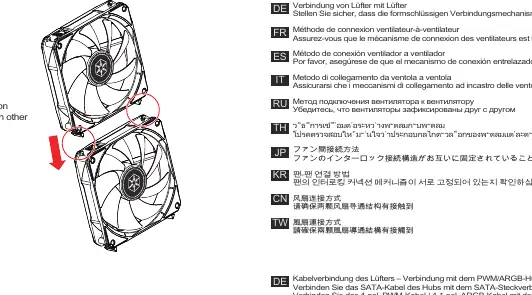
- Interlocking: Ensure the interlocking mechanism is securely fastened when connecting multiple fans.
Installation and connection
The fans can be connected directly to the motherboard or via an optional PWM/ARGB hub.
Fan-to-fan connection
Before installing the fans into your case, align the interlocking mechanisms on the sides of the fans and snap them together securely. Verify that they are firmly attached to each other.
Connection to motherboard
If connecting directly to the motherboard:
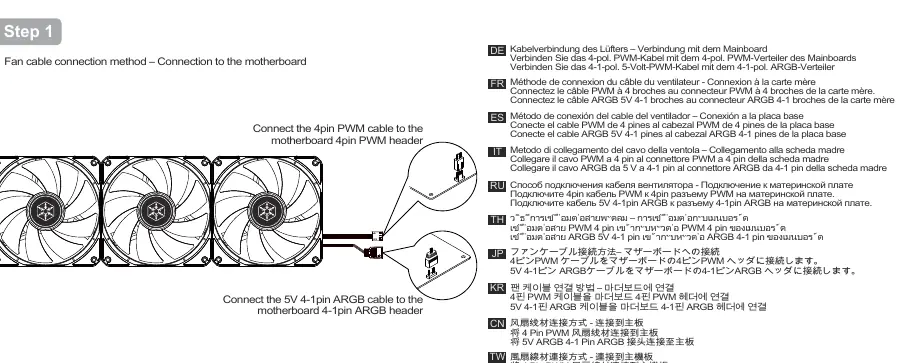
- Connect the 4-pin PWM cable to the motherboard's 4-pin PWM header.
- Connect the 5V 4-1 pin ARGB cable to the motherboard's 4-1 pin ARGB header.
Connection to optional PWM/ARGB hub
If using an optional hub:
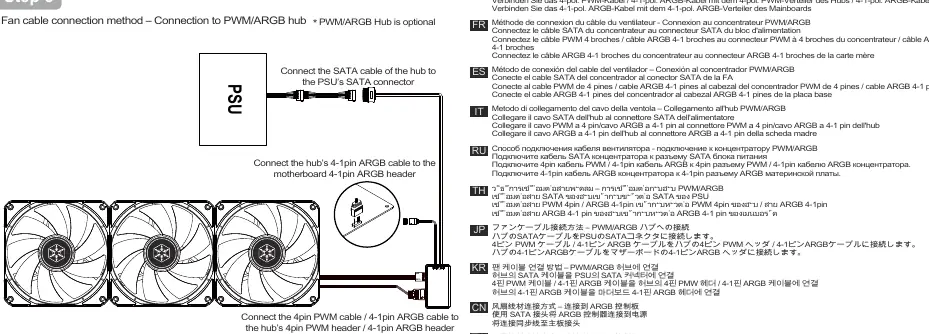
- Connect the hub's SATA cable to the power supply unit (PSU) SATA connector.
- Connect the fan's 4-pin PWM cable and 4-1 pin ARGB cable to the hub's corresponding headers.
- Connect the hub's 4-1 pin ARGB cable to the motherboard's 4-1 pin ARGB header.
Manufacturer information
SilverStone Technology Co., Ltd.
Practical help
Common problems
Fan lighting or speed control not working
Ensure the SATA power cable is connected to the PSU (if using a hub) and that all PWM/ARGB cables are fully seated in the motherboard headers.
Fans are loose or not aligned
Check the interlocking mechanism on the side of the fan frames and ensure they are snapped together completely.
Before use
- Ensure the PC is powered off before making any connections.
- Verify your motherboard has available 4-pin PWM and 4-1 pin ARGB headers.
- Confirm if you are using an optional PWM/ARGB hub for your setup.
- Check that you are not exceeding the recommended limit of 3 fans.
Images and diagrams
- Step 1 illustrates the direct connection of PWM and ARGB cables to the motherboard.
- Step 2 demonstrates how to interlock multiple fans together.
- Step 3 shows the wiring path when using an optional PWM/ARGB hub.
Model compatibility
- Supports a maximum of 3 fans in a single chain.
- Requires 4-pin PWM and 4-1 pin ARGB headers on the motherboard.

Manual page author
Michael Turner
Technical manual editor
Reviews PDF manuals for structure, safety notes, and practical product details so readers can find the right information quickly.