Electronics / Networking
Quick Start Guide for SonicWall NSa 5700
Get started with your SonicWall NSa 5700 firewall. This guide covers package contents, front and rear panel layouts, initial power-on, and setup procedures via local management, cloud, or the SonicExpress app.
Table of contents
Manual images
Click an image to enlargeQuick guide from the manual
This document provides the essential steps to install, power on, and perform the initial configuration of the SonicWall NSa 5700 network security appliance. It covers physical connections, panel indicators, and setup methods including local management, cloud management, and the SonicExpress mobile app.
Package Contents
- SonicWall NSa 5700 appliance
- Ethernet cable
- Serial console cable (RJ45 to DB9)
- Rack mount kit
- Power cord
- Quick Start Guide and regulatory documentation
Front Panel
The front panel contains the following interfaces and indicators:
- MGMT Port (RJ45): Dedicated 1GE interface for appliance management and SafeMode access.
- Console Port (RJ45): Serial console for CLI access.
- X26-X31: 10/5/2.5GE SFP+ ports with status LEDs.
- X24-X25: 10/5/2.5/1GE Copper RJ45 LAN Bypass ports.
- X0-X23: 1GE Copper RJ45 ports.
- SafeMode Button: Recessed button used to enter SafeMode for recovery.
- Power Button: Controls power state (short press for ON/OFF, long press for forced shutdown).
Rear Panel
The rear panel includes:
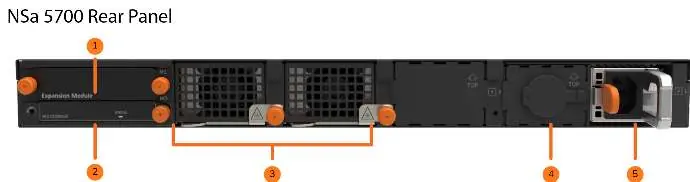
- M1 Slot: Optional extended storage (SSD).
- M0 Slot: M.2 Module boot drive.
- System Fans: Two cooling fans.
- Power Inputs: Primary power input and a redundant power input (cover plate installed if not used).
Connect and Power On
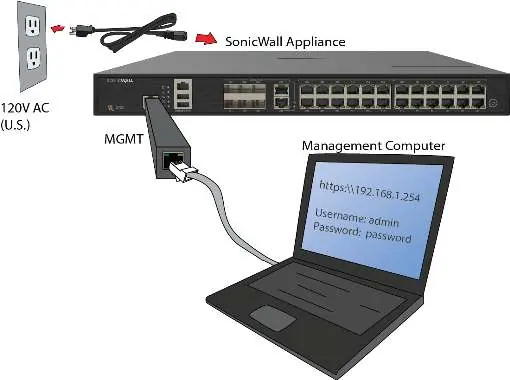
- Connect the provided power cord to the appliance and an electrical outlet (100-240 volts). The startup sequence takes approximately eight minutes.
- Connect the NSa LAN interface (X0 by default) to your local, internal network.
- Connect the NSa WAN interface (X1) to the Internet.
Setup Options
You can configure the appliance using one of the following methods:
- Local Management: Connect a computer to the MGMT interface via Ethernet.
- Cloud Management: Use SonicWall Capture Security Center (CSC) and Network Security Manager (NSM) with Zero Touch.
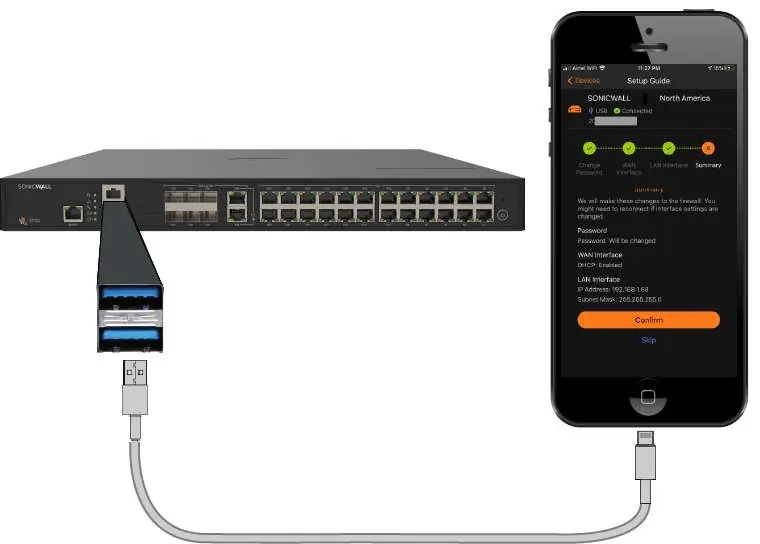
- SonicExpress App: Use the mobile app on your smartphone to register and configure the device.
Initial Setup and Registration (Local Management)
- Configure your computer with an IP address in the 192.168.1.x subnet (e.g., 192.168.1.100) and a network mask of 255.255.255.0.
- Connect the MGMT interface to your computer using an Ethernet cable.
- Navigate to https://192.168.1.254 in your web browser.
- Log in with the default credentials: Username: admin, Password: password.
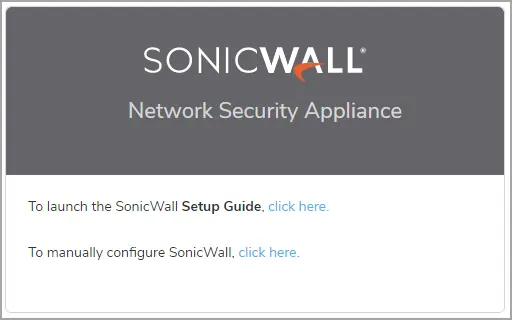
- Launch the Setup Guide wizard to configure the WAN interface and change the admin password.
- After setup, reconfigure your computer to obtain an IP automatically or set appropriate static settings.
- Connect to the LAN or WAN network and log into SonicOS/X (Default LAN IP: https://192.168.168.168).
- Click Register and enter your MySonicWall credentials.
Practical help
Common problems
Cannot access the Internet via the MGMT interface
You must configure a default gateway in the interface settings.
Startup seems stuck
The startup sequence takes about eight minutes to complete.
Cannot register the appliance
Ensure DNS settings are configured for the WAN interface. For DHCP WAN, DNS is set automatically.
Before use
- Verify the power cord is rated and approved for your location.
- Ensure your computer is set to the 192.168.1.x subnet for initial setup.
- Have your MySonicWall credentials ready for registration.
- Download the SonicExpress app if using mobile setup.
- Ensure you have a Cloud Management license if using the Cloud Management option.
Specs in practice
- SafeMode Button
- Recessed button used to enter SafeMode for recovery or re-imaging.
Images and diagrams
- Front Panel: Identifies port locations (MGMT, Console, SFP+, Copper) and LED status indicators.
- Rear Panel: Shows the location of power inputs, system fans, and storage slots (M0/M1).
- Wiring: Illustrates the connection of the power cord, MGMT port to a computer, and LAN/WAN cabling.
Model compatibility
- The MGMT port is for management only; it does not provide Internet access by default.
- The USB cable for SonicExpress setup is not supplied with the appliance.
- Cloud Management requires a specific Cloud Management license.

Manual page author
David Miller
Documentation analyst
Organizes user manual content into clear summaries, with attention to model details, product context, and everyday usability.