Electronics / Networking
Quick Start Guide for SonicWall NSsp 10700
A comprehensive quick start guide for the SonicWall NSsp 10700 network security appliance. Includes instructions for physical installation, front and rear panel layouts, initial power-on, and configuration via local management, cloud...
Quick answers from the manual
Quick answer
- The NSsp 10700 is a network security appliance. Initial setup involves connecting power, LAN, and WAN cables, then accessing the management interface via a web browser at 192.168.1.254 using default credentials (admin/password). p. 1, 2
Key actions
- Power on the appliance p. 1
- Connect to management computer p. 2
- Register the appliance p. 2
First start
- Configure computer with static IP 192.168.1.x p. 2
- Access web interface at 192.168.1.254 p. 2
Problems and fixes
Cannot reach internet via MGMT port
Configure a default gateway in the interface settings.
p. 2Maintenance and reset
- Use SafeMode button to enter recovery mode p. 1
Technical specifications
| Parameter | Value | Meaning | Pages |
|---|---|---|---|
| Default LAN IP | 192.168.168.168 | Default IP address for the LAN interface after setup. | p. 2 |
| Startup Time | 8 minutes | Time required for the startup sequence. | p. 1 |
Where to find it in the PDF
- Package Contents and Front Panel p. 1
- Setup and Registration p. 2
Table of contents
Manual images
Click an image to enlargeQuick guide from the manual
The SonicWall NSsp 10700 is a high-performance network security appliance. This guide covers the essential steps to get your device up and running, including physical connections, initial power-on, and management setup. The startup sequence takes approximately eight minutes.
Package Contents
- NSsp 10700 appliance
- Twinaxial cables (two 10G 1-meter cables, two 25G 1-meter cables)
- Ethernet cable
- Serial console cable (RJ45 to DB9)
- Power cords (2)
- Rack mount kit
- Quick Start Guide and regulatory documentation
Front Panel Overview
The front panel contains various ports and status indicators:
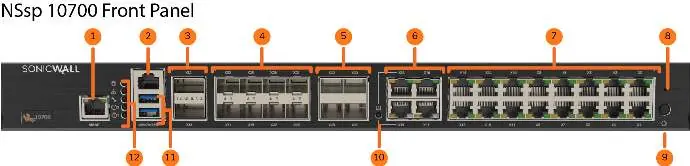
- MGMT Port: Dedicated 1GE interface for appliance management and SafeMode access.
- Console Port: Serial console for CLI access.
- QSFP28 Ports (X32-X33): 100/40GE ports. Note: Breakout cables are not supported.
- SFP28 Ports (X24-X31): 25/10/5/2.5GE ports.
- SFP+ Ports (X20-X23): 10/5/2.5GE ports.
- Copper RJ45 Ports (X0-X19): 1GE ports. X18 and X19 function as LAN Bypass ports.
- SafeMode Button: Recessed button used to enter SafeMode for recovery.
Rear Panel Overview
- Power Button: Used for power on/off and graceful shutdown.
- USB 3.0 Ports: For configuration, recovery, re-imaging, and USB WWAN support.
- Storage: M1 1TB SSD Drive and M0 slot for M.2 boot module.
- Power: Dual redundant power supplies.
- Fans: Three system fans.
Connect and Power On
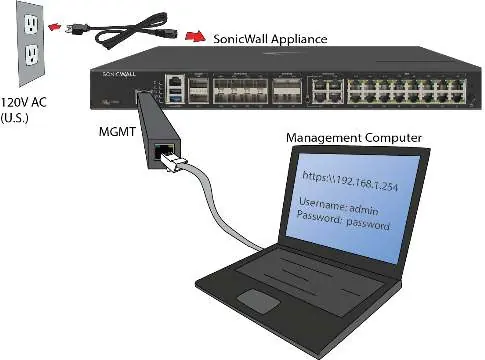
- Connect the provided power cord to the appliance and an electrical outlet (100-240 volts).
- Connect the NSsp LAN interface (X0 by default) to your local, internal network.
- Connect the NSsp WAN interface (X1) to the internet.
Setup Options
You can manage your NSsp using one of the following methods:
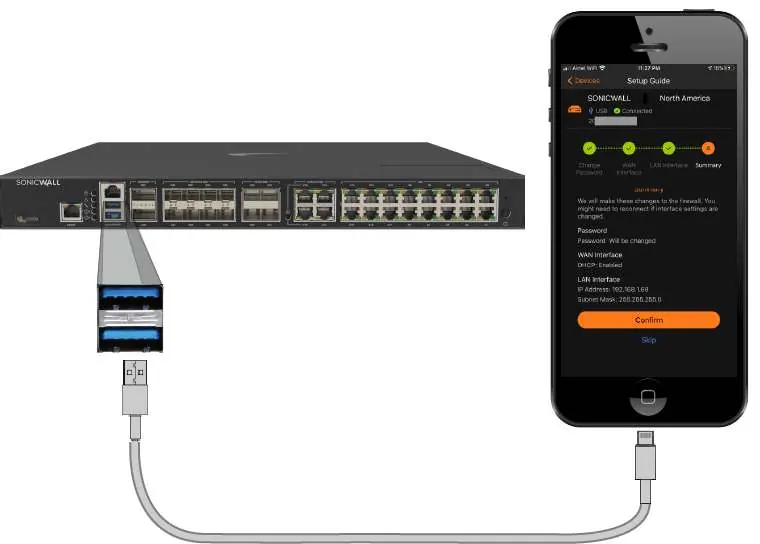
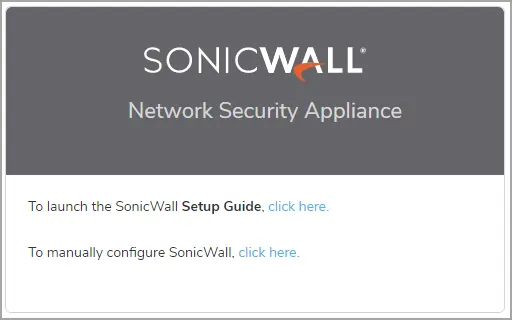
- Local Management: Connect via Ethernet to a management computer. Requires setting a static IP (192.168.1.x) on your computer and navigating to https://192.168.1.254.
- Cloud Management: Use SonicWall Capture Security Center (CSC) and Network Security Manager (NSM) with Zero Touch. Requires a Cloud Management license.
- SonicExpress App: Use the mobile app on your smartphone to register and configure the appliance via USB cable.
Initial Setup (Local Management)
- Configure your computer with a static IP address in the 192.168.1.x subnet (e.g., 192.168.1.100) and netmask 255.255.255.0.
- Connect the MGMT interface to your computer.
- Access https://192.168.1.254 in a web browser.
- Log in with default credentials: Username: admin, Password: password.
- Follow the Setup Guide wizard to configure your WAN interface and change the admin password.
- After setup, reconfigure your computer to obtain an IP automatically or set appropriate static settings.
- Connect to the LAN/WAN network and log in via the default LAN IP: https://192.168.168.168.
Practical help
Common problems
Cannot access the internet via the MGMT port
You must configure a default gateway in the interface settings.
Cannot register the appliance
Ensure DNS settings are configured for the WAN interface.
Before use
- Verify power cord rating for your region
- Ensure screen resolution is at least 1920x1080 for management
- Have a static IP address ready for the management computer (192.168.1.x subnet)
- Ensure you have a USB cable for SonicExpress app setup (not supplied)
Images and diagrams
- Front panel shows port layout and LED status indicators
- Rear panel shows power supply and fan locations
- Connection diagram illustrates cabling for power, LAN, and WAN
Model compatibility
- Breakout cables are not supported on QSFP28 ports
- Requires Cloud Management license for CSC/NSM

Manual page author
David Miller
Documentation analyst
Organizes user manual content into clear summaries, with attention to model details, product context, and everyday usability.