Electronics / Microphones
User Guide for DJI Cellular Dongle
Quick start guide for the DJI Cellular Dongle (LTE USB Modem). Learn how to install the nano-SIM card, connect to compatible devices, and understand the status indicator lights.
Quick answers from the manual
Quick answer
- The DJI Cellular Dongle is an LTE USB modem that provides internet connectivity to compatible devices using a nano-SIM card. It powers on automatically when connected to a powered-on device. p. 6
Key actions
- Insert nano-SIM card p. 6
- Connect to device p. 6
First start
- The dongle powers on automatically when the connected device is powered on. p. 6
Problems and fixes
Solid red indicator
No SIM card detected. Check if SIM card is in good condition and inserted correctly.
p. 7
Blinks red indicator
SIM card inserted, but no network signal. Check the network signal coverage and the network service of the SIM card.
p. 7Maintenance and reset
- To remove the SIM card, open the cover and press the SIM card to release it. p. 6
Technical specifications
| Parameter | Value | Meaning | Pages |
|---|---|---|---|
| Operating Voltage/Current | 5 V, 1 A | Power requirements | p. 7 |
| Operating Temperature | -20° to 55° C | Operating environment temperature range | p. 7 |
Where to find it in the PDF
- Installation p. 6
- Status Indicators p. 6, 7
- Specifications p. 7
Table of contents
Manual images
Click an image to enlargeQuick guide from the manual
The DJI Cellular Dongle (LTE USB Modem) allows users to connect to the internet and transmit data between devices using a network service and a nano-SIM card. The device powers on automatically when the connected device is powered on.
Installation
Installing the SIM Card:
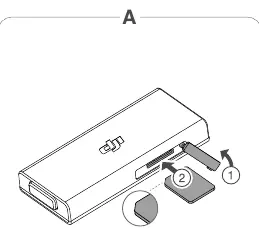
- Open the SIM card slot cover on the dongle as shown in Figure A.
- Insert the nano-SIM card into the slot in the direction indicated in the figure.
- Close the cover.
Note: To remove the SIM card, open the cover and press the SIM card to release it.
Connecting to a Device
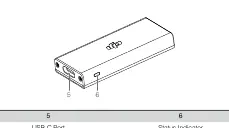
The dongle can connect to a computer or other compatible devices. Connect the USB-C port on the dongle to the corresponding port on your device using a compatible cable.
Status Indicator Descriptions
The status indicator shows the current working status of the dongle:
- Solid green: Strong 4G signal
- Blinks green: Weak 4G signal
- Solid blue: Strong 2G/3G signal
- Blinks blue: Weak 2G/3G signal
- Solid red: No SIM card detected. Check if the SIM card is in good condition and inserted correctly.
- Blinks red: SIM card inserted, but no network signal. Check network signal coverage and the network service of the SIM card.
Specifications
- Telecommunication Standards: TDD-LTE/FDD-LTE/WCDMA/GSM
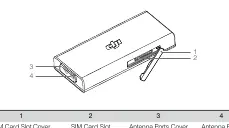
- Interface: USB-C port, nano-SIM card slot, TS-5 antenna ports
- Antennas: Dual antennas
- Dimensions: 52.4 x 23 x 8 mm
- Weight: Approx. 15 g
- Operating Voltage/Current: 5 V, 1 A
- Operating Temperature: -20° to 55° C
Safety Warnings
- The dongle does not include a SIM card. Users are responsible for selecting a compatible SIM card and data plan.
- Only supports nano-SIM cards.
- Do not touch the dongle when in use as it may be hot.
- This product is not a toy. Keep out of reach of children.
- Only connect to specified devices (Windows computers and compatible DJI devices).
Manufacturer information
DJI
Practical help
Common problems
No SIM card detected
Check if the SIM card is in good condition and inserted correctly.
SIM inserted but no network signal
Check the network signal coverage and the network service of the SIM card.
Dongle is hot
Do not touch the dongle when it is in use.
Before use
- Ensure you have a nano-SIM card.
- Verify that your device (computer or DJI product) is compatible.
- Check for network signal coverage in your area.
Specs in practice
- Operating Voltage/Current
- 5 V, 1 A
- Operating Temperature
- -20° to 55° C
Images and diagrams
- Figure A: Shows the SIM card slot cover and the direction to insert the nano-SIM card.
- Ports 1-4: SIM Card Slot Cover, SIM Card Slot, Antenna Ports Cover, Antenna Ports.
- Ports 5-6: USB-C Port, Status Indicator.
Model compatibility
- Compatible with Windows computers and specified DJI devices.
- Only supports nano-SIM cards.

Manual page author
David Miller
Documentation analyst
Organizes user manual content into clear summaries, with attention to model details, product context, and everyday usability.