Electronics / Security Cameras
Speco Technologies 04iT2 Network Camera Quick Start Guide
Quick start guide for the Speco Technologies 04iT2 network camera. Includes installation steps, wiring instructions, mounting procedures, and web interface login details.
Table of contents
Manual images
Click an image to enlargeQuick guide from the manual
This document provides essential instructions for installing and configuring the Speco Technologies 04iT2 network camera. Ensure you have a 12VDC Class 2 power supply or a PoE switch before starting. The camera is set to DHCP by default, and the default login credentials are admin/1234.
Important Safeguards and Warning
- Electrical Safety: Ensure installation conforms to local codes. The product must be grounded to reduce the risk of electric shock.
- Environment: Do not install near heat sources, power lines, or radar equipment. Ensure the environment is within the specified temperature and humidity range.
- Maintenance: Shut down and unplug the device before maintenance. Do not touch the CMOS sensor. Use a blower or dry soft cloth for cleaning.
Package Contents
Before installation, verify that the package includes the camera, quick start guide, CD, drill template, screwdriver, junction box, and all necessary screws, anchors, and rubber o-rings.
Device Overview
The camera features several connectors and components:
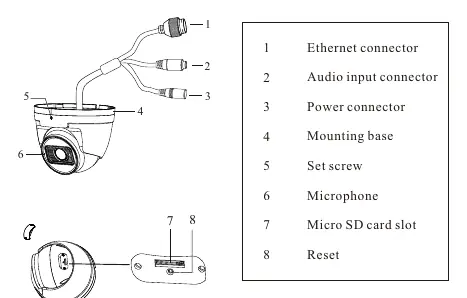
- Connectors: Ethernet, Audio input, and Power connector.
- Mounting: Mounting base and set screw.
- Internal: Microphone, Micro SD card slot, and Reset button.
Installation
Ensure the wall or ceiling can support three times the weight of the camera and junction box.
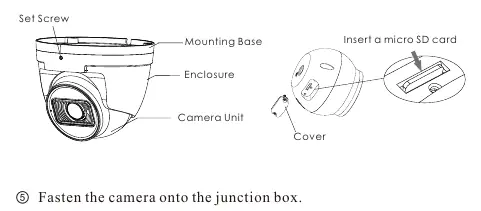
- Junction Box: Open the mounting base and upper cover. Use the drill template to mark and drill holes on the wall. Install the junction box using the provided screws.
- SD Card: Loosen the set screw to disassemble the camera. Remove the cover from the camera unit to insert the Micro SD card. Reinstall the cover firmly.
- Mounting: Fasten the camera onto the junction box.
- Adjustment: Adjust the camera angle to obtain the optimum view. Preview the image on a monitor before tightening the set screw to finish the installation.
Wiring
For outdoor installations, it is recommended to use the included water-proof connector. Run the network cable through the connector elements, crimp the RJ45 connector, and tighten the nut and main cover to ensure a weather-proof seal.
Web Operation and Login
To access the camera:
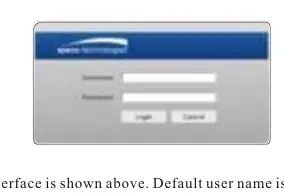
- Ensure the camera and PC are on the same local network.
- Install the IP Scanner software from the provided CD or download it from the Speco Technologies website.
- Run the scanner to find the camera's IP address.
- Double-click the device in the list or enter the IP address into a web browser.
- Log in using the default username admin and password 1234.
Practical help
Common problems
Camera not found on network
Ensure the camera and PC are connected to the same local network. The camera uses DHCP by default.
Dirt or grease on the lens
Use an oil-free soft brush or hair dryer for dust. For grease or fingerprints, use an oil-free cotton cloth soaked with alcohol or detergent, wiping from the center outward.
Login failed
Use the default credentials: username 'admin' and password '1234'.
Before use
- Verify that the wall or ceiling can support three times the weight of the camera and junction box.
- Ensure you have a certified 12VDC Class 2 power supply or a compatible PoE switch.
- Check that all components (screws, anchors, junction box) are present in the package.
- Have a PC ready with the IP Scanner software installed.
- Ensure the installation environment is within the specified temperature and humidity range.
Images and diagrams
- The wiring diagram illustrates the connection of the Ethernet, Audio, and Power cables, highlighting the use of the water-proof connector.
- The installation diagram shows the sequence of mounting the junction box to the wall and attaching the camera assembly.
Model compatibility
- Installation must be performed by qualified personnel only.
- Outdoor installations require the use of the provided water-proof connector to prevent weather intrusion.

Manual page author
David Miller
Documentation analyst
Organizes user manual content into clear summaries, with attention to model details, product context, and everyday usability.