Electronics / USB Hubs & Docking
User Guide for StarTech 115B-USBC Multiport Adapter
Quick-start guide for the StarTech 115B-USBC Multiport Adapter. Learn how to connect peripherals, use the card readers, set up HDMI displays, and manage power delivery.
Table of contents
Quick Start Guide
The StarTech 115B-USBC Multiport Adapter is a plug-and-play device designed to expand your computer's connectivity. It connects via a built-in USB-C cable. Ensure your host computer's USB-C port supports DisplayPort (DP) Alt Mode if you intend to use the HDMI output for video.
Product Overview
The adapter features the following ports and components:
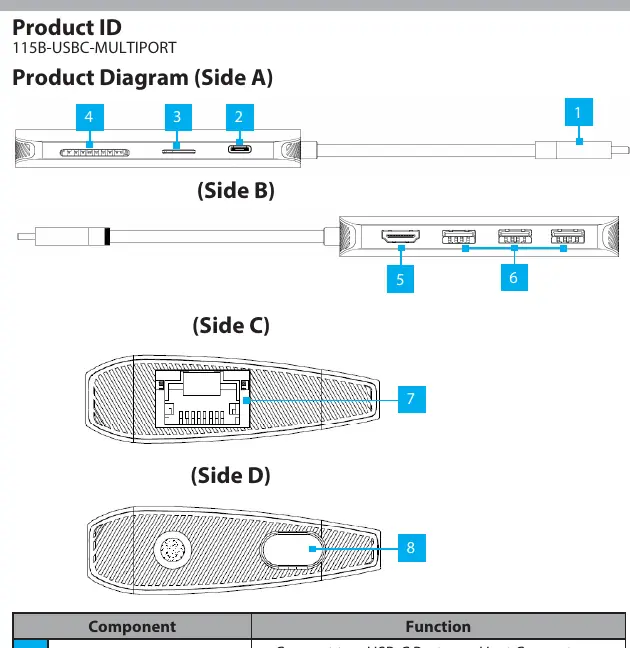
- Built-in USB-C Host Cable: Connects to your host computer.
- USB-C Power Delivery Port: Supports up to 100W pass-through charging.
- MicroSD and SD Card Readers: For memory card access.
- HDMI Output Port: Supports up to 4K 60Hz resolution.
- USB-A Data Ports: Three ports for connecting peripherals (USB 3.1 Gen 1).
- Gb Ethernet Port: For wired network connections (10/100/1000Mbps).
- Cable Management Port Plug: Used to secure the host cable during storage.
Installation
- Connect the built-in USB-C host cable to your computer. The system will automatically detect the device and install necessary drivers.
- To use Power Delivery, connect a USB-C power adapter to the USB-C PD port on the adapter.
- Connect your peripherals (HDMI display, USB devices, Ethernet cable) to the respective ports on the adapter.
- Insert memory cards into the appropriate slots.
Power Delivery
The adapter supports USB Power Delivery 3.0. It reserves 15W of power for its own operation. If you connect a 100W power adapter, up to 85W will be available for charging your connected laptop. Ensure your power adapter provides sufficient wattage to cover both the adapter's requirements and your laptop's charging needs.
Card Readers
The adapter includes both SD and MicroSD card slots. Note that only a single card slot can function at a time. The adapter prioritizes the SD slot over the MicroSD slot. Always safely eject the card within your computer's operating system before physically removing it from the adapter.
Video and Networking
The HDMI port supports HDMI 2.0b HDR10 and resolutions up to 4K (4096x2160) at 60Hz, provided your host computer supports DP Alt Mode. The Gigabit Ethernet port supports standard CAT 5e or CAT 6 cables for wired LAN access.
Practical help
Common problems
Video output not working
Ensure your host computer's USB-C port supports DP Alt Mode.
Card reader not recognized
Only one card slot works at a time; the SD slot is prioritized over the MicroSD slot. Ensure no card is inserted in the SD slot if you are trying to use the MicroSD slot.
Laptop not charging
The adapter reserves 15W of power. Ensure your power adapter provides enough wattage to cover this 15W overhead plus your laptop's charging requirements.
Before use
- Verify your host computer has a USB-C port.
- Check if your computer supports DP Alt Mode for HDMI video output.
- Ensure you have a compatible USB-C power adapter if using Power Delivery.
- Have a CAT 5e or CAT 6 cable ready for Ethernet connection.
Specs in practice
- Power Delivery (PD)
- Allows charging your laptop through the adapter using a USB-C power adapter.
- 15W Reserved
- Power consumed by the adapter itself, reducing the total power available for laptop charging.
Images and diagrams
- Side A: USB-C Host Cable and Power Delivery Port.
- Side B: HDMI, USB-A, and Ethernet ports.
- Side C: SD and MicroSD card slots.
Model compatibility
- Requires USB-C port with DP Alt Mode for video output.
- SD slot takes priority over MicroSD slot.
- Supports up to 100W PD input.

Manual page author
David Miller
Documentation analyst
Organizes user manual content into clear summaries, with attention to model details, product context, and everyday usability.