Electronics / USB Hubs & Docking
User Manual for StarTech.com 101N-USBC-DOCK USB-C Dual Monitor Dock
Quick-start guide for the StarTech.com 101N-USBC-DOCK. Learn how to connect your dual monitors, peripherals, and power supply to this USB-C docking station.
Table of contents
Quick Start Guide
This guide provides the essential steps to set up and use your StarTech.com 101N-USBC-DOCK. Before beginning, ensure your host computer has a USB-C port that supports DisplayPort (DP) Alt Mode, as this is required for video output.
Product Overview
The docking station features various ports for connectivity:
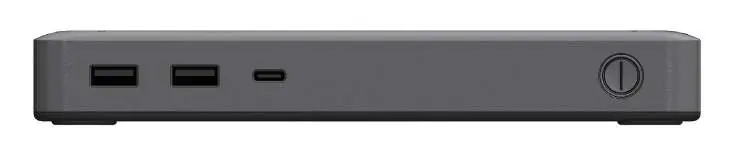
- Power Button: Powers the dock on and off.
- USB-C Data Port: Supports USB 3.2 Gen 1 (5Gbps) and up to 10W power.
- USB-A Data Ports: Various ports supporting USB 3.2 Gen 1 (5Gbps) and USB 2.0 (480Mbps) with different power outputs (4.5W and 2.5W).
- Video Outputs: Includes DisplayPort, HDMI 2.0b HDR, and VGA ports, supporting up to 4K resolution (DisplayPort/HDMI) or 1080p (VGA).
- USB-C Host Port: Screw-locking port for connection to the host computer, supporting DP Alt Mode and Power Delivery 3.0.
- DC 20V Port: For connecting the universal power adapter.
- Lock Slots: Standard and Nano slots for security devices.
Installation
- Connect the included USB-C Host Cable from the USB-C Host Port on the dock to a DP Alt Mode Enabled USB-C Port on your host computer. The computer will automatically detect and install the dock.
- Connect your USB-A peripheral devices to the USB-A Data Ports.
- Connect your USB-C peripheral devices to the USB-C Data Port.
- If using a security lock, attach a K-Slot style locking device to the Regular or Nano Lock Slots.
- Connect the Power Adapter to the DC 20V Port on the dock.
- Connect the power cable from the adapter to an AC electrical outlet.
Connecting Displays
You can connect up to two displays using the following methods:
- HDMI: Connect an HDMI cable from an HDMI-enabled display device to the HDMI Output Port.
- DisplayPort: Connect a DisplayPort cable from a DisplayPort-enabled display device to the DisplayPort Output Port.
- VGA: Connect a VGA cable from a VGA-enabled display device to the VGA Output Port.
Note: Video performance, including resolution and refresh rate, depends on the host computer's video controller.
Technical Support
For the latest requirements, manuals, FAQs, videos, drivers, and technical drawings, visit www.startech.com/support.
Official resources from the manual
Practical help
Common problems
No video output on connected displays
Ensure the host computer's USB-C port supports DP Alt Mode. Video output will not function without this feature.
Dock not detected by computer
Verify that the USB-C host cable is securely connected to both the dock's host port and the computer's USB-C port.
Before use
- Verify host computer has a USB-C port with DP Alt Mode support.
- Ensure the included power adapter is connected to the DC 20V port.
- Connect the USB-C host cable to the dock and the host computer.
- Check that all peripheral cables are securely seated in their respective ports.
Specs in practice
- Power Delivery (PD) 3.0
- Allows the dock to provide power to the host computer through the USB-C connection.
- USB 3.2 Gen 1
- Standard for data transfer speeds up to 5Gbps.
Images and diagrams
- Diagram 1 illustrates the front panel, highlighting the power button and USB-C data port.
- Diagram 2 details the rear panel, showing the layout of USB-A ports, video outputs (DP, HDMI, VGA), the host port, and the power input.
- Diagram 3 shows the side panel, identifying the security lock slots.
Model compatibility
- Host computer must support DP Alt Mode for video output.
- Video resolution and refresh rate depend on the host computer's video controller capabilities.

Manual page author
David Miller
Documentation analyst
Organizes user manual content into clear summaries, with attention to model details, product context, and everyday usability.