Tools / Measuring Tools
Testo USB Driver Installation Guide
A comprehensive installation guide for the Testo USB driver on Windows 7, 8.1, and 10. Includes step-by-step setup instructions, virtual COM port configuration for Testo data loggers, and troubleshooting steps for driver issues.
Quick answers from the manual
Quick answer
- To install the Testo USB driver, ensure the device is disconnected, run TestoSetup.exe from the CD, and follow the on-screen wizard. Administrator rights are required. p. 5
Key actions
- Install the driver p. 5
- Find COM port number p. 6
First start
- Run the setup wizard p. 5
Problems and fixes
Driver installation not carried out correctly
Re-install driver via Device Manager (Update Driver).
p. 7Where to find it in the PDF
- Installation p. 5
- Virtual COM port settings p. 6
- Troubleshooting p. 7
Table of contents
Manual images
Click an image to enlargeQuick guide from the manual
This document provides instructions for installing the Testo USB driver on Windows operating systems. It is essential for users connecting Testo data loggers to a computer. Ensure you have administrator rights before beginning the installation.
Installation
Follow these steps to install the driver:
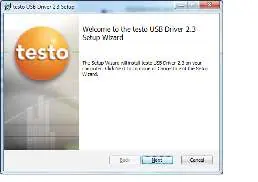

- Ensure the USB interface or adapter is not connected to the computer.
- Insert the CD-ROM. If the installation does not start automatically, open 'My Computer', select the CD drive, and double-click TestoSetup.exe.
- When prompted, confirm with Yes to allow the program to install.
- Follow the on-screen instructions in the setup wizard by clicking Next.
- Once the status shows 'Completed the testo USB driver Setup Wizard', click Finish.
Virtual COM port settings
This section applies to Testo 174, 175, 177, and 580 models. You need the COM interface number to connect the data logger to the Comsoft software.
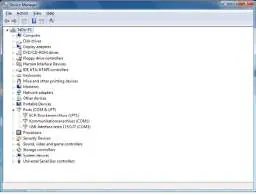
Prerequisites: The USB interface/adapter must be connected to the computer, and the drivers must be installed.
Steps to find the COM port:
- Windows 7: Go to Start > Control Panel > System and Security > System > Device Manager.
- Windows 8.1 / 10: Right-click Start > Device Manager.
- Click on Ports (COM & LPT) to display the entries.
- Look for entries labeled 'Testo...' followed by a COM interface number.
Note: The COM interface number remains the same only if you consistently use the same USB port or leave the interface connected.
Troubleshooting
If you encounter an error report in the instrument manager, the driver installation may not have been carried out correctly.
Error correction:
- Windows 7: Right-click the device in Device Manager, select Properties > Driver > Update Driver > OK.
- Windows 8.1 / 10: Right-click the device in Device Manager, select Properties > Driver > automatically.
If malfunctions persist, contact your dealer or Testo customer service.
Licence Agreement
The software is protected by copyright laws. This licence entitles you to use the software on a single computer. A limited guarantee is provided for 90 days from the date of purchase, covering functional capacity according to the documentation.
Official resources from the manual
Manufacturer information
Testo SE & Co. KGaA
Practical help
Common problems
Driver installation error or device not recognized
Re-install the driver via Device Manager. In Windows 7, use 'Update Driver'. In Windows 8.1/10, select 'Update Driver' and choose 'automatically'.
Before use
- Ensure you have administrator rights on the computer.
- Disconnect the USB interface/adapter before starting the installation.
- Have the CD-ROM ready.
- Ensure you are using a compatible Windows version (7, 8.1, or 10).
Images and diagrams
- The installation wizard screens guide you through the setup process.
- The Device Manager view shows the COM port assignment required for Comsoft software.
Model compatibility
- Compatible with Windows 7, Windows 8.1, and Windows 10.
- Applies to Testo 174 (0563 1741), Testo 175 (0563 1754-1761), Testo 177 (0563 1771-1775), and Testo 580 (0554 1778).

Manual page author
David Miller
Documentation analyst
Organizes user manual content into clear summaries, with attention to model details, product context, and everyday usability.