Electronics / Monitors
User Manual for UPERFECT 156T03 Portable Monitor
Quick guide for the UPERFECT 156T03 15.6-inch portable touchscreen monitor. Includes setup instructions, connection diagrams, OSD menu settings, and troubleshooting tips.
Table of contents
Manual images
Click an image to enlargeQuick Start Guide
The UPERFECT 156T03 is a 15.6-inch portable touchscreen monitor. To ensure proper operation, verify that your source device (laptop or phone) supports video and audio signal transmission via its USB-C port (USB 3.1 or Thunderbolt 3). If your device does not support this, you must use an HDMI connection with an external power supply.
Package Contents
- Portable Monitor
- Power Adapter
- Smart Cover
- Standard HDMI Cable
- Type-C to Type-C Cable
- USB A-C Cable
Installing the Stand Case
- Place the holster on the monitor; part 1 is magnetic.
- Ensure the monitor is securely attached; part 1 can be sticky.
- Fold the leather case part 5 to part 4.
- Stand up the monitor and adjust the angle as needed.
Interface and Buttons
- Standard HDMI Port: For signal transmission only.
- Type C Port: Supports both power supply and signal transmission.
- OTG Port: Micro USB interface for connecting a mouse and keyboard.
- Power Button: Press for 3 seconds to turn on/off.
- Menu Button: Enter the OSD (On-Screen Display) menu.
- + / - Buttons: Adjust volume and brightness/menu selection.
- Exit Port: Return to the previous operation.
- HP: Headphone jack.
Connecting the Monitor
Type-C Signal Transfer: Connect the monitor directly to your device using the Type-C to Type-C cable. Ensure the monitor is powered, preferably using the original PD adapter for stability.
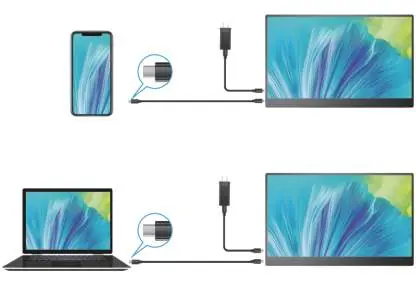
HDMI Signal Transfer: Connect the HDMI cable for video signal. You must also connect the monitor to an external power source using the USB-C cable and the original PD adapter, as HDMI does not provide sufficient power.
Screen Adjustment (OSD)
Use the Menu button to access the OSD menu. You can adjust settings such as:
- Picture: Brightness, Contrast, Black-equalizer, Game Mode.
- Color Effect: Saturation, Hue, Sharpness.
- Advance: Ultra HDR Mode, Eye Protection, 3D Sound, FreeSync.
- OSD Setting: H.Position, V.Position, Menu Time, Transparency.
Troubleshooting
If you encounter issues, check the following:
- No Signal/Power Saving: Verify the device supports USB 3.1/Thunderbolt 3. If not, use an HDMI adapter. Ensure the genuine cable is used.
- Monitor Restarting: The monitor requires high power. Use the original PD adapter or a power bank with at least 30W output.
- Splash Screen/Spots: Usually caused by insufficient voltage. Check cables and power supply.
- Camera Connection: Compatibility depends on the camera model. Contact support with your specific model details.
Service Support
For any queries or issues, contact the support team via email at [email protected]. The product includes a 30-day money-back guarantee, 90-day replacement, and a 12-month warranty.
Official resources from the manual
Practical help
Common problems
Monitor shows 'No Signal' or 'Power Saving'
Check if your device supports USB 3.1/Thunderbolt 3. If not, use an HDMI adapter. Ensure you are using the genuine cable provided.
Monitor is constantly restarting
The monitor requires high power. Use the original PD adapter or a power bank with at least 30W output.
Splash screen or spots on display
This is generally caused by insufficient voltage. Check that you are using the factory-packed cables and an external power supply.
Cannot connect camera directly
Compatibility depends on the camera model. Contact support with your camera model and interface details.
Before use
- Verify your PC/Laptop/Phone USB-C port supports audio/video signal (USB 3.1 or Thunderbolt 3).
- If using HDMI, ensure you have an external power supply connected via USB-C.
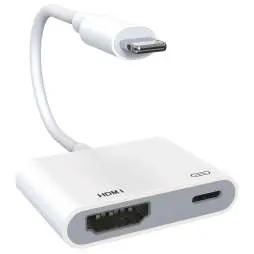
- If your device has a Lightning port, purchase a Lightning to HDMI adapter.
- Inspect all cables for damage before connection.
- Ensure you have the original PD adapter for stable power delivery.
Show more Show less
Specs in practice
- Refresh Rate
- 60Hz standard refresh rate.
Images and diagrams
- Type-C connection handles both power and video signal simultaneously.
- HDMI connection requires a separate USB-C power cable for operation.
- The magnetic holster serves as both a protective cover and a stand.
Model compatibility
- Requires full-feature USB 3.1 or Thunderbolt 3 for single-cable Type-C connection.
- Lightning devices require a Lightning to HDMI adapter.
- Power banks must support at least 30W output to prevent restarting.

Manual page author
Emily Carter
User documentation editor