Electronics / Monitors
User Manual for Uperfect 160U03 Portable Monitor
Comprehensive user guide for the Uperfect 160U03 portable monitor. Includes setup, connection instructions, OSD menu settings, and troubleshooting tips.
Table of contents
Manual images
Click an image to enlargeQuick Guide
The Uperfect 160U03 is a portable monitor requiring a stable power supply. For optimal performance, especially at 2K 120Hz, it is recommended to use an external power adapter (minimum 18W). Ensure your device's USB-C port supports full-featured signal transmission (USB 3.1/Thunderbolt 3). If your device does not support this, use the included Mini HDMI cable for video and a USB-C cable for power.
Package Contents
- Portable Monitor
- Power Adapter
- Smart Cover
- Mini HDMI to Standard HDMI Cable
- Type-C to Type-C Cables (x2)
- User Guide
Installing the Stand Case
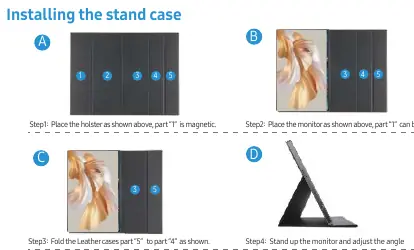
- Place the holster flat; part 1 is magnetic.
- Place the monitor on the holster so part 1 adheres to the monitor.
- Fold the leather case part 5 to part 4 to create the stand.
- Stand up the monitor and adjust the angle as needed.
Interface Function Introduction
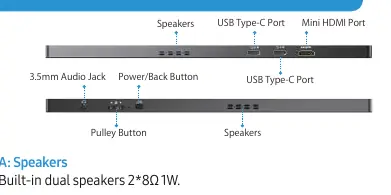
- Speakers: Built-in dual speakers (2x 8Ω 1W).
- USB Type-C Ports: Full-featured ports for power and signal transmission.
- Mini HDMI Port: For video signal transmission.
- Power/Back Button: Long press to turn on/off; short press to go back.
- Pulley Button: Scroll up/down to open volume/brightness menu; short press to enter OSD menu or confirm; long press to return.
- 3.5mm Audio Jack: For headphones.
- VESA Mount: 75x75mm (requires M3x4mm screws).
Connecting the Monitor
Type-C Signal Transfer: Connect your device to the monitor using a full-featured USB-C cable. If the power is insufficient, connect the original power adapter to the second USB-C port.
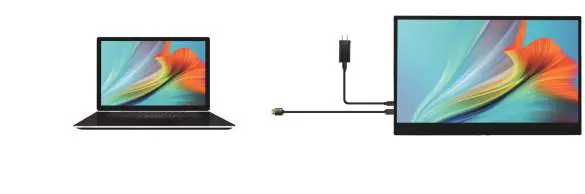
HDMI Signal Transfer: Connect the Mini HDMI cable to your device and the monitor. Connect the USB-C cable to the monitor and an external power adapter to ensure stable power.
Screen Adjustments
Use the Pulley Button to access the On-Screen Display (OSD) menu. You can adjust:
- Brightness: Brightness, Black Level, Contrast, ECO, DCR.
- Image: Aspect ratio settings.
- Color Temp: User, Red, Green, Blue settings.
- OSD Setting: Language, OSD position, transparency, and timer.
- Reset: Reset settings and HDR mode.
- Misc: Signal source, Low Blue Light, Volume, FreeSync, and OD.
Windows Setup
To configure display modes (Extend/Duplicate):
- Right-click on your desktop and select Display settings.
- Scroll to Multiple displays and select your preferred mode.
- Alternatively, press Windows Key + P to quickly toggle between display modes.
- To rotate the screen, go to Display settings, select the monitor, and change the Orientation under the Scale and layout section.
Troubleshooting
If the monitor does not turn on or displays "No Signal":
- Ensure the USB-C port on your device is full-featured.
- Use the original cables provided.
- If using a power bank, ensure it provides at least 30W of power.
- If the monitor turns off when increasing brightness, it indicates insufficient power; connect an external power adapter.
Practical help
Common problems
Monitor does not turn on
Check if the device's USB-C port supports signal transmission. If not, use HDMI for video and USB-C for power. Ensure external power is at least 18W.
No signal
Ensure your device supports USB 3.1/Thunderbolt 3. Use original cables and try a different device.
Monitor turns off when increasing brightness
This is due to insufficient power. Connect an external power adapter.
Splash screen or constant restarts
Usually caused by insufficient power. Use the original power adapter or a power bank with at least 30W output.
Before use
- Verify all package contents are present.
- Confirm your source device supports USB-C signal transmission (USB 3.1/Thunderbolt 3).
- Use the original cables provided in the box.
- Have an external power adapter ready if your device cannot provide sufficient power.
Show more Show less
Images and diagrams
- Page 2: Stand case assembly steps.
- Page 3: Port and button layout.
- Page 5: Connection diagrams for Type-C and HDMI.
Model compatibility
- Requires USB 3.1/Thunderbolt 3 for single-cable USB-C connection.
- Minimum power requirement is 18W.

Manual page author
Emily Carter
User documentation editor