Electronics / Monitors
User Manual for Uperfect M245T01 24.5-inch 165Hz 2K Monitor
Quick guide for the Uperfect M245T01 24.5-inch 165Hz 2K monitor. Includes setup instructions, OSD menu settings, connection diagrams for Type-C and HDMI, and troubleshooting tips for power and signal issues.
Table of contents
Manual images
Click an image to enlargeQuick Guide from the Manual
This monitor is designed for versatility with Type-C and HDMI connectivity. For optimal performance, especially at 2K 120Hz or higher, it is highly recommended to use the original power adapter. If your device's Type-C port does not support full-featured signal and power transmission, you must use an HDMI cable for video and a USB-C cable for power.
Package Contents
- Portable Monitor
- Power Adapter
- Mini HDMI to HDMI Cable
- Type-C to Type-C Cable (x2)
- User Guide
Interface and Buttons
The monitor features the following ports and controls:
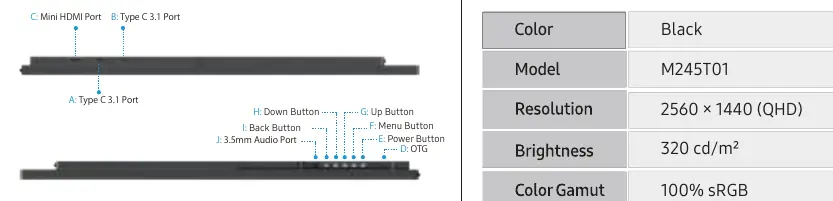
- Type-C 3.1 Ports (A & B): Used for signal and power transmission.
- Mini HDMI Port (C): Used for Audio and Video signal transmission.
- OTG Port (D): Connects to mouse or keyboard.
- Power Button (E): Long press to power off; short press to power on or return.
- Menu Button (F): Press to enter OSD menu; short press to confirm; long press to exit.
- Up/Down Buttons (G & H): Adjust volume or brightness.
- Source Switch (I): Short press to turn on/off power.
- 3.5mm Audio Port (J): For audio output.
Connecting the Monitor
Type-C Signal Transfer: Connect the monitor to your device using the Type-C cable. Ensure your device supports USB 3.1 or Thunderbolt 3. If the monitor does not turn on or signal is unstable, connect the original power adapter.
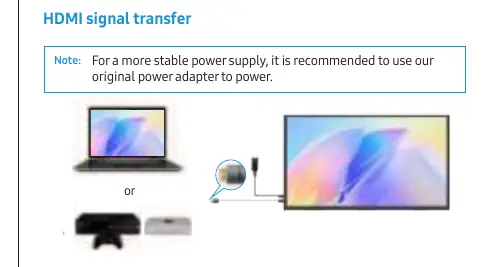
HDMI Signal Transfer: Connect the HDMI cable for video signal and use a USB-C cable to connect to an external power supply.
OSD Menu and Screen Adjustment
Access the On-Screen Display (OSD) menu using the Menu button to adjust settings such as:
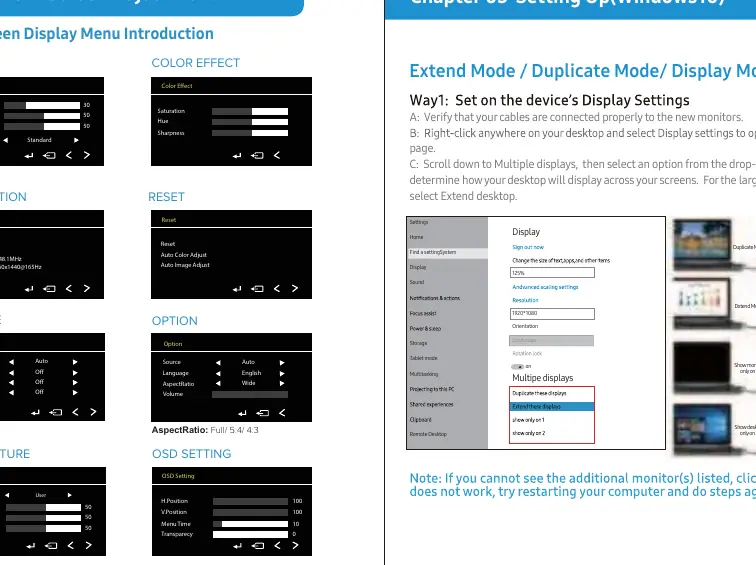
- Picture: Brightness, Contrast, Black-equalizer, GameMode.
- Color Effect: Saturation, Hue, Sharpness.
- Advance: UltraHDRMode, EyeProtection, 3DSound, Crosshair.
- Temperature: Color temperature settings.
- OSD Setting: H.Position, V.Position, Menu Time, Transparency.
Windows Display Settings
To configure your display in Windows 10:
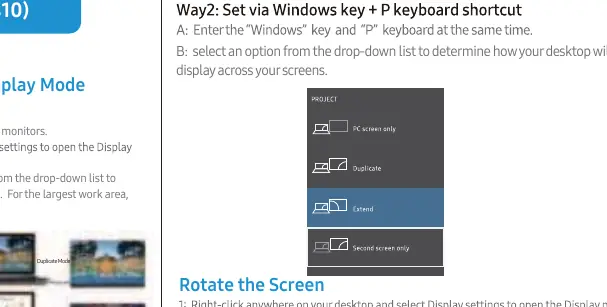
- Right-click on your desktop and select Display settings.
- Scroll down to Multiple displays.
- Select an option from the drop-down list (e.g., Extend desktop, Duplicate, or Show only on one screen).
- To rotate the screen, use the Orientation drop-down menu in the Display settings.
Troubleshooting
If you encounter issues, consider the following:
- Monitor won't turn on: Ensure the Type-C port is full-featured. If not, use HDMI for video and USB-C for power. The monitor requires at least 18W PD power.
- No signal: Verify cable connections. If using USB-C, ensure the device supports USB 3.1/Thunderbolt 3. Otherwise, use an HDMI cable.
- Monitor turns off when brightness is increased: This indicates insufficient power. Connect an external power adapter.
Specifications
- Resolution: 2560 x 1440 (QHD)
- Refresh Rate: 165Hz
- Brightness: 320 cd/m²
- Color Gamut: 100% sRGB
- VESA Mount: M4*4mm
- Panel Type: IPS
Official resources from the manual
Practical help
Common problems
Monitor does not turn on
Check if the Type-C port is full-featured. If not, use HDMI for video and USB-C for power. Ensure power supply is at least 18W PD.
No signal detected
Ensure device supports USB 3.1/Thunderbolt 3 for Type-C. If not, use an HDMI cable for signal transmission.
Monitor turns off when brightness is increased
The power consumption is too high for the current source. Connect the original power adapter.
Before use
- Verify all cables are connected properly.
- Ensure the power adapter is the original one provided.
- Check if the device's Type-C port supports signal and power transmission.
- If using a power bank, ensure it provides at least 30W.
Show more Show less
Specs in practice
- Refresh Rate
- 165Hz, suitable for smooth gaming and motion.
Images and diagrams
- Interface Layout: Identifies the location of Type-C, Mini HDMI, OTG, and control buttons.
- Connection Diagrams: Illustrates how to connect via Type-C or HDMI with external power.
Model compatibility
- Requires USB 3.1/Thunderbolt 3 for single-cable Type-C connection.
- External power adapter recommended for stable operation at 2K 120Hz+.

Manual page author
Michael Turner
Technical manual editor