Electronics / Monitors
User Manual for Uperfect 16.1-inch 2K 144Hz Portable Monitor
Quick guide for the Uperfect 16.1-inch 2K 144Hz Portable Monitor. Includes setup instructions, connection methods for USB-C and HDMI, OSD menu adjustments, and troubleshooting for common issues like no signal or power problems.
Quick answers from the manual
Quick answer
- This manual provides instructions for setting up, connecting, and adjusting the Uperfect 16.1" 2K 144Hz Portable Monitor, including troubleshooting common power and signal issues. p. 1, 2
Key actions
- Connect via Type-C p. 5
- Connect via HDMI p. 6
- Configure Windows display settings p. 7
- Rotate the screen p. 8
First start
- Check package contents p. 2
- Install the stand case p. 4
Show 4 more answers Show less
Problems and fixes
Monitor not turning on
Check if Type-C port is full-featured; use HDMI + USB-C for power; ensure external power supply (min 15W).
p. 9
Cannot get 2K resolution or 120Hz on Xbox
Manually set in Xbox settings (Video Fidelity & Overscan).
p. 9
No signal
Check USB-C compatibility (USB3.1/Thunderbolt 3), use original cables, try another device.
p. 10
Monitor turns off when brightness increases
Use an external power supply to handle increased power consumption.
p. 10
Abnormal conditions (splash screen, restarts)
Use original cable; ensure power bank is 30W+.
p. 10Maintenance and reset
- Reset monitor settings via OSD menu p. 9
Technical specifications
| Parameter | Value | Meaning | Pages |
|---|---|---|---|
| Screen Size | 16.1 inches | Display diagonal size | p. 4 |
| Panel Type | IPS | Display panel technology | p. 4 |
| Resolution | 2560*1440 | Display resolution | p. 4 |
| Refresh Rate | 144 Hz | Display refresh rate | p. 4 |
| Power Requirement | 15W | Minimum power requirement | p. 9 |
| VESA Mount | 75*75mm | Mounting pattern | p. 3, 4 |
Where to find it in the PDF
- Preparations and Contents p. 2
- Monitor Introduction p. 3
- Specifications and Stand Installation p. 4
- Connecting (Type-C) p. 5
- Connecting (HDMI) p. 6
- Windows Setup p. 7
- Screen Adjustment p. 8
- OSD Menu and Q&A p. 9
Table of contents
Manual images
Click an image to enlargeQuick Guide
This guide provides essential information for setting up and using your Uperfect 16.1-inch 2K 144Hz Portable Monitor. For stable operation, it is recommended to use the original power adapter, especially when running at 2K 144Hz, as the monitor requires a minimum of 15W power.
Package Contents
- Portable Monitor
- Power Adapter
- Smart Cover
- Mini HDMI to HDMI Cable
- USB-C to USB-C Cable
- User Guide
Monitor Introduction
The monitor features several physical controls and ports:
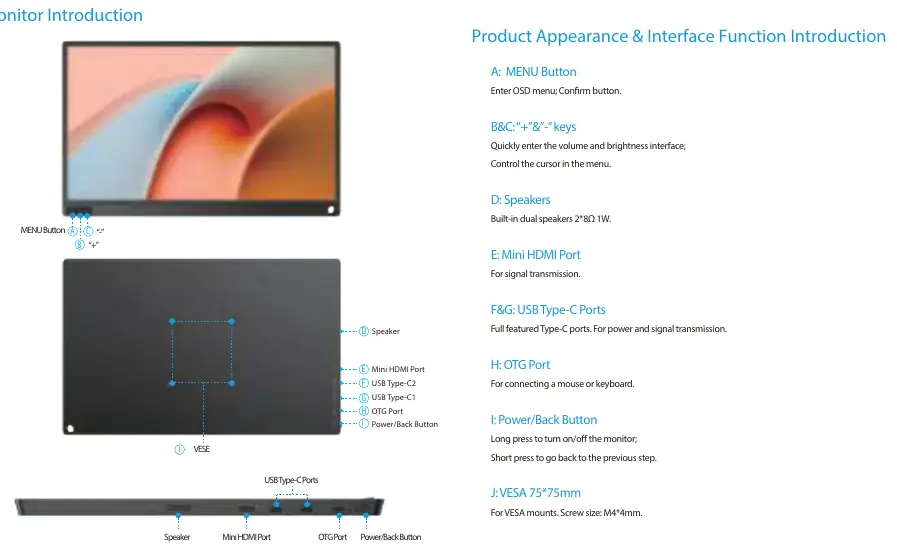
- Buttons: Menu button (Enter/Confirm), +/- keys (Volume/Brightness/Menu navigation), Power/Back button (Long press for On/Off, Short press for Back).
- Ports: Mini HDMI (Signal), USB Type-C (Power and Signal), OTG Port (Mouse/Keyboard).
- VESA: 75x75mm mount support (M4x4mm screws).
- Speakers: Built-in dual 1W speakers.
Installing the Stand Case
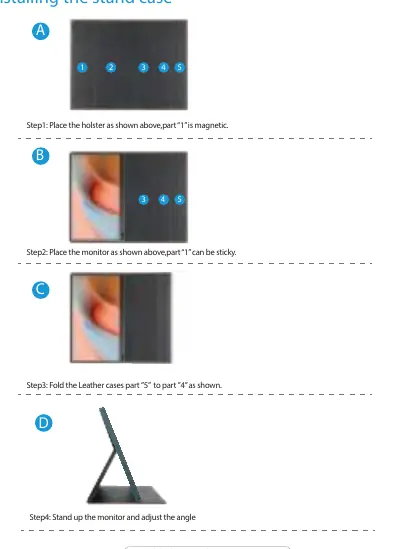
- Place the holster flat; part 1 is magnetic.
- Place the monitor on the holster; part 1 will stick to the monitor.
- Fold the leather case part 5 to part 4.
- Stand up the monitor and adjust the angle as needed.
Connecting the Monitor
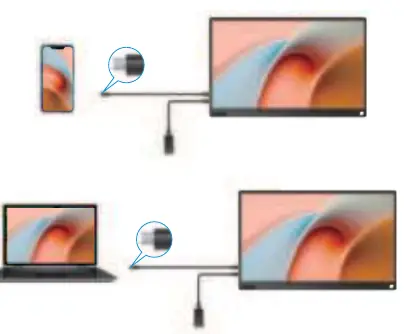
Type-C Signal Transfer: Connect via the USB-C to USB-C cable. Ensure your device's Type-C port supports video and audio transmission (Thunderbolt 3 or USB 3.1). If the port only supports charging, use the HDMI connection instead.
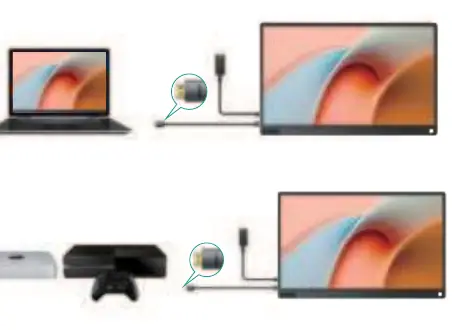
HDMI Signal Transfer: Connect via the Mini HDMI to HDMI cable. It is recommended to connect the monitor to an external power supply using the original power adapter for stability.
Windows 10 Setup
To configure display modes (Extend/Duplicate):
- Right-click on the desktop and select Display settings.
- Scroll to Multiple displays and select your preferred mode (e.g., Extend desktop).
- If the monitor is not detected, click Detect or restart your computer.
- Alternatively, use the Windows key + P shortcut to quickly toggle display modes.
Screen Adjustment
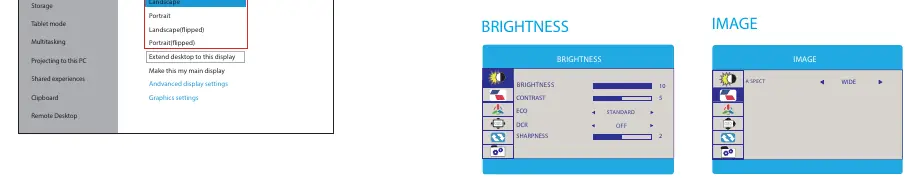
Press the pulley button to access the On-Screen Display (OSD) menu. Use the button to navigate and adjust settings such as Brightness, Contrast, Color Temp, and OSD settings. To save settings, ensure the monitor is connected to an external power supply if using a Type-C source.
Troubleshooting
- Monitor not turning on: Ensure the power supply is at least 15W. Use the original power adapter.
- No signal: Verify the Type-C port supports video/audio. If not, use HDMI. Ensure cables are original.
- Monitor turns off when brightness increases: This indicates insufficient power; connect an external power supply.
- Cannot get 2K/120Hz on Xbox: Manually set the resolution and refresh rate in the Xbox display settings.
Practical help
Common problems
Monitor does not turn on
Ensure the power supply provides at least 15W. Use the original power adapter.
No signal displayed
Check if your device's Type-C port supports video/audio transmission (Thunderbolt 3). If not, use the HDMI cable.
Monitor turns off when brightness is increased
This is caused by insufficient power. Connect the monitor to an external power supply.
Cannot achieve 2K resolution or 120Hz on Xbox
Manually configure the resolution and refresh rate in the Xbox 'TV & Display Options' settings.
Before use
- Verify all package contents are present.
- Ensure your device's Type-C port supports video/audio transmission.
- Use the original power adapter for stable operation.
- Connect to an external power source if using Type-C signal.
Show more Show less
Specs in practice
- Refresh Rate
- 144 Hz for smooth motion.
- Power Requirement
- Minimum 15W required for proper operation.
Images and diagrams
- Stand case assembly: Magnetic attachment of the holster to the monitor.
- Button functions: Menu button for OSD, +/- for volume/brightness, Power/Back button.
Model compatibility
- Type-C devices must support video/audio transmission (Thunderbolt 3 or USB 3.1).
- Requires 15W minimum power for operation.

Manual page author
David Miller
Documentation analyst