Electronics / Monitors
Uperfect 18.5 Inch 1080P Touchscreen Monitor User Manual
Quick guide for the Uperfect 18.5 Inch 1080P Touchscreen Monitor. Includes setup instructions, connection methods for HDMI and Type-C, OSD menu adjustments, and troubleshooting tips for power and signal issues.
Quick answers from the manual
Quick answer
- This manual provides instructions for setting up, connecting, and troubleshooting the Uperfect 18.5 Inch 1080P Touchscreen Monitor. p. 1
Key actions
- Connect the monitor using Type-C or HDMI cables. p. 5
- Adjust screen settings using the OSD menu. p. 6
- Configure display modes (Extend/Duplicate) in Windows. p. 7, 8
First start
- Verify package contents. p. 2
- Connect the monitor to your device using the provided cables. p. 5
- Power on the monitor using the Power On/Off button. p. 3
Show 4 more answers Show less
Problems and fixes
Monitor does not turn on
Check if the Type-C port is full-featured; use HDMI + USB-C for power; ensure external power supply (PD 18W min).
p. 9
No signal
Ensure device supports USB3.1/Thunderbolt 3; use original cables; try another device.
p. 9
Monitor turns off when brightness is increased
Use an external power supply to provide sufficient power.
p. 9
Splash screen or constant restarts
Use original cable; ensure power bank provides 30W or more.
p. 9Maintenance and reset
- Use the Reset function in the OSD menu. p. 6
Technical specifications
| Parameter | Value | Meaning | Pages |
|---|---|---|---|
| Resolution | 1920*1080 | Screen resolution | p. 4 |
| Panel Type | IPS | Display panel technology | p. 4 |
| Refresh Rate | 120Hz | Screen refresh rate | p. 4 |
| VESA | M4*4mm | Mounting hole specification | p. 3, 4 |
Where to find it in the PDF
- Preparations and Contents p. 2
- Interface Functions p. 3
- Specifications p. 4
- Connecting p. 5
- Screen Adjustment p. 6
- Windows Setup p. 7, 8
- Service Support p. 10
Table of contents
Manual images
Click an image to enlargeQuick guide from the manual
This monitor is designed for portable use with touch capabilities. For optimal performance, especially when running at 120Hz, it is highly recommended to use the original power adapter to ensure a stable power supply. If you encounter issues such as the monitor not turning on or displaying a 'no signal' message, verify your cable connections and ensure your source device supports the necessary video output standards.
Package Contents
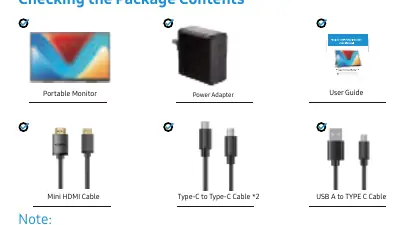
- Portable Monitor
- Power Adapter
- Mini HDMI Cable
- Type-C to Type-C Cable (x2)
- USB A to Type-C Cable
Interface Functions
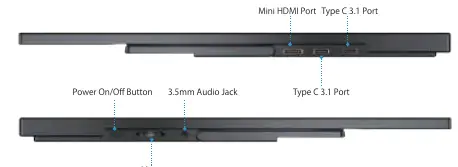
- Mini HDMI Port: For audio and video signal transmission.
- Type-C 3.1 Ports: Full-featured ports for signal and power transmission.
- Audio Port: 3.5mm jack for headphones or external speakers.
- Menu Button: Short press to confirm or turn on the monitor; long press to exit or turn off.
- Power On/Off Button: Long press to power off; short press to power on or return.
- VESA: 4 M4*4mm holes for mounting.
Connecting the Monitor
Type-C Signal Transfer: Connect your laptop or phone to the monitor using the Type-C cable. Ensure your device's Type-C port is full-featured and supports power and signal transmission.
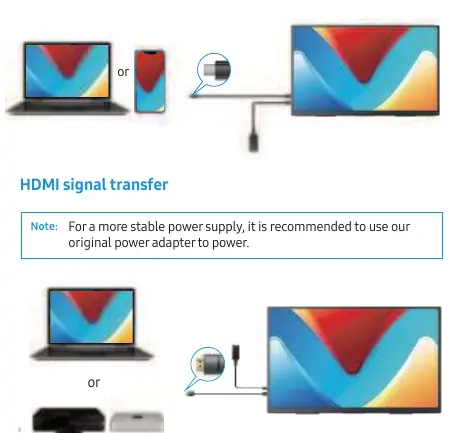
HDMI Signal Transfer: Connect your device to the monitor using the Mini HDMI cable. For power, use the provided USB-C to USB-C cable connected to the power adapter.
Screen Adjustment
Press the Menu button to access the On-Screen Display (OSD) menu. You can adjust settings such as:
- Picture: Brightness, Contrast, Black-equalizer, GameMode.
- Color Effect: Saturation, Hue, Sharpness.
- Temperature: Color temperature presets and RGB adjustments.
- Advance: UltraHDRMode, EyeProtection, 3DSound, FreeSync.
- OSD Setting: Position, transparency, and menu display time.
Windows 10 Setup
To configure display modes (Extend, Duplicate, etc.):
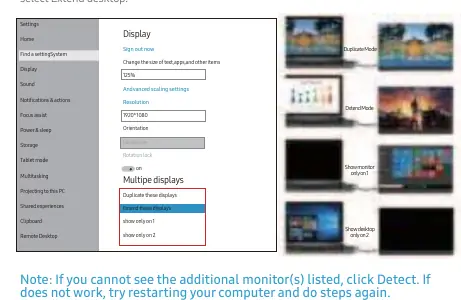
- Right-click on your desktop and select Display settings.
- Scroll down to the Multiple displays section.
- Select your preferred mode from the drop-down list (e.g., Extend desktop for the largest work area).
- If the monitor is not detected, click the Detect button or restart your computer.
Troubleshooting
If you experience issues, please contact support at [email protected]. Common solutions include using the original power adapter for stable power, verifying that your device supports USB 3.1/Thunderbolt 3, and ensuring all cables are securely connected.
Practical help
Common problems
Monitor does not turn on
Check if the Type-C port is full-featured. Use an external power supply (minimum 18W) if the device cannot provide sufficient power.
No signal message
Ensure your device supports USB 3.1/Thunderbolt 3. If not, use the Mini HDMI cable. Use original cables and try a different device.
Monitor turns off when brightness is increased
This indicates insufficient power. Connect the monitor to an external power adapter.
Splash screen or constant restarts
The monitor requires high power. Use the original power cable and adapter. If using a power bank, ensure it provides 30W or more.
Before use
- Verify all package contents are present.
- Ensure you have the original power adapter for stable operation.
- Check if your source device supports video output via Type-C or HDMI.
- Inspect cables for any damage before connection.
Show more Show less
Specs in practice
- Refresh Rate
- 120Hz for smooth motion.
Images and diagrams
- The bracket supports 0 to 180-degree adjustment.
- Interface layout shows the location of the Power button, Menu button, Audio jack, and ports.
Model compatibility
- Requires full-featured Type-C port for single-cable signal and power.
- Compatible with Windows 10 display settings for extended or duplicated screens.

Manual page author
David Miller
Documentation analyst