Electronics / Monitors
User Manual for Uperfect X Lapdock 133G01
Quick guide for the Uperfect X Lapdock 133G01. Learn how to connect your phone, PC, or game console, use the touchscreen and keyboard, and troubleshoot common issues.
Quick answers from the manual
Quick answer
- This manual provides instructions for setting up and using the Uperfect X Lapdock, including connection methods for phones, PCs, and game consoles, as well as OSD menu navigation and troubleshooting. p. 1
Key actions
- Connect to phone with USB 3.1 support p. 8
- Connect to PC with Thunderbolt 3 support p. 10
- Rotate monitor p. 7
First start
- Connect device p. 8, 10
Show 2 more answers Show less
Maintenance and reset
- OSD Reset p. 6
Where to find it in the PDF
- Safety Information p. 2
- Cleaning & Maintenance p. 2
- Product Introduction p. 3, 4, 5, 6
- Connection Mode p. 8, 9, 10
Table of contents
Manual images
Click an image to enlargeQuick Guide
The Uperfect X Lapdock 133G01 is a portable monitor with a built-in keyboard, touchpad, and battery. Before using the device, ensure it is charged for at least 10 minutes if it fails to power on. For full functionality (touchscreen and keyboard), your host device must support DP (DisplayPort) over USB-C. If connecting via HDMI, you must also connect the USB-C cable to the host device to enable the keyboard and touchpad features.
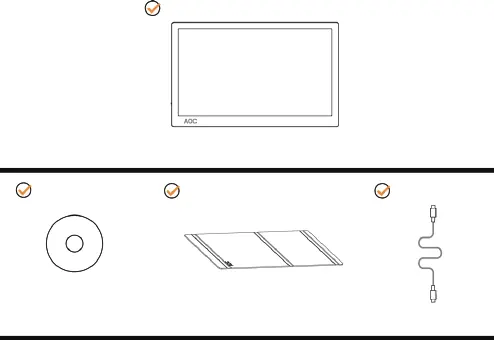
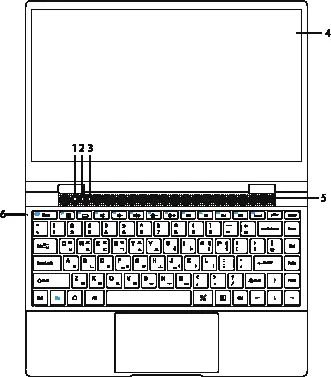
Product Overview
The device features a 13.3-inch touchscreen, a full keyboard with function keys, and multiple ports including Micro SD, Type-C (Charging), Type-C (DP), and Mini HDMI. The keyboard includes dedicated keys for volume, brightness, and touchpad control. The monitor supports 360-degree rotation, allowing for Notebook, Stand, Tablet, and Tent modes.
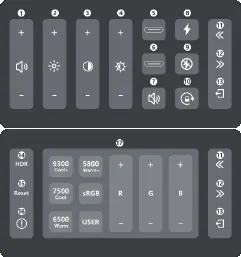
OSD Menu
To access the On-Screen Display (OSD) menu, swipe down with two fingers on the screen. The OSD menu allows you to adjust volume, brightness, sharpness, screen brightness, and color temperature. It also provides options for HDR, OSD reset, and horizontal rotation settings.
Connection Modes
Connect to Phone: For phones with USB 3.1 support, use a Type-C to Type-C cable. This enables both display and input (keyboard/touchpad). For phones without USB 3.1 or iPhones, use an HDMI adapter; note that keyboard and touchpad functionality will not be available.
Connect to PC: Use a Type-C to Type-C cable for devices supporting Thunderbolt 3. For other computers, use a Mini HDMI cable for video and a USB-C cable for keyboard/touchpad input. Configure display settings on your PC (Duplicate or Extend mode) via the Display settings menu.
Connect to Game Device: Connect via Mini HDMI for video and use the provided PD power adapter. Ensure the USB-C cable is connected for input if required.
Specifications
- Model: MDS-133G01
- Display: 13.3 inch, 1920x1080, IPS, 16:9
- Battery: 7.6V 5400mAh*2 (4-5 hours usage)
- Ports: Micro SD, Type-C (Charging), Type-C (DP), Headphone, Mini HDMI
- Compatibility: Supports EMUI, iOS, Android, Windows
Troubleshooting
If you encounter issues, check the following:
- No display: Charge the monitor for 10 minutes or check if your device supports DP function.
- No sound: Verify that the monitor or your connected device is not muted.
- Touchpad not working: Ensure the Touchpad switch (F1 key) is turned on.
- Gravity sensing not working: Check the Horizontal Rotation Switch in the OSD menu.
- Not charging device: Ensure the charging switch in the OSD menu is turned on (supports 5V charging).
Practical help
Common problems
No display or picture
Charge the monitor for 10 minutes. Ensure your device's Type-C port supports DP (DisplayPort) function.
No sound
Check if the monitor or the connected device is muted.
Touchpad does not work
Verify that the Touchpad switch (F1 key) is enabled.
180-degree gravity sensing not working
Ensure the Horizontal Rotation Switch is enabled in the OSD menu.
Monitor does not charge the connected device
Ensure the charging switch in the OSD menu is turned on. Note that the monitor only supports 5V charging.
Before use
- Charge the monitor for at least 10 minutes before first use.
- Ensure your host device supports DP over USB-C for full functionality.
- Use the provided Type-C to Type-C cable for direct connection.
- If using HDMI, connect the USB-C cable to the host to enable keyboard and touchpad.
- Keep the monitor away from rain, moisture, and direct sunlight.
Show more Show less
Images and diagrams
- Keyboard keys F1-F11 control specific functions like volume, brightness, and touchpad lock.
- OSD menu allows adjustment of volume, brightness, sharpness, and color temperature.
Model compatibility
- Compatible with Samsung S8-S20/Note series and Huawei Mate 10-40/Honor series (USB 3.1 support).
- iPhone connection requires an HDMI adapter; keyboard/touchpad features are NOT available with iPhone.

Manual page author
David Miller
Documentation analyst