Electronics / Monitors
User Manual for UPERFECT 15.6 Inch Portable Monitor M156E13
Quick guide for the UPERFECT 15.6 Inch Portable Monitor M156E13. Learn how to connect via Type-C or HDMI, navigate the OSD menu, and troubleshoot common display or touch issues.
Table of contents
Manual images
Click an image to enlargeQuick guide from the manual
The UPERFECT 15.6 Inch Portable Monitor M156E13 is a high-resolution display designed for versatility. For optimal performance, especially when using 4K resolution, it is highly recommended to use the original power adapter provided. Ensure your source device (laptop or phone) supports video and audio transmission via its Type-C port (Thunderbolt 3 or USB 3.1). If your device does not support this, you must use the HDMI port for signal transmission and a separate power source.
Package Contents
- Portable Monitor
- 18W PD Adapter
- Protective sleeve
- Standard HDMI Cable
- Type-C to Type-C Cable
- User Manual
Monitor Overview
The monitor features several ports and buttons for control:
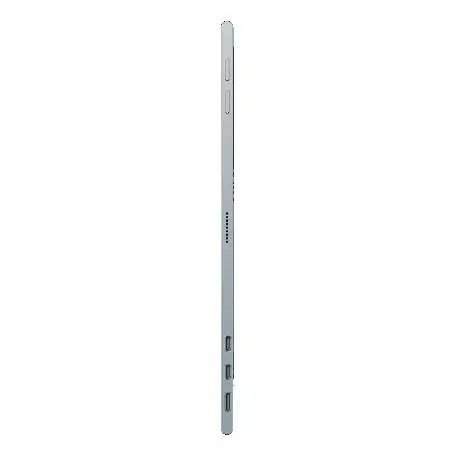
- A: Micro USB Port: OTG interface for mouse and keyboard (only when connected to Type-C devices).
- B: Type C Port 1: Power supply only.
- C: Type C Port 2: Power supply and signal transmission.
- D: Standard HDMI Connector: Signal transmission only.
- E: 3.5mm Audio Port: For audio output.
- F: Menu Button: Press/scroll to open and navigate the OSD menu.
- G: POWER / BACK Button: Press and hold for 1 second to turn on, 3 seconds to turn off. Short press to enter signal input or return to the previous menu.
- H: Speakers: Built-in audio.
Connecting the Monitor
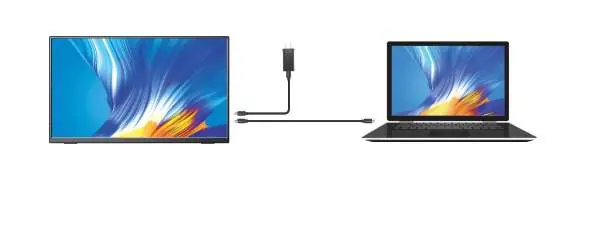
Type-C Signal Transfer: Connect the monitor directly to your device using the Type-C cable. If your device cannot provide enough power, connect the monitor to an external power supply using the original adapter.
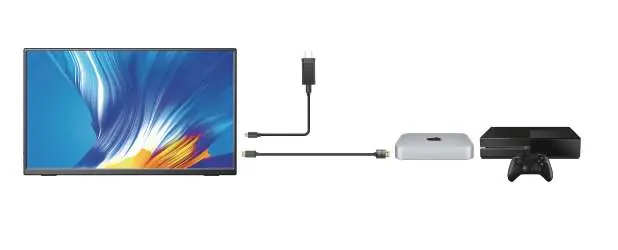
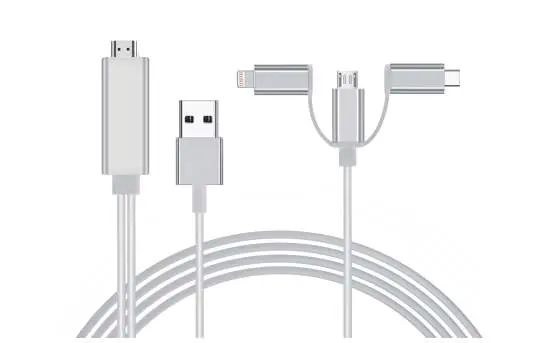
HDMI Signal Transfer: Connect the monitor to your device using the HDMI cable. You must also connect the monitor to an external power supply, as the HDMI port does not carry power.
OSD Menu Navigation
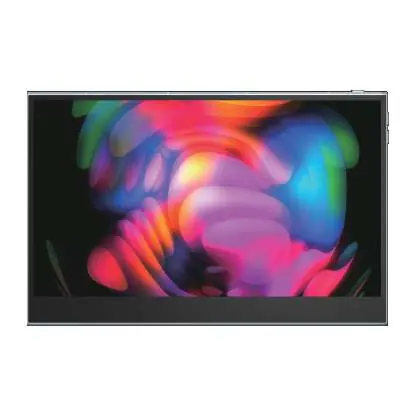
To activate the On-Screen Display (OSD) menu, press the Menu button. Use the scroll function to navigate through settings such as Source, Mute, Eye Protection, Delay Sleep, Brightness, Contrast, and Volume. In subsequent menus, you can adjust Saturation, Color Temperature, RGB, Language, Ultra HDR, 3D Sound, Game Mode, Sharpness, and Crosshair settings.
Windows 10 Setup
To configure display modes (Extend, Duplicate, or Second Screen Only):
- Right-click on your desktop and select Display settings.
- Scroll down to Multiple displays.
- Select your preferred mode from the drop-down list.
- Alternatively, use the Windows key + P keyboard shortcut to quickly toggle between display modes.
Troubleshooting
- Monitor flickers or switches: Usually caused by insufficient voltage. Use the factory-packed cables and ensure an external PD power supply is connected.
- Resolution is less than 4K: Check your device's display settings and ensure your graphics card supports 4K output.
- Touchscreen not working: Ensure your phone or device supports USB 3.1. For computers, check the connection and ensure you are using the genuine cable provided.
- Settings not saved: If using Type-C without external power, settings like brightness may reset when powered off. Use an external power supply to maintain settings.
Service Support
For any issues, contact the support team via email at [email protected]. The product includes a 12-month warranty, 90-day replacement, and a 30-day money-back guarantee.
Practical help
Common problems
Monitor keeps switching and flickering
Insufficient voltage. Use the original factory-packed cables and connect an external PD power supply.
Output resolution is less than 4K
Check device display settings, try a different device, or verify that your graphics card supports 4K output.
Touchscreen is unresponsive
For phones, ensure they support USB 3.1. For computers, check the connection and use the genuine cable provided.
Brightness/Volume settings reset after power off
This occurs when using Type-C without external power. Connect an external power supply to save settings.
Before use
- Verify package contents are complete.
- Check if your laptop/phone Type-C port supports video/audio transmission (Thunderbolt 3).
- Use the original 18W PD power adapter for stable power.
- If using HDMI, ensure an external power source is connected.
Show more Show less
Specs in practice
- Touch Screen
- Supports 10-point touch input.
- Refresh Rate
- 60 Hz.
Images and diagrams
- The monitor features a side panel with Power, Menu, and Up/Down buttons.
- Ports include two Type-C ports, one Mini HDMI port, and a 3.5mm audio jack.
- Connection diagrams show direct Type-C connection to phones and laptops.
- Connection diagrams show HDMI connection requiring separate power.
Model compatibility
- Requires at least 30W power supply for optimal performance.
- Type-C devices must support video/audio signal transmission.
- If the device port is only for charging, use the HDMI port for video.

Manual page author
David Miller
Documentation analyst