Electronics / Monitors
Uperfect M238J11 23.8" Portable Monitor User Manual
Quick guide for the Uperfect M238J11 23.8" portable monitor. Includes setup instructions, display modes, OSD menu adjustments, and troubleshooting tips.
Table of contents
Manual images
Click an image to enlargeQuick guide from the manual
This monitor requires a stable power supply of at least 45W. If you experience flickering or the monitor fails to turn on, ensure you are using the original power adapter and cable. The monitor supports multiple display modes including Duplicate, Extend, and Link, which can be configured via your computer's display settings.
Package Contents
- Portable Monitor
- Power Adapter
- USB Type-C to Type-C Cable
- HDMI to HDMI Cable
Connections
The monitor supports both Type-C and HDMI connections:
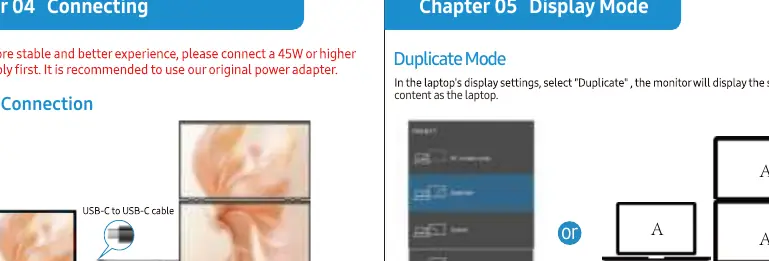
- Type-C Connection: Connect the Type-C cable to the monitor and your device. Ensure the Type-C port on your device supports power and signal transmission.
- HDMI Connection: Connect the HDMI cable to the monitor and your device. Note that HDMI requires a separate power supply connection to the monitor.
Display Modes
Configure these modes in your laptop's display settings:
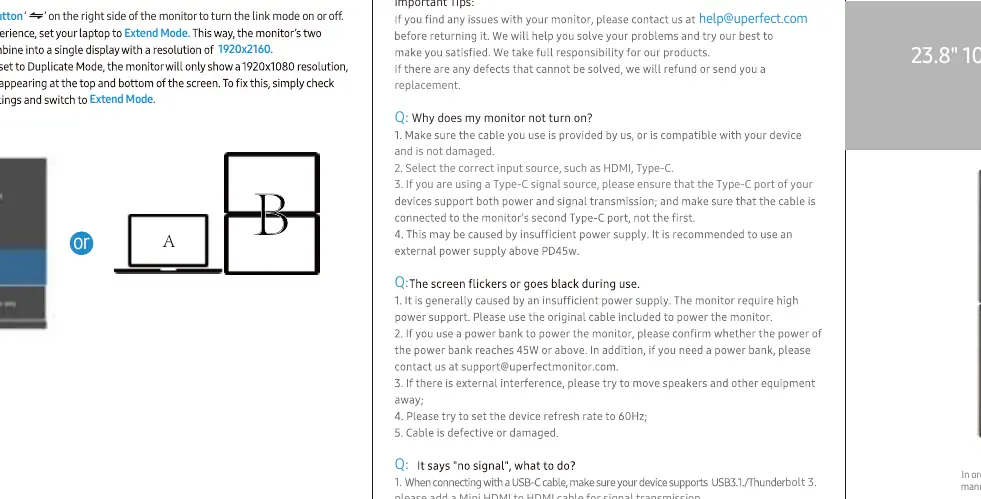
- Duplicate Mode: Displays the same content as the laptop screen.
- Extend Mode: Extends your desktop, allowing different content on the monitor.
- Link Mode: Use the sixth button on the right side of the monitor to toggle link mode. For best results, set your laptop to Extend Mode with a resolution of 1920x2160.
Screen Adjustment
Use the buttons on the monitor to access the On-Screen Display (OSD) menu:
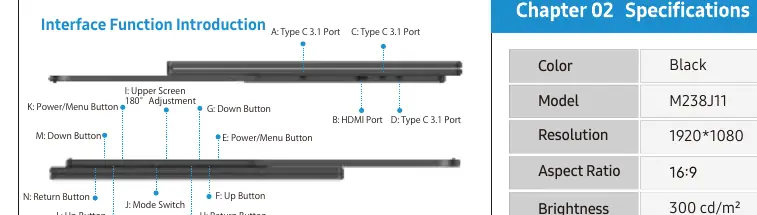
- Power/Menu Button: Short press to enter the menu; long press to turn on/off.
- Up/Down Buttons: Adjust brightness and volume; navigate through menu options.
- Return Button: Step back through the previous menu.
- Mode Switching: Press to cycle through extend, duplicate, and link modes.
- Screen Orientation: Use the dedicated button for 180° orientation switching on the upper screen.
Troubleshooting
- Monitor won't turn on: Verify the power supply is 45W or higher, check that the cable is not damaged, and ensure the correct input source is selected.
- Screen flickering: Usually caused by insufficient power. Use the original power adapter.
- No signal: Ensure the cable is connected correctly. If using Type-C, confirm the port supports signal transmission. If using HDMI, ensure the cable is secure.
Practical help
Common problems
Monitor does not turn on
Ensure the power supply is 45W or higher, check that the cable is not damaged, and verify the correct input source (HDMI/Type-C) is selected.
Screen flickering or black screen
This is typically caused by insufficient power. Use the original power adapter and cable provided with the monitor.
No signal
Check cable connections. If using Type-C, ensure the device port supports signal transmission. If using HDMI, ensure the cable is fully inserted.
Before use
- Ensure you have a power supply of 45W or higher.
- Verify the monitor stand is opened correctly (supports 180° opening).
- Check that the correct input source is selected in the OSD menu.
- Ensure the USB-C or HDMI cable is securely connected to both the monitor and the source device.
Show more Show less
Specs in practice
- Refresh Rate
- 100Hz for smoother motion.
Images and diagrams
- The Interface Function Introduction diagram identifies the location of all ports (Type-C, HDMI) and control buttons (Power/Menu, Up, Down, Return).
- The Display Mode diagrams illustrate how to configure Duplicate, Extend, and Link modes within your computer's display settings.
Model compatibility
- Type-C signal source must support power and signal transmission.
- For Link Mode, a resolution of 1920x2160 is recommended.

Manual page author
Michael Turner
Technical manual editor