Electronics / Monitors
User Manual for UPERFECT 156G16 Portable Touch Monitor
Quick guide for the UPERFECT 156G16 portable touch monitor. Learn how to connect via USB-C or HDMI, configure OSD settings, troubleshoot connection issues, and optimize display performance.
Table of contents
Manual images
Click an image to enlargeQuick guide from the manual
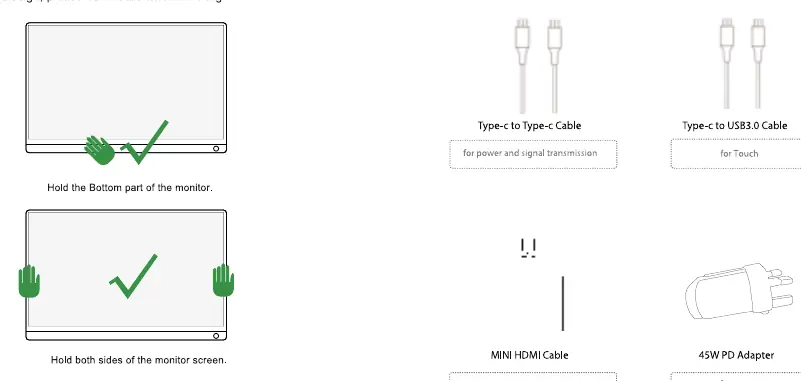
The UPERFECT 156G16 is a portable touch monitor designed for versatility. To ensure optimal performance, verify if your host device supports Thunderbolt 3 or USB 3.1 (with video output) for a single-cable connection. If your device does not support these standards, you will need to use the provided Mini HDMI cable for video and an external power source. Always use the original accessories provided in the package to prevent power-related issues.
Safety warnings
- Do not place the monitor in damp areas or expose it to extreme temperatures.
- Ensure the monitor is placed on a stable surface to prevent falls.
- Do not use non-original power adapters, as this may damage the device.
- Avoid touching the screen with hard objects to prevent scratches.
- If the screen displays a still image for a long time, use a screen saver to prevent image retention.
Interface and buttons
The monitor features several ports and controls:
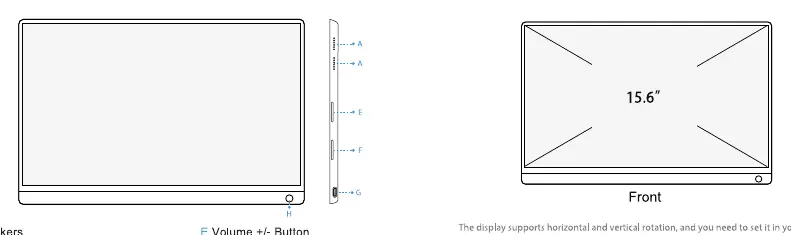
- Speakers: For audio output.
- Micro USB Port: OTG interface for connecting a mouse or keyboard.
- Mini HDMI Port: For audio and video signal transmission.
- Type-C Port: For video signal transmission and power.
- Volume +/- Button: Adjusts volume and selects menu options.
- Brightness +/- Button: Adjusts brightness and enters the OSD menu.
- Power Button: Long press to turn the monitor on or off.
Product parameters
- Model: 156G16
- Screen Size: 15.6 inch
- Resolution: 1920x1080
- Refresh Rate: 120Hz
- Panel Type: IPS Screen
- Battery Capacity: 5400mAh/7.4V
- Visual Angle: 178 degrees
OSD menu navigation
Access the OSD menu using the brightness button. The menu includes:
- Picture: Adjust Backlight, Brightness, Contrast, and Sharpness.
- Display: Adjust display orientation (0, 180 degrees).
- Color: Configure Panel Uniformity, Gamma, Temperature, and Color Effect.
- Advanced: Settings for Aspect Ratio, OverDrive, DDC/CI, and UltraHDR.
- Input: Select input source (AutoSelect, Type-C, HDMI).
- Audio: Adjust volume and mute settings.
- SelfishMode: Toggle specific mobile charging modes.
Connection instructions
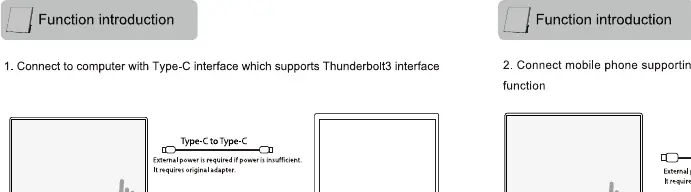
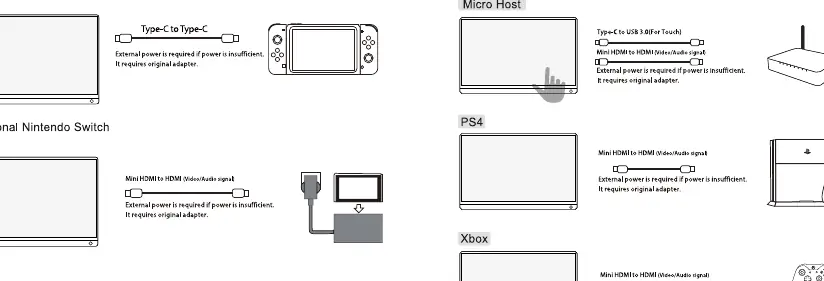
Connecting to PC (Thunderbolt 3)
Connect the monitor to your PC using the Type-C to Type-C cable. If the power is insufficient, connect the original power adapter.
Connecting to Mobile Phones (USB 3.1)
Use the Type-C to Type-C cable. Ensure your phone supports USB 3.1 protocol for video output. If the phone does not support this, you will need an adapter.
Connecting to Gaming Consoles (Nintendo Switch, PS4, Xbox)
For Nintendo Switch, use the Type-C to Type-C cable. For other consoles, use the Mini HDMI cable for video and ensure the monitor is connected to an external power source.
Troubleshooting
- No signal/Power saving mode: Ensure your device supports the required connection standard (Thunderbolt 3/USB 3.1). If not, use an HDMI adapter.
- No touch: Ensure the touch cable is connected to the host device, not just a power outlet.
- No sound: Check the volume settings on the connected device.
- Monitor flickers: This usually indicates insufficient power. Connect the monitor to an external power source using the original adapter.
Support
If you encounter technical issues, contact the support team at [email protected]. They aim to provide solutions within 12 hours.
Practical help
Common problems
No signal or Power saving mode
Check if your device supports Thunderbolt 3 or USB 3.1. If not, use the Mini HDMI cable and ensure external power is connected.
Touch function not working
Ensure the touch cable is connected to the host computer, not just a power adapter.
Monitor flickers or turns off
The monitor is likely receiving insufficient power. Connect the original power adapter.
No sound
Verify that the volume is not muted on the connected device and check the OSD audio settings.
Before use
- Place the monitor on a stable surface.
- Verify your device's port capabilities (Thunderbolt 3/USB 3.1).
- Ensure all cables are connected securely.
- Charge the monitor if the battery is low.
- Use only the original power adapter provided.
Show more Show less
Specs in practice
- Refresh Rate
- 120Hz, providing smoother motion for gaming and video.
- Battery Capacity
- 5400mAh/7.4V, allowing for portable use without constant power.
Images and diagrams
- Interface layout: Identifies speakers, Micro USB, Mini HDMI, Type-C, and control buttons.
- Connection diagrams: Shows correct cable routing for PC, mobile, and gaming consoles.
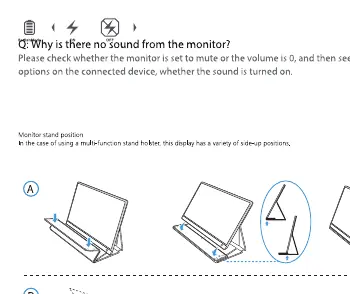
- Stand positions: Illustrates how to use the monitor stand in different orientations.
Model compatibility
- Requires Thunderbolt 3 or USB 3.1 for single-cable video/power/touch.
- HDMI devices require a separate power supply if the monitor battery is low.
- Some mobile phones may require an adapter if they do not support USB 3.1 video output.

Manual page author
Emily Carter
User documentation editor