Electronics / Monitors
UPERFECT 156B09 15.6" Portable Touchscreen Monitor User Guide
Quick guide for the UPERFECT 156B09 15.6" portable touchscreen monitor. Learn how to connect via HDMI, DVI, or VGA, set up the OSD menu, and troubleshoot touch or display issues.
Table of contents
Manual images
Click an image to enlargeQuick guide from the manual
This document provides essential setup and troubleshooting information for the UPERFECT 15.6" Portable Touchscreen Monitor. Key requirements include using the original DC-12V power adapter for stable power and connecting the USB touch cable directly to the computer host to enable touch functionality.
Package Contents
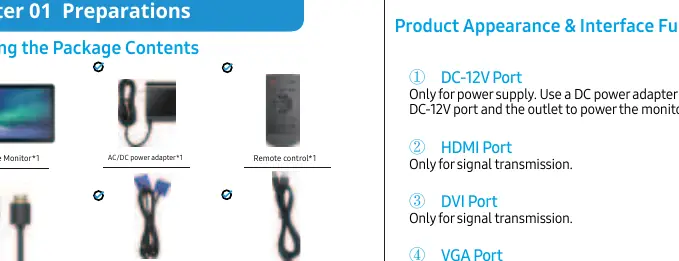
Ensure your package includes the following items:
- Portable Monitor
- AC/DC power adapter
- Remote control
- Standard HDMI cable
- VGA cable
- USB cable
- Wall mount bracket
- User Manual
Connecting the Monitor
The monitor supports multiple signal inputs. Note that these ports are for signal transmission only; an external power supply via the DC-12V port is required.
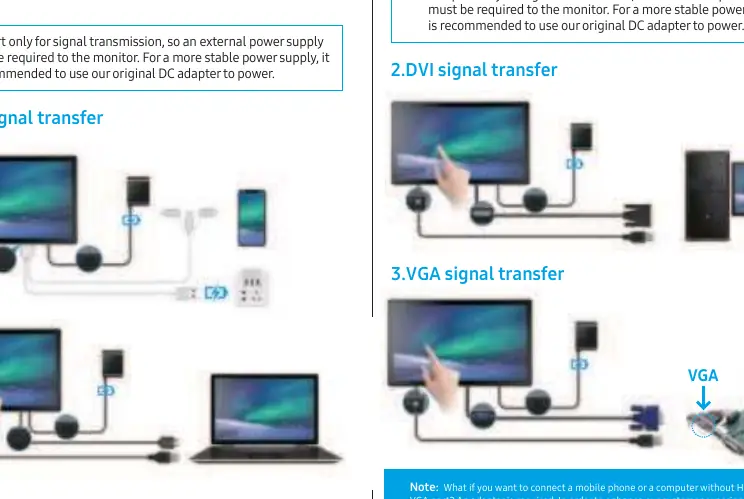
- HDMI Signal Transfer: Connect via HDMI cable.
- DVI Signal Transfer: Connect via DVI cable.
- VGA Signal Transfer: Connect via VGA cable.
- Touch Functionality: To enable touch, you must connect the USB cable between the monitor's USB TOUCH port and the computer.
OSD Menu and Screen Adjustment
Use the remote control or the OSD menu to adjust display settings:
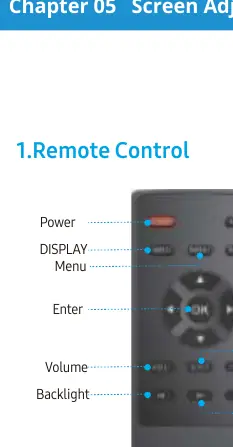
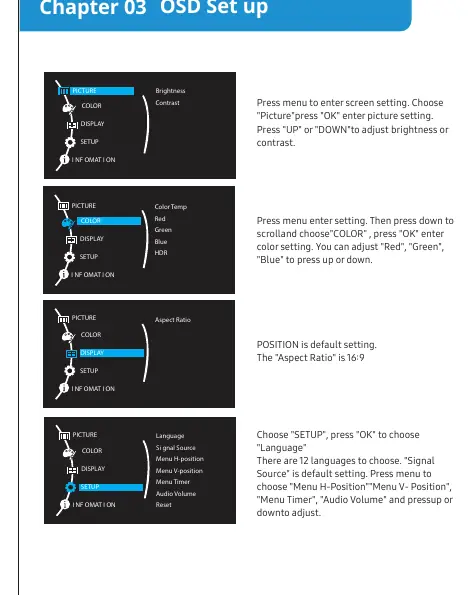
- Menu Navigation: Press the Menu button to enter settings. Use Up/Down/Left/Right keys to navigate and Enter to confirm.
- Picture Settings: Adjust Brightness and Contrast.
- Color Settings: Adjust Color Temp, Red, Green, Blue, and HDR.
- Setup: Configure Language, Signal Source, Menu position, and Audio Volume.
- Aspect Ratio: Default is 16:9.
Troubleshooting
If you encounter issues, check the following:
- Touch unresponsive: Ensure the USB touch cable is connected to the computer host, not a power outlet. Touch is not supported on mobile phones or gaming consoles like Nintendo Switch, Xbox, or PS4.
- Touch not working in extended mode: Set the monitor as the primary screen.
- Black screen or stuck: Use the original cables provided. Ensure there is a video signal and that the monitor is not set to extended mode if you are having display issues; try switching to mirror/copy mode.
- Saving settings: Settings are saved automatically when the monitor is powered via the DC-12V port.
Technical Specifications
- Screen Size: 15.6 inches
- Panel Type: IPS
- Resolution: 1920x1080
- Refresh Rate: 60Hz
- Contrast Ratio: 800:1
- Brightness: 300 cd/m²
- VESA Mount: 75x75mm (M3x6mm screws)
- Speakers: Built-in dual speakers (8Ω 1W x 2)
Service Support
For technical support or warranty claims, contact the manufacturer via email at [email protected].
Practical help
Common problems
Touch screen is unresponsive or unusable
Ensure the USB touch cable is connected to the computer host, not a power outlet. Note that touch functionality is not supported on mobile phones or gaming consoles.
Touch function does not work in extended mode
Set the monitor as the primary screen in your computer's display settings.
Screen is black or stuck despite power indicator being on
Use original cables, verify video signal transmission, and ensure the monitor is not in extended mode (switch to mirror/copy mode).
Before use
- Verify all cables (HDMI/VGA/DVI, USB, Power) are included.
- Connect the DC-12V power adapter to the monitor and a power outlet.
- Connect the USB touch cable to the computer to enable touch features.
- Ensure the monitor is set to the correct signal source (HDMI/DVI/VGA).
Show more Show less
Specs in practice
- VESA Hole Spacing
- 75x75mm spacing for wall mounting using M3x6mm screws.
- Refresh Rate
- 60Hz, standard for smooth display performance.
Images and diagrams
- The remote control includes buttons for Power, Menu, Signal Source, Volume, Backlight, Aspect, Mute, Exit, and Directional navigation.
- The monitor features 8 ports: DC-12V, HDMI, DVI, VGA, Audio In, Audio Out, USB Touch, and built-in speakers.
Model compatibility
- Touch function is not supported on mobile phones, Nintendo Switch, Xbox, or PS4.
- Requires an adapter if connecting devices without HDMI, DVI, or VGA ports.

Manual page author
Michael Turner
Technical manual editor