Electronics / Video Capture
StarTech USB 2.0 HD Video Capture Device USB2HDCAPM
Quick-start guide for the StarTech USB 2.0 HD Video Capture Device (USB2HDCAPM). Learn how to install drivers, software, and connect your HDMI video source for 1080p 60fps capture.
Table of contents
Manual images
Click an image to enlargeQuick guide from the manual
This document provides the essential steps to set up and use the StarTech USB 2.0 HD Video Capture Device (USB2HDCAPM). The device allows you to capture high-definition video from an HDMI source to your computer. Ensure you have an active internet connection to download the necessary drivers and software before beginning the installation.
Package Contents
- 1 x USB 2.0 HDMI video capture device
- 1 x USB cable
- 1 x Quick-Start Guide
System Requirements
To use this device, you will need:
- An HDMI video source with cabling
- An HDMI display with cabling (optional, for video passthrough)
- A computer with an available USB port
Installation
Driver Installation
- Navigate to www.StarTech.com/USB2HDCAPM.
- Select the Drivers/Downloads tab.
- Locate and download the latest driver for your system.
Software Installation
- Navigate to www.StarTech.com/USB2HDCAPM.
- Select the Drivers/Downloads tab.
- Download the latest Windows Video Capture Software and the accompanying Software User Guide.
Hardware Installation
- Connect the Mini USB port on the capture device to a USB port on your computer using the included USB cable.
- Connect the HDMI output port on your video source device to the HDMI port on the capture device using an HDMI cable (not included).
Product Diagram
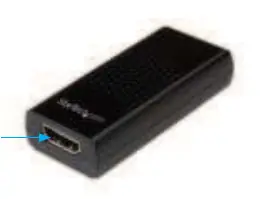
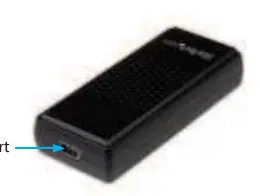
The device features an HDMI port on the front for video input and a Mini USB port on the back for data connection to your computer.
Regulatory Compliance
This equipment has been tested and complies with the limits for a Class B digital device, pursuant to part 15 of the FCC Rules. It also complies with Canadian ICES-003 standards. The device is designed to provide reasonable protection against harmful interference in residential installations.
Warranty Information
This product is backed by a two-year warranty. For further information on warranty terms and conditions, please refer to www.startech.com/warranty.
Official resources from the manual
Practical help
Common problems
Device not recognized or drivers missing
Visit www.StarTech.com/USB2HDCAPM and download the latest drivers from the Drivers/Downloads tab.
No video signal detected
Ensure the HDMI cable is securely connected to both the video source and the capture device, and verify that the video source is powered on.
Before use
- Verify you have an HDMI video source with cabling.
- Ensure you have an available USB port on your computer.
- Confirm you have an internet connection to download drivers and software.
- Optional: Prepare an HDMI display if you intend to use video passthrough.
Images and diagrams
- Front View: Identifies the HDMI port used for connecting your video source.
- Back View: Identifies the Mini USB port used for connecting the device to your computer.
Model compatibility
- Requires Windows Video Capture Software for full functionality.
- HDMI display is optional and only required for video passthrough.

Manual page author
Emily Carter
User documentation editor
Prepares concise manual descriptions and highlights the most useful setup, operation, and maintenance information for readers.