Electronics / Video Capture
User Manual for StarTech.com USB-C Capture Device UVCHDCAP
Quick-start guide for the StarTech.com USB-C Capture Device (UVCHDCAP). Learn how to install drivers, configure audio inputs, set data transfer modes, and connect your HDMI video source.
Table of contents
Quick guide from the manual
This document provides setup and configuration instructions for the StarTech.com USB-C Capture Device (UVCHDCAP). The device allows you to capture HDMI video on Windows and Mac computers. Key requirements include an HDMI video source and an optional HDMI display for passthrough.
Product Diagram
The device features the following ports:
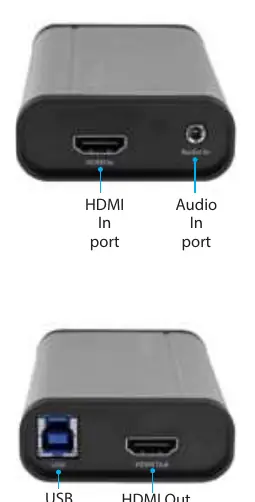
- Front View: HDMI In port and Audio In port.
- Back View: USB port and HDMI Out port.
Package Contents
- Capture device
- USB-C to USB-B cable (1m)
- USB-A to USB-B cable (1m)
- HDMI cable (1m)
- Quick-Start Guide
Installation
Follow these steps to set up the hardware and software:
- Driver and Software Installation: Navigate to www.StarTech.com/UVCHDCAP and select the Drivers/Downloads tab to download the latest Driver and Windows Video Capture Software.
- Hardware Connection: Connect an HDMI cable from your video source to the HDMI In port on the capture device.
- USB Connection: Connect the included USB cable to the capture device and your computer. The computer will automatically install the necessary drivers.
- Optional Passthrough: Connect an HDMI cable from the HDMI Out port to an HDMI display to preview the video source.
- Optional Audio: Connect a 3.5 mm audio cable to the Audio In port if an additional audio source is required.
UVC Utility Configuration
The UVC Utility allows you to configure hardware parameters. Download the utility from the Support tab at www.StarTech.com/UVCHDCAP. Extract the files and run the application to adjust settings.
Audio Input
Choose how the device handles audio:
- HDMI: Passes audio from the HDMI source.
- Line-in: Passes audio from the Audio In port (optimized for audio playback).
- Mic: Passes audio from the Audio In port (optimized for a microphone).
- HDMI + Line-in / HDMI + Mic: Combines HDMI audio with the Audio In port source.
Data Transfer Pipe
Select the digitization method:
- Isochronous: Lower data rate, ideal for real-time video capture.
- Bulk: High data rate, ideal for lossless, high-quality video recordings.
Regulatory Compliance
This equipment complies with FCC Part 15 limits for a Class B digital device and Industry Canada ICES-003 standards. Ensure proper installation to avoid interference.
Official resources from the manual
Practical help
Common problems
No audio or video signal
Verify all cable connections and ensure the correct Audio Input is selected in the UVC Utility.
Software not detecting the device
Ensure the latest drivers are installed from the StarTech.com website and the USB cable is securely connected.
Before use
- HDMI video source with cabling
- HDMI display (optional for video passthrough)
- Computer with an available USB port
- USB-C to USB-B or USB-A to USB-B cable (included)
- Internet access to download drivers and UVC Utility
Images and diagrams
- Front View: Identifies the HDMI In and Audio In ports.
- Back View: Identifies the USB port and HDMI Out port.
Model compatibility
- Compatible with Windows and Mac operating systems.

Manual page author
Michael Turner
Technical manual editor
Reviews PDF manuals for structure, safety notes, and practical product details so readers can find the right information quickly.