Electronics / Video Capture
Av Link 128.836UK 4K HDMI Video Capture Card
Quick guide for the Av Link 128.836UK 4K HDMI Video Capture Card. Learn how to connect your device, set up software, and check system requirements for optimal video recording.
Table of contents
Manual images
Click an image to enlargeQuick guide from the manual
To set up your Av Link 4K HDMI Video Capture Card, follow these steps:
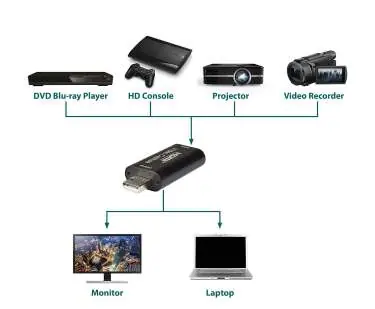
- Insert the video capture card into an available USB port on your PC or laptop.
- Wait for the default device driver named USB Video to be installed automatically.
- Connect a high-quality HDMI cable between your source device and the video capture card. Note that the maximum cable length is 15 meters.
- Open your chosen acquisition software (such as VLC, OBS, or Amcap).
- Select the option to add a new source device.
- From the list of available options, select Video Capture Device or USB Video.
- You should now be able to review and record the video and audio signals entering the capture card.
If you cannot perform the setup correctly, please refer to the user instructions for your specific acquisition software.
Product overview
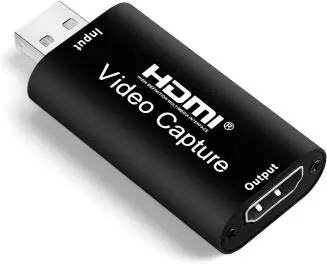
This device is designed for capturing HDMI video and audio signals, allowing you to send them to computers and smart devices for preview and storage. It features plug-and-play operation, requiring no additional drivers. It is ideal for transferring footage from camcorders, action cams, video games, live streams, or office meetings to hard disk or flash media.
System requirements
To ensure proper performance, your computer or notebook must meet the following minimum specifications:
- CPU: PC with i5-3400 or above; Notebook with i7-3537U 2.0GHz or above.
- Graphics card: PC with NVIDIA GT630 or above; Notebook with NVIDIA GT735M or above.
- System memory: 4GB RAM.
Technical specifications
- Max Resolution: Input 4K at 30Hz, Output 1080p at 30Hz.
- Video Format: 8/10/12bit Deep colour.
- Video Output: YUV, JPEG.
- Audio Format: L-PCM.
- Max Cable Length: 15m (AWG26 HDMI standard cable).
- Max working current: 0.4A/5VDC.
- Operating System Compatibility: Windows, Android, and MAC.
- Dimensions: 64x28x13mm.
- Weight: 22g.
Safety and maintenance
- For electrical safety, never immerse the device in water or expose it to damp conditions or excessive force.
- Do not use the device if it appears damaged.
- Do not attempt to repair or take apart the device, as this will invalidate your warranty.
- Dispose of this electronic equipment according to your local council guidelines.
Practical help
Common problems
Device not recognized or video not showing
Ensure the HDMI cable is high quality and under 15m. Verify that the software is set to 'Video Capture Device' or 'USB Video'.
Poor performance or lag
Verify that your PC or laptop meets the minimum CPU, GPU, and RAM requirements listed in the manual.
Before use
- Ensure your PC/laptop has an available USB port.
- Use a high-quality HDMI cable (max 15m).
- Install compatible software like VLC, OBS, or Amcap.
- Verify your computer meets the minimum CPU and RAM requirements.
Specs in practice
- Max Input Resolution
- Supports up to 4K at 30Hz.
- Max Output Resolution
- Outputs up to 1080p at 30Hz.
- Max Cable Length
- Use cables up to 15 meters with AWG26 standard.
Images and diagrams
- The application diagram shows the capture card connecting a source device (DVD player, console, projector, or camera) to a computer or laptop via USB.
Model compatibility
- Compatible with Windows, Android, and MAC.
- Works with software like VLC, OBS, and Amcap.

Manual page author
David Miller
Documentation analyst
Organizes user manual content into clear summaries, with attention to model details, product context, and everyday usability.