Electronics / Video Capture
User Manual for Av Link 128.837UK 4K HDMI Video Capture Card
Quick guide for the Av Link 128.837UK 4K HDMI Video Capture Card. Learn how to connect your device, system requirements, and setup instructions for OBS, VLC, and other software.
Table of contents
Manual images
Click an image to enlargeQuick guide from the manual
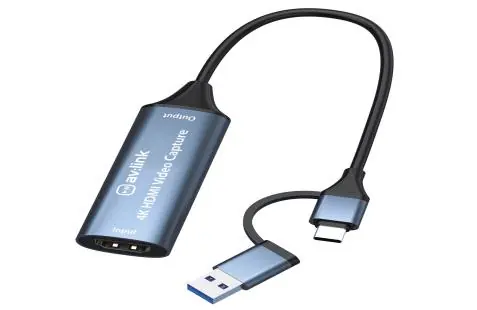
The Av Link 4K HDMI Video Capture Card is a plug-and-play device designed to capture HDMI video and audio signals for preview and storage on computers and smart devices. It supports high-resolution input and output, making it suitable for streaming, gaming, and recording. The device requires no external power supply and is compatible with various acquisition software packages such as VLC, OBS, and Amcap.
System requirements
To ensure optimal performance, your computer or notebook must meet the following minimum specifications:
- PC: Intel i5-3400 or above, NVIDIA GT630 or above, 4GB RAM.
- Notebook: Intel i7-3537U 2.0GHz or above, NVIDIA GT735M or above, 4GB RAM.
Technical specifications
- Max Input Resolution: 4K@30Hz.
- Max Output Resolution: 1080p@60Hz.
- Video Output Formats: YUY2, MJPEG.
- Audio Format: L-PCM.
- Max Cable Length: 15 meters (AWG26 HDMI standard cable).
- Power: 0.2A/5VDC (no external power supply needed).
Connection instructions
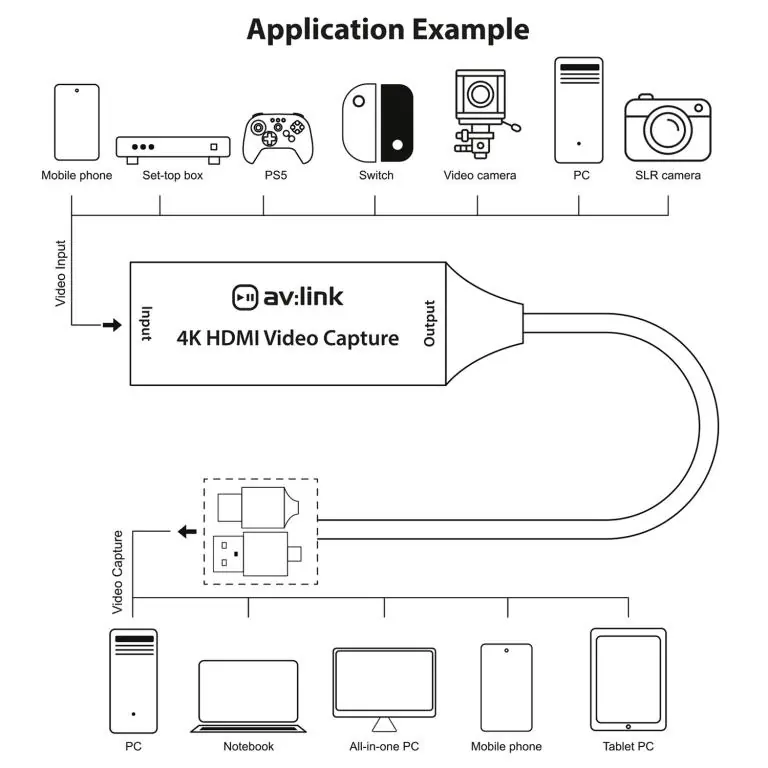
- Insert the video capture card into an available USB port on your PC or laptop.
- Wait for the default device driver "USB Video" to be installed automatically.
- Connect a high-quality HDMI cable between your source device (e.g., camera, console) and the capture card.
- Open your acquisition software (e.g., VLC, OBS, Amcap).
- Select "Add a new Source device" and choose "Video Capture Device" or "USB Video" from the list.
Safety warnings
- Do not immerse the device in water or expose it to damp conditions.
- Avoid using excessive force.
- Do not use the device if it appears damaged.
- Do not attempt to repair or disassemble the unit, as this will void the warranty.
Practical help
Common problems
Device not detected by computer
Ensure it is plugged into a USB 3.0 port and wait for the 'USB Video' driver to install automatically.
No video signal in software
Check that the HDMI cable is high quality and under 15 meters in length. Ensure you have selected 'Video Capture Device' or 'USB Video' in your software settings.
Before use
- Verify PC/Notebook meets minimum CPU and GPU requirements.
- Ensure you have a high-quality HDMI cable (max 15m).
- Check for an available USB 3.0 port.
- Install compatible acquisition software (e.g., OBS, VLC).
Specs in practice
- Input Resolution
- Supports up to 4K@30Hz.
- Output Resolution
- Supports up to 1080p@60Hz.
- Max Cable Length
- Maximum 15 meters using AWG26 HDMI standard cable.
Images and diagrams
- The application diagram shows the capture card connecting via USB to a computer and receiving HDMI input from devices like cameras, consoles, or set-top boxes.
Model compatibility
- Compatible with Windows, Android, and MacOS.
- Requires USB 3.0 connectivity for best performance.

Manual page author
Emily Carter
User documentation editor
Prepares concise manual descriptions and highlights the most useful setup, operation, and maintenance information for readers.