Electronics / Monitor Accessories
User Manual for SIIG 04-1422A HDMI 2.1 Capture Device
Quick guide for the SIIG 04-1422A HDMI 2.1 Capture Device. Learn about system requirements, connection setup for PC and consoles, LED status indicators, and troubleshooting tips.
Table of contents
Manual images
Click an image to enlargeQuick guide from the manual
The SIIG 04-1422A is a 4K60Hz HDMI 2.1 capture device designed for gaming and streaming. It supports high-resolution pass-through up to 4K@144Hz and recording up to 4K@60Hz. The device is UVC/UAC compliant, making it compatible with third-party software like OBS Studio. It features dedicated ports for headsets and gamepads to facilitate party chat recording.
System Requirements
- Computer: Desktop or laptop with a USB 10Gbps Type-C port.
- Operating System: Windows 10 (64-bit)/11 or later; macOS 13/14 or later (max recording 4K@30Hz).
- Hardware (Desktop): Intel Core i5-6xxx or AMD Ryzen 5 1xxx or above; 8GB RAM (16GB recommended); NVIDIA GeForce GTX1060 or AMD Radeon RX570 or above.
- Hardware (Laptop): Intel Core i7-7700HQ or AMD Ryzen 5 3500U or above; 8GB RAM (16GB recommended); NVIDIA GeForce GTX1050Ti or AMD Radeon RX570 or above.
Package Contents
- 4K60Hz HDMI 2.1 Capture Device
- USB-C to C Cable
- 4 Pole 3.5mm Audio Cable
- User Manual
Device Layout
- 3.5mm Jack for Headset: Connect your headset for audio mix.
- 4-Pole 3.5mm Jack for Gamepad: Use the included audio cable to connect to a gamepad for party chat recording.
- USB-C Port: Connect to a USB 10Gbps port for 4K@60Hz recording. Lower speeds (5Gbps/480Mbps) limit recording resolution.
- OS Button: Press down when the video source is Windows or macOS; push back otherwise.
- HDMI Output: Connect to a monitor for video pass-through.
- HDMI Input: Connect to a PC or game console as the video source.
Setup
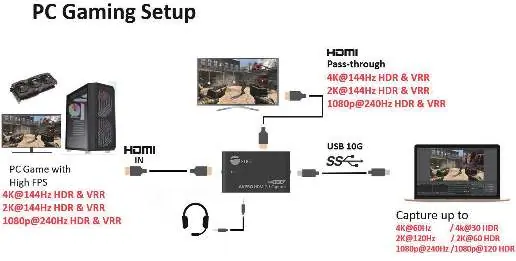
PC Gaming Setup: Connect your gaming PC to the HDMI Input. Connect your monitor to the HDMI Output. Connect the capture device to your streaming PC via the USB-C port.

Console Gaming Setup: Connect your console to the HDMI Input. Connect your TV to the HDMI Output. Connect the capture device to your PC via the USB-C port. Use the 4-pole audio cable to connect the gamepad to the capture device for chat.
LED Indicators
- Power plug in: Purple (1 sec)
- USB 10G speed: Purple (Standby) / Purple flashing (Working)
- USB 5G speed: Blue (Standby) / Blue flashing (Working)
- USB 480M speed: Orange (Standby) / Orange flashing (Working)
- No Video: Blue and Orange flashing
- HDCP Protected: Blue and Orange flashing
- FW Update: Orange flashing
Troubleshooting
If you experience issues, ensure you are using the provided USB-C cable and that your computer's USB port supports 10Gbps. Note that the device does not support recording HDCP-protected signals. If the device is not working as expected, try using different HDMI cables, as high-quality cables are essential for 4K signal transmission.
Manufacturer information
SIIG, Inc.
Practical help
Common problems
Cannot record 4K@60Hz video
Ensure the USB port on your computer supports USB 10Gbps. macOS is limited to 4K@30Hz recording.
Cannot record or live stream HDCP protected signals
The device does not support HDCP-protected content. Press the OS button to stop the source from sending HDCP if applicable.
Device not working as expected
Try using different HDMI or USB cables. Ensure the monitor supports 4K@144Hz 48G bandwidth for full performance.
Before use
- Verify your computer has a USB 10Gbps Type-C port.
- Use the included USB-C cable for optimal performance.
- Ensure your OS is Windows 10/11 or macOS 13/14+.
- Check that your monitor supports the desired pass-through resolution (e.g., 4K@144Hz).
- Set the OS button on the device to match your computer's operating system.
Images and diagrams
- PC Gaming Setup: Connects gaming PC to capture device input, monitor to output, and USB-C to streaming PC.
- Console Gaming Setup: Connects console to capture device input, TV to output, and USB-C to streaming PC, with optional gamepad audio connection.
Model compatibility
- Not compatible with 21:9 aspect ratio.
- macOS recording is limited to 4K@30Hz.
- 4K@144Hz pass-through requires a monitor supporting 48G bandwidth.

Manual page author
David Miller
Documentation analyst
Organizes user manual content into clear summaries, with attention to model details, product context, and everyday usability.