Automotive / Dash Cams
User Manual for WOLFBOX X3 2-Channel Dash Cam
Comprehensive user manual for the WOLFBOX X3 2-Channel Dash Cam. Includes installation steps, Smart Drive feature setup, Wi-Fi connectivity, troubleshooting, and technical specifications.
Quick answers from the manual
Quick answer
- The WOLFBOX X3 is a 2-channel dash cam featuring 2.5K front and 1080P rear recording. It supports Wi-Fi connectivity via the 'Wolfbox Auto' app and includes ADAS Smart Drive features. p. 1, 7, 8
Key actions
- Connect to Wi-Fi p. 23
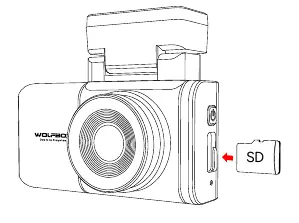
- Install SD Card p. 26
First start
- Test functionality with all accessories and change default settings before installation. p. 26
Problems and fixes
No GPS signal
Clean/reconnect probe, check for interference, move to open area.
p. 29Maintenance and reset
- Reset the machine through the small reset hole on the right side of the dash cam. p. 29
Technical specifications
| Parameter | Value | Meaning | Pages |
|---|---|---|---|
| Front Camera | 2.5K | Resolution | p. 8 |
| Rear Camera | 1080P | Resolution | p. 8 |
Where to find it in the PDF
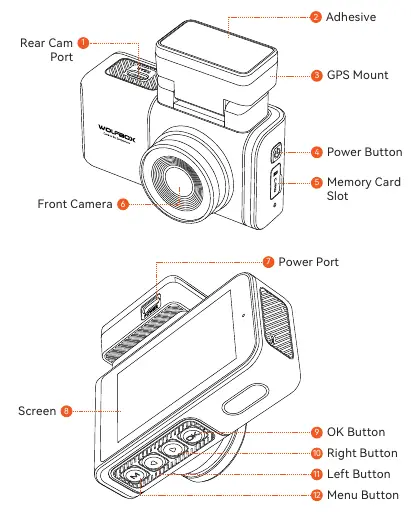
- Appearance p. 10
- Installation p. 26, 27
Table of contents
Manual images
Click an image to enlargeQuick guide from the manual
The WOLFBOX X3 is a 2-channel dash cam designed to record high-quality video for vehicle safety. Before permanent installation, it is recommended to test the device with all accessories and configure settings to your preference. The device supports Wi-Fi connectivity for app-based management and includes Smart Drive (ADAS) features.
Product Overview
The X3 features a 2.5K front camera and 1080P rear camera. It includes a 3-inch IPS display, built-in GPS, and supports up to 512GB micro SD cards. The device operates in DC12V/24V vehicles.
Installation
SD Card Installation
Ensure the dash cam is powered off before inserting or ejecting the micro SD card. If using a card larger than 32GB, format it to FAT32 on a PC.
Front Camera Installation
- Peel off the electrostatic sticker from the cellophane.
- Transfer the sticker to the desired location on the windshield.
- Attach the front camera to the electrostatic sticker and press firmly.
Wire Layout
- Connect the car charger to the cigar socket.
- Connect the other end to the dash cam.
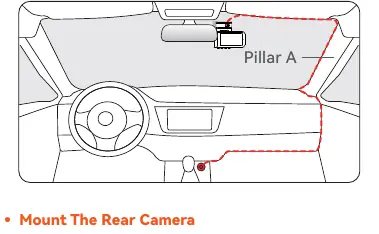
- Use the provided crowbar to tuck the power cable along the windshield and roof, hiding it down the A-pillar.
- Connect the rear camera cable and hide it along the vehicle gaps between the windshield, ceiling, and rear seats.
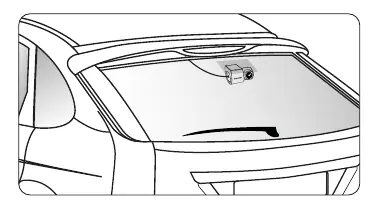
Mounting the Rear Camera
- Clean the rear windshield area.
- Apply the electrostatic sticker and remove air bubbles.
- Peel the adhesive on the rear camera and stick it onto the electrostatic sticker.
Buttons and Functions
- Power Button: Short press for snapshot (recording mode) or return (setup/playback); long press to turn off.
- Menu Button: Short press to enter main menu (recording mode) or return (setup/playback).
- Left Button: Short press to lock/unlock file (recording mode), select previous function/file, or fast rewind. Long press to toggle Wi-Fi.
- Right Button: Short press to enter playback (recording mode), select next function/file, or fast forward. Long press to toggle audio.
- OK Button: Short press to switch screen (recording mode), confirm settings (setup), or play file (playback).
Smart Drive Feature
Smart Drive enhances safety with ADAS features. It calibrates automatically upon startup. For accurate calibration, drive at 20km/h (10mph) or above for 2-3 minutes. Features include:
- Lane Departure: Detects lane markings and alerts if the vehicle deviates.
- Forward Collision: Calculates distance to the vehicle ahead and warns of risks.
- Stop & Go: Monitors the front vehicle's departure and provides a reminder.
Wi-Fi and App
The "Wolfbox Auto" app allows wireless access to recordings. To connect: enable Wi-Fi in settings, connect your phone to the X3 Wi-Fi network (default password: 12345678), and open the app.
Troubleshooting
If you encounter issues, check the following:
- No GPS Signal: Clean/reconnect the probe, check for interference (metal film, radar detectors), and move to an open area.
- Card Error: Check format reminder settings, format the SD card, restore factory settings, or update firmware.
- Repeated Restart: Use the original car charger, check for short circuits in accessories, reset via the reset hole, or try powering via USB.
Practical help
Common problems
No GPS signal
Clean and reconnect the probe on the main unit and bracket. Check for interference like metal film on the windshield, radio antenna, or radar detector. Move the car to an open area.
Card error or format prompt
Go to Settings > Format Reminder to check if enabled. Format the memory card, restore factory settings, or update the firmware.
Repeated restart or no boot
Ensure the original car charger is used. Unplug the memory card and charger, then reinstall. Use the reset hole on the side of the device. Try powering via USB cable to confirm if the host works.
Cannot connect to Wi-Fi
Check working distance (approx. 15ft). Verify SSID and password. Turn off mobile data, security software, and VPN on your phone.
Before use
- Test functionality with all accessories before permanent installation.
- Change default settings to your preference.
- Ensure the dash cam is powered off when inserting or ejecting the SD card.
- Format SD card to FAT32 on a PC if capacity is >32GB.
- Drive at 20km/h (10mph) or above for 2-3 minutes for Smart Drive calibration.
Specs in practice
- Front Camera
- 2.5K resolution
- Operating Temperature
- -4°F to 158°F
Images and diagrams
- Appearance diagram showing button layout and port locations.
- Installation diagram showing cable routing along the A-pillar.
- Rear camera mounting diagram showing placement on the rear windshield.
Model compatibility
- Compatible with DC12V/24V vehicles only.
- Parking Mode requires a hardware kit (purchased separately).
- Use original accessories to avoid compatibility issues and insufficient current.

Manual page author
David Miller
Documentation analyst
Organizes user manual content into clear summaries, with attention to model details, product context, and everyday usability.