Electronics / Monitors
User Guide for Yamaha 01X Cubase SX 3 Integration
A quick guide for integrating the Yamaha 01X with Cubase SX 3. Learn how to set up remote control, configure audio and MIDI, automate tracks, and manage EQ and effects.
Table of contents
Manual images
Jump to the sectionQuick guide from the manual
This supplementary manual provides instructions for using the Yamaha 01X as a control surface and audio interface with Cubase SX 3. To begin, ensure your mLAN driver is installed and the 01X is connected to your computer. The core setup involves configuring the 01X in the Cubase Device Setup menu and enabling Remote mode on the 01X panel by pressing the [UTILITY] button, selecting REMOTE SELECT, choosing CUBASE/NUENDO, and pressing [REMOTE].
Setting up the 01X with Cubase SX 3
Before using the 01X, you must configure the hardware control set in Cubase:
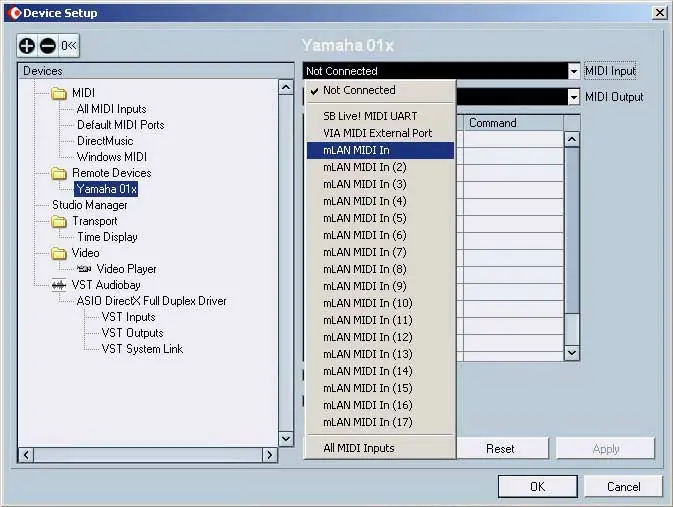
- Go to Devices menu and select Device Setup.
- Click the + button to add a device and select Yamaha 01X.
- Specify the MIDI In and Out ports by selecting the unnumbered mLAN MIDI ports.
- Click Apply and OK to save settings.
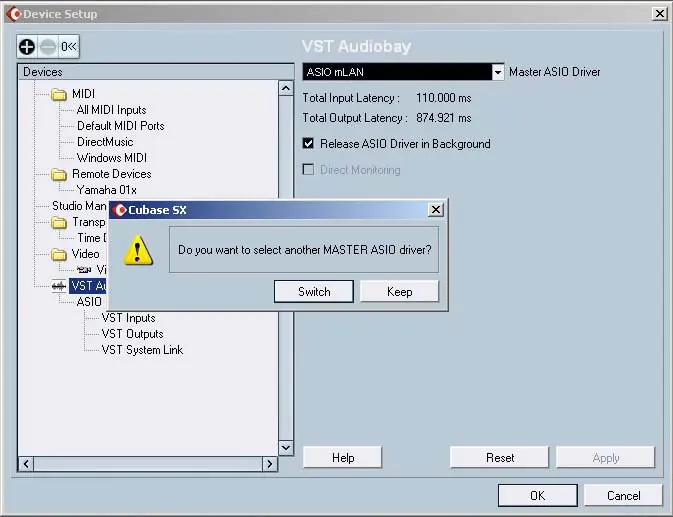
For audio and MIDI setup, select VST Audiobay in the Device Setup menu and set the Master ASIO Driver to ASIO mLAN.
Remote control operation
Once configured, the 01X acts as a comprehensive control surface:
- Transport Controls: Use the dedicated buttons (Rewind, Fast-forward, Stop, Play, Record) to control playback.
- Markers: Hold [MARKER] and use Rewind/Fast-forward buttons to jump between marker points.
- Selecting Tracks: Use the Up/Down cursor buttons or the [SEL] button on the 01X channel strip.
- Zoom: Press [ZOOM] and use cursor buttons to adjust the view in the Project window.
Mixer and automation
The 01X allows real-time mixing and automation:
- Mixer Window: Hold [SHIFT] and press [MIXER (F2)] to open the mixer.
- Faders and Knobs: Use faders for volume and knobs for pan. Press [FLIP] to swap these assignments.
- Automation: Press [AUTO R/W] to enable automation. Use the [ON] button to toggle between Read (R) and Write (W) modes. Move faders during playback to record volume automation.
Editing EQ and effects
You can edit track parameters directly from the 01X:
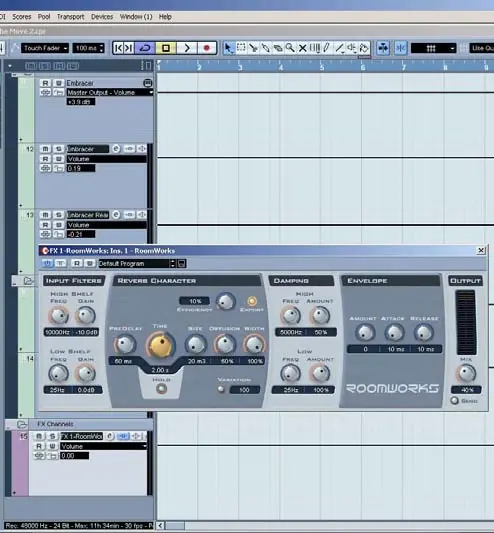
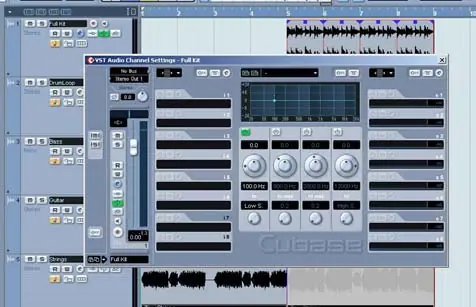
- EQ Settings: Select an audio track, press [EDIT] to open the Channel Settings window, then press an EQ button on the 01X. Use knobs to adjust Gain, Frequency, and Q.
- Effect Settings: Create an FX Channel track in Cubase. Use the [EFFECT] button to toggle between Master and Send effects. Use knobs to adjust send levels and effect parameters.
Customizing function buttons
The eight Function buttons [F1] - [F8] can be customized for specific DAW commands:
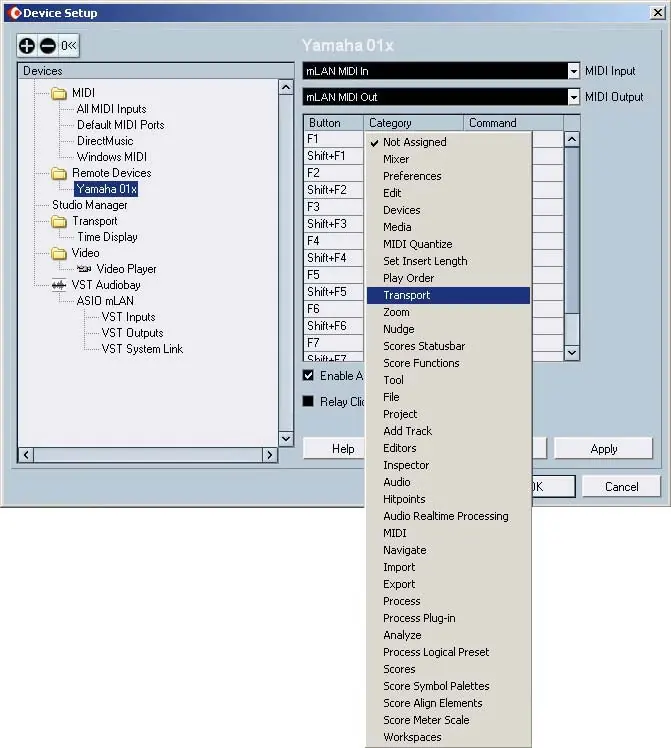
- In Device Setup, select Yamaha 01X.
- Click the Category and Command cells next to the desired button to assign functions.
- Use [SHIFT] combinations for additional commands.
Manufacturer information
Yamaha
Practical help
Common problems
Fader moves do not affect the software.
Ensure Remote mode is enabled on the 01X (the [REMOTE] button lamp should be lit).
EQ curve in the window does not change when adjusting knobs.
Ensure the EQ band is enabled in the display page or within the Cubase Channel Settings window.
Latency between fader move and sound change.
This is a system performance issue; refer to your sequencer documentation for optimizing system settings.
Before use
- Ensure the mLAN driver is installed and active.
- Connect the 01X to your computer.
- Open Cubase SX 3.
- Set the 01X to Internal mode (press [INTERNAL] button).
- Ensure the [MONITOR A/B] switch is set correctly.
Images and diagrams
- Device Setup menu for selecting Yamaha 01X as a remote device.
- VST Audiobay settings for selecting the ASIO mLAN driver.
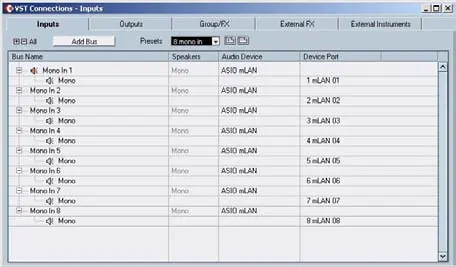
- VST Connections window for configuring input and output buses.
- Automation parameter list for assigning controls to the 01X.
- Function button assignment chart in Device Setup.
Model compatibility
- Designed for Cubase SX 3.
- Requires mLAN driver.
- Operations are generally identical for Mac OS X, with specific exceptions noted in the manual.

Manual page author
David Miller
Documentation analyst
Organizes user manual content into clear summaries, with attention to model details, product context, and everyday usability.