Computers / Mobile Computers
User Guide for Zebra 123Scan Configuration Utility
A comprehensive guide for the Zebra 123Scan Configuration Utility. Learn how to set up, configure, and manage Zebra scanners, perform firmware updates, generate custom programming barcodes, and utilize advanced data formatting features.
Table of contents
Quick Guide to 123Scan
123Scan is a PC-based software tool designed to streamline the setup and management of Zebra scanners. It uses a wizard-based interface to guide users through configuration, firmware updates, and report generation. Once parameters are set, you can save them to a configuration file, distribute them via email, or generate programming barcodes for quick scanner setup.
Key Functionalities
- Configuration Generation: Create electronic configuration files that can be saved to your PC or used to generate programming barcodes.
- Firmware Upgrades: Update scanner firmware using a standard USB cable or via Bluetooth connection for cordless scanners.
- Data Formatting: Utilize Advanced Data Formatting (ADF) and Multicode Data Formatting (MDF) to manipulate scanned data, including parsing UDI, GS1, and Blood Bag data.
- Report Generation: Create various reports, including parameter settings, activity logs, inventory tracking, and validation reports.
- Mass Staging: Program multiple scanners simultaneously using powered USB hubs.
Installation Requirements
Before installing 123Scan, ensure your system meets the following requirements:
- Hardware: Pentium Dual-Core 1.6GHz or equivalent, 2GB RAM, 1.2 GB free hard drive space, and a USB port (1.1 or higher).
- Display: Minimum resolution of 1024 x 768 pixels.
- Operating System: Windows 10 (32/64-bit) or Windows 11 (64-bit).
- Input: A mouse and keyboard are required; touch screen use is not supported.
- Connectivity: Internet access is required for utility and plug-in updates. Ensure HTTPS data (Port 443) is allowed through your firewall.
Using the Utility
123Scan can be launched from the Start Screen under Apps / Zebra Scanner / 123Scan – Configuration Utility. The utility provides a Discovered Scanner tab where you can access asset tracking information and perform mass upgrades. When updating firmware, ensure you have the correct plug-in for your specific scanner model. The utility automatically checks for updates at bootup to ensure support for newly released products.
Components and File Locations
By default, 123Scan installs components in the following locations:
- Application: Program Files\Zebra Technologies\Barcode Scanners\123Scan2
- Configuration Files: Users\Public\Documents\123Scan2\Configuration Files
- Activity Reports: Users\Public\Documents\123Scan2\Activity Report Database
- Data View Reports: Users\Public\Documents\123Scan2\Data View Reports
- Saved Images: Users\Public\Documents\123Scan2\Images
- Scanner Plug-Ins: ProgramData\123Scan2\Plug-ins
Manufacturer information
Zebra Technologies
Practical help
Common problems
123Scan fails to launch on Windows 10
Check if FIPS is enabled. 123Scan may require FIPS enterprise settings to be disabled for successful launch.
Cannot download utility or plug-in updates
Verify internet connectivity, ensure Port 443 is open, and check that system proxy settings are correctly configured.
Firmware update fails
Ensure no automatic plug-in update is currently in progress. If updating a cordless scanner, do not disconnect or refresh during the process.
Before use
- Verify your PC meets the minimum hardware requirements (Pentium Dual-Core, 2GB RAM).
- Ensure you are running a supported operating system (Windows 10 or 11).
- Connect the scanner via a USB port (1.1 or higher).
- Ensure you have a mouse and keyboard connected.
- Check internet connection to allow 123Scan to download necessary plug-ins.
Specs in practice
- ADF (Advanced Data Formatting)
- Allows complex data manipulation rules, such as adding prefixes/suffixes or parsing specific data formats.
- MDF (Multicode Data Formatting)
- Enables the scanner to handle multiple barcodes in a single scan.
- Mass Upgrade Mode
- A feature available on the Discovered Scanners tab to update firmware or load configurations on multiple scanners simultaneously.
Images and diagrams
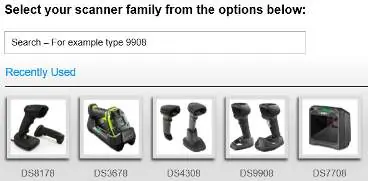
- Scanner Selection Screen: Allows you to search for and select your specific scanner family to begin configuration.
- Actions Menu: Provides access to configuration tools, firmware updates, and report generation options.
Model compatibility
- 123Scan does not support touch screen interfaces.
- Requires Microsoft .NET Framework 4.0 client profile (loaded during installation if not present).
- Some features (like specific parsing) require updated scanner firmware.

Manual page author
Michael Turner
Technical manual editor
Reviews PDF manuals for structure, safety notes, and practical product details so readers can find the right information quickly.