Electronics / Video Transmission
User Manual for Zenty 1080P Wireless HDMI Extender
Quick guide for the Zenty 1080P Wireless HDMI Extender (ZT-214/ZT-W60MEX). Includes setup instructions, wiring diagrams, web configuration steps, and troubleshooting.
Table of contents
Manual images
Click an image to enlargeQuick Guide from the Manual
The Zenty 1080P Wireless HDMI Extender allows you to transmit high-definition video wirelessly up to 200 feet (60 meters) in open space. It utilizes the 5GHz ISM frequency band for stable transmission and supports IR remote extension. The system is plug-and-play, but offers a web configuration interface for advanced settings like channel selection and SSID management.
Package Contents
- 1 x HDMI Wireless Transmitter (TX)
- 1 x HDMI Wireless Receiver (RX)
- 1 x IR Transmitter Cable
- 1 x IR Receiver Cable
- 2 x DC Power Adapters
- 4 x Antennas
Interface Features
Transmitter (TX)
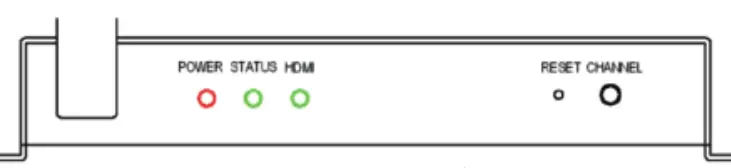

- Front Panel: Includes Power, Status, and HDMI indicators, plus Reset and Channel buttons.
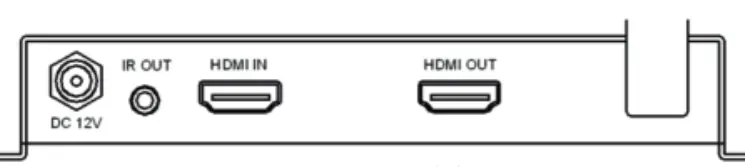
- Rear Panel: Features DC 12V input, IR Out port, HDMI In, and HDMI loop output.
Receiver (RX)
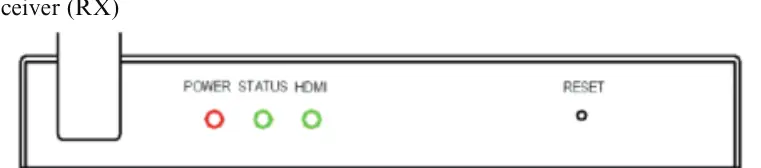
- Front Panel: Includes Power, Status, and HDMI indicators, plus a Reset button.
- Rear Panel: Features DC 12V input, IR In port, and HDMI output.
Operation and Connection
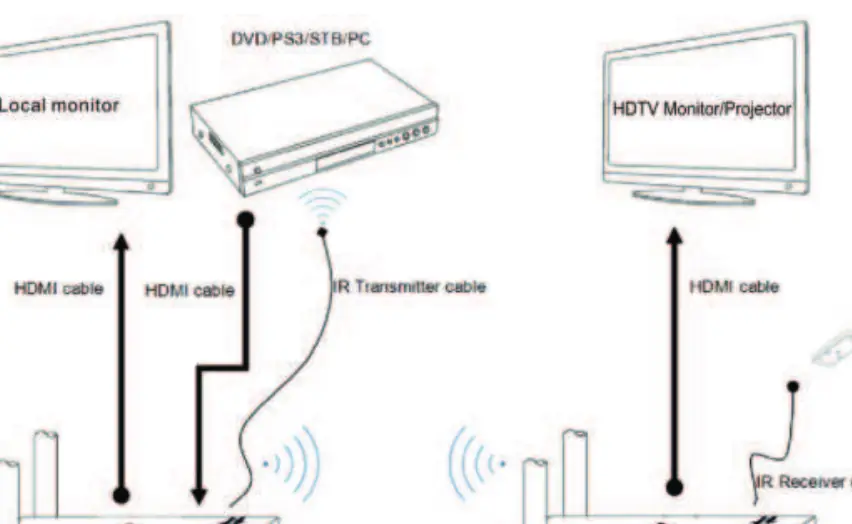
- Connect your HDMI source device (e.g., set-top box, DVD player) to the HDMI input port on the Transmitter.
- Connect your TV or monitor to the HDMI output port on the Receiver.
- Connect the IR Transmitter cable to the TX IR Out port and position it facing the source device's IR sensor.
- Connect the IR Receiver cable to the RX IR In port.
- Connect the provided 12V power adapters to both the TX and RX units.
- The devices will pair automatically. The STATUS indicator will illuminate when the connection is successful.
Panel Key Operation
- Changing Wireless Channel: Short press the CHANNEL button on the TX to cycle through 5GHz channels if the picture is unsteady.
- Factory Reset: Press and hold the RESET button for three seconds using a paper clip while the device is powered on. The HDMI status LED will flash three times to confirm.
Web Settings
To adjust advanced settings:
- Power on the devices and let them pair.
- Connect your phone or PC to the WiFi SSID: ZT_HDMI_Wireless_1 (Default password: 00000000).
- Set your device's IP to Auto (DHCP).
- Open a web browser and enter 192.168.1.10.
- Login with the default password: admin.
Maintenance
Clean the unit with a soft, dry cloth. Do not use alcohol, paint thinner, or benzine.
Practical help
Common problems
No display
Ensure the TV is on and connected via HDMI, check the TX power supply, and verify the TV is working correctly.
Displays 'Connecting'
Check RX power, ensure web settings are correct, try selecting a new channel, or power cycle both units.
Transmission distance is short
Adjust antenna angle, check for obstructions like concrete or metal walls, or switch to a different channel.
Can't find the SSID
Check TX/RX power, ensure your device supports the 5G band, or perform a factory reset.
Before use
- Ensure all HDMI cables are securely connected.
- Verify both TX and RX are powered using the provided 12V adapters.
- Check that the IR cables are correctly positioned if using remote control extension.
- Ensure the environment is free from major obstructions like concrete or metal walls.
Specs in practice
- HDMI Resolution
- Supports up to 1080P at 50/60Hz.
- Transmission Distance
- Up to 200ft (60m) in open space.
- Wireless Band
- 5GHz ISM band for high-speed data.
Images and diagrams
- TX Front Panel: Shows Power, Status, and HDMI LEDs, plus Reset and Channel buttons.
- TX Rear Panel: Includes DC 12V input, IR Out, HDMI In, and HDMI Out.
- RX Rear Panel: Includes DC 12V input, IR In, and HDMI Out.
Model compatibility
- One transmitter can be paired with up to two receivers.
- Supports HDMI resolutions from 480P to 1080P and SVGA to WUXGA.

Manual page author
Emily Carter
User documentation editor
Prepares concise manual descriptions and highlights the most useful setup, operation, and maintenance information for readers.