Electronics / Monitors
Acurite 06188M Optimus Weather Station Instruction Manual
Quick guide for the Acurite 06188M Optimus Weather Station. Learn how to set up Wi-Fi, customize display themes, use Flex View, and troubleshoot common sensor or connectivity issues.
Table of contents
Quick guide from the manual
The Acurite 06188M Optimus Weather Station provides real-time weather monitoring with Wi-Fi connectivity. This guide helps you set up the device, customize the HD display, and resolve common operational issues. Ensure the display is connected to a continuous power source and the outdoor sensor is within 330 feet (100 meters) of the display unit.
Display customization and features
The Optimus display offers several ways to view your data:
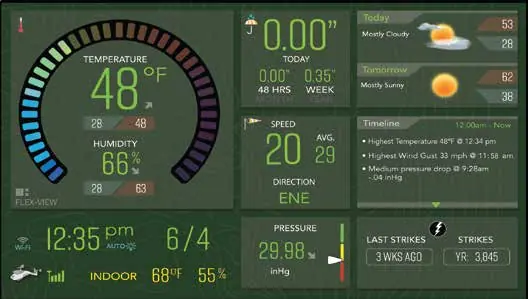
- Flex View: Press the FLEX-VIEW button to cycle through different data focus modes, such as Wind, Rain, or Temperature.
- Themes: You can choose between 3 different display themes. Navigate to MENU, then DISPLAY SETTINGS, and select THEME SELECTION.
- Timeline: Press the TIMELINE button to view historical data for the past 48 hours, including wind gusts, rain amounts, and pressure changes.
- Lightning Detection: The system automatically alerts you to approaching lightning-producing storms within a 25-mile radius.
Wi-Fi and App connectivity
To access expanded capabilities and remote monitoring:
- Download the AcuRite NOW app on your mobile device.
- Ensure your router is broadcasting a 2.4 GHz network (5 GHz is not supported).
- Follow the in-app instructions to connect the display to your Wi-Fi network.
- Use the app to set alerts, explore records, and share data.
Troubleshooting
If you encounter issues, check the following:
- No sensor reception: Ensure the outdoor sensor is within 330 feet of the display. Check the sensor's battery status; the LED should blink every 18 seconds.
- Wi-Fi connection issues: Verify your network name and password. Ensure DHCP is enabled on your router.
- Display appears off: The unit may be in SLEEP MODE. Check your sleep/wake schedule settings in the menu.
Technical specifications
- Temperature Range: 32°F to 122°F (0°C to 50°C) for indoor readings.
- Humidity Range: 1% to 99% (indoor).
- Wi-Fi Compatibility: 2.4 GHz only.
- Reception Frequency: 433 MHz.
- Power: 5V Power Adapter.
Manufacturer information
AcuRite
Practical help
Common problems
No reception from outdoor sensor
Ensure the sensor is within 330 feet of the display, check batteries, and re-synchronize by resetting both units.
Display not connecting to Wi-Fi
Verify the network is 2.4 GHz (5 GHz is not supported), check that the password is correct, and ensure DHCP is enabled on your router.
Outdoor temperature displaying '--' or '-40°F'
Check for wireless interference from electronics like TVs or PCs and ensure the sensor is within range.
Display is dark or appears off
The unit may be in SLEEP MODE. Check the sleep/wake schedule in the settings menu.
Before use
- Ensure the display is plugged into a continuous power source.
- Verify the outdoor sensor has fresh batteries and the LED is blinking.
- Confirm your Wi-Fi network is 2.4 GHz.
- Download the AcuRite NOW app.
- Place the sensor at least 5 feet off the ground and away from heat sources.
Specs in practice
- Wi-Fi Compatibility
- Requires a 2.4 GHz broadband connection; 5 GHz networks are not supported.
- Reception Frequency
- Operates at 433 MHz with a maximum range of 330 feet (100 meters) to the outdoor sensor.
- Data Sampling
- Indoor readings update every 60 seconds.
Images and diagrams
- The main display shows current wind speed, direction, outdoor temperature, humidity, rainfall, and barometric pressure.
- The bottom navigation bar includes buttons for MENU, FLEX-VIEW, and TIMELINE.
- The top-right corner displays weather forecasts based on Wi-Fi data.
Model compatibility
- Requires 2.4 GHz Wi-Fi network.
- Indoor use only for the display unit.
- Outdoor sensor must be within 330 feet of the display.

Manual page author
Emily Carter
User documentation editor
Prepares concise manual descriptions and highlights the most useful setup, operation, and maintenance information for readers.