Home / Weather Stations & Thermometers
User Manual for AcuRite 09150M SmartHUB
Quick setup guide and troubleshooting for the AcuRite 09150M SmartHUB. Learn how to connect your device, interpret status lights, and resolve common network or sensor issues.
Table of contents
Manual images
Click an image to enlargeQuick guide from the manual
The AcuRite SmartHUB connects your compatible AcuRite sensors to the My AcuRite network. Setup requires a wired Ethernet connection to your router and an active Internet connection. Before starting, ensure you have a compatible sensor and an available Ethernet port on your router.
Package contents
- SmartHUB unit
- Ethernet cable
- Power adapter
Setup and installation
- Prepare: Flip up the antenna on the SmartHUB.
- Connect: Plug one end of the Ethernet cable into the SmartHUB and the other into your network router.
- Power: Plug in the power adapter. The unit will take about a minute to start up.
- Wait: The SmartHUB will automatically download firmware updates. This may take up to 30 minutes. Do not unplug cables during this process.
- Activate: Once the Network Status Light is solid, press and hold the ACTIVATE button for 4 seconds to begin communication with My AcuRite servers.
- Register: Create your account and register your device at www.MyAcuRite.com or via the AcuRite mobile app.
Status lights
The SmartHUB features two status lights to indicate its operational state:
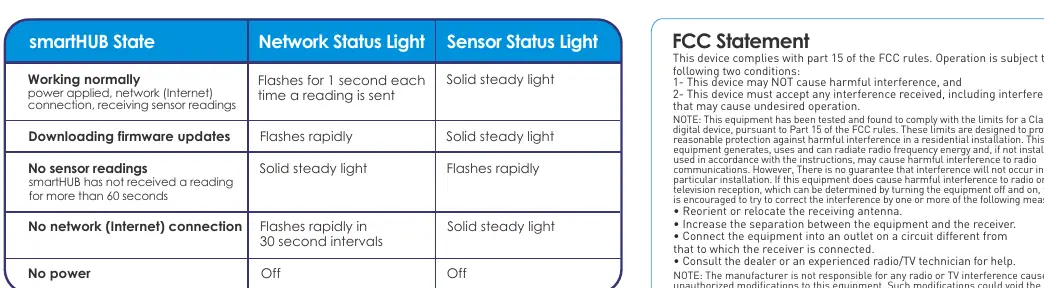
- Network Status Light: Indicates Internet and firmware status.
- Sensor Status Light: Indicates communication status with your sensors.
Refer to the status light table in the manual for specific flash patterns, such as rapid flashing during firmware updates or solid lights during normal operation.
Troubleshooting
If you encounter issues, consider the following:
- SmartHUB not recognized: Allow up to 10 minutes for activation. Verify the Device ID (MAC address) entered on the website matches the one on the bottom of the unit.
- No network connection: Ensure the Ethernet cable is firmly connected and DHCP is enabled on your router. Check if MAC address filtering is blocking the device.
- Sensor issues: If the Sensor Status Light flashes rapidly, the SmartHUB has not received a reading for over 60 seconds. Ensure the sensor is within 330 feet (100 meters) and away from interference sources like large metallic surfaces or electronic devices.
Support and warranty
Product registration is required to receive warranty service. For support, visit www.AcuRite.com or call 844-228-5465. The device comes with a 1-year limited warranty.
Official resources from the manual
Manufacturer information
AcuRite
Practical help
Common problems
SmartHUB not recognized when adding to account
Wait up to 10 minutes for activation. Verify the 12-digit Device ID on the bottom of the unit is entered correctly. Ensure the device has an active Internet connection.
Sensor Status Light is continuously flashing rapidly
The SmartHUB has not received a sensor reading for over 60 seconds. Check that the sensor is within 330 feet (100 meters), batteries are fresh, and the unit is away from 'noisy' electronics like TVs or microwaves.
SmartHUB has no network connection
Ensure the Ethernet cable is firmly connected. Verify DHCP is enabled on your router. Check if MAC address filtering is enabled, as the router may be blocking the SmartHUB.
Before use
- At least one compatible AcuRite sensor
- Network router with an available Ethernet port
- Always-on Internet connection
- Write down the Device ID printed on the bottom of the device
Specs in practice
- Network Status Light
- Indicates the status of the Internet connection and firmware updates.
- Sensor Status Light
- Indicates the status of wireless communication with your AcuRite sensors.
Images and diagrams
- The setup diagram illustrates the connection path: Sensor -> SmartHUB -> Router -> Internet.
- The diagram highlights the location of the ACTIVATE button and the Device ID label.
Model compatibility
- Requires a wired Ethernet connection; Wi-Fi is not supported.
- Requires a compatible AcuRite sensor.

Manual page author
Michael Turner
Technical manual editor
Reviews PDF manuals for structure, safety notes, and practical product details so readers can find the right information quickly.