Computers / Tablets
User Manual for Hyundai HYbook Pro 13TA1
Quick guide for the Hyundai HYbook Pro 13TA1. Learn about port layout, basic Windows 10 operations, safety precautions, and troubleshooting.
Table of contents
Quick guide from the manual
The Hyundai HYbook Pro 13TA1 is a Windows-based tablet PC. Before using the device, ensure the environment is non-tropic and below 2,000 meters in altitude. Avoid extreme temperatures (do not use in environments over 35°C), high humidity, and dusty conditions. Keep the device away from strong magnetic and static fields. Always back up your important data to prevent loss due to software or hardware issues.
Key Layout and Ports
The device features various ports for connectivity:
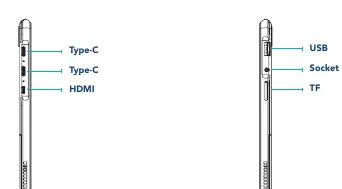
- Left Side: Two Type-C ports and an HDMI port.
- Right Side: USB port, Socket for Earphone, and TF (MicroSD) card slot.
- Front: Front-facing camera.
Note: The keyboard is optional and configuration depends on the specific model purchased.
Basic Windows 10 Operations
The device runs on Windows 10. Key operations include:
- Start Menu: Access programs, devices, setup, share, and search. You can pin or unpin applications to the Start screen or Taskbar by right-clicking the application icon.
- Cortana: Use for fast smart searching.
- Multitasking: Click the Task View icon to see running applications and manage desktops.
- Power Management: Access Sleep, Shut Down, and Restart options via the Power icon in the Start menu.
- Action Center: Use for quick settings such as Tablet/PC mode, Wi-Fi, and Bluetooth.
Safety and Maintenance
- Liquid Spills: If liquid splashes onto the device, close it immediately and do not use it until it is completely dry.
- Cleaning: Do not use chemical detergents. If cleaning is necessary, use a dry, soft cloth or tissue paper.
- Battery: Only use the original battery provided. Replacing with an incorrect type may cause an explosion.
- Disassembly: Do not disassemble the device yourself, as this will void the warranty.
Support and Contact
For technical support or sales inquiries, you can contact Hyundai Technology:
U.S. and Worldwide: 800-560-0626 (Monday-Friday 8:00am-5:00pm PST) or email [email protected]
Mexico (Spanish): 81 5030-7375 (Lunes-Viernes 8:00am-5:00pm CST) or email [email protected]
Visit the official website at www.hyundaitechnology.com for the latest software updates.
Official resources from the manual
Manufacturer information
Hyundai
Practical help
Common problems
Liquid spill on the device
Close the device immediately and do not use it until it is completely dry.
Data loss
Back up important material regularly; the company is not responsible for data loss due to abnormal software or hardware operation.
Keyboard not working or missing
The keyboard is optional and configuration depends on the specific model purchased.
Before use
- Ensure the environment is non-tropic and below 2,000 meters altitude.
- Avoid extreme temperatures (do not use in environments over 35°C).
- Keep the device away from strong magnetic and static environments.
- Back up important data.
- Use only the original battery provided.
Images and diagrams
- The device features ports on both sides: Type-C, HDMI, USB, Earphone jack, and TF card slot.
Model compatibility
- Keyboard is optional.
- Runs on Windows 10 operating system.

Manual page author
Michael Turner
Technical manual editor
Reviews PDF manuals for structure, safety notes, and practical product details so readers can find the right information quickly.