Electronics / USB Hubs & Docking
User Manual for Anker PowerExpand Elite 12-in-1 Thunderbolt 4 Dock
Quick guide for the Anker PowerExpand Elite 12-in-1 Thunderbolt 4 Dock. Learn how to connect your laptop, set up multiple monitors, and use the various ports for data and charging.
Table of contents
Manual images
Click an image to enlargeQuick Guide
The Anker PowerExpand Elite 12-in-1 Thunderbolt 4 Dock is a high-performance I/O solution designed to expand your laptop's connectivity. It supports data transfer speeds up to 40 Gbps, video output, and up to 90W laptop charging.
What's in the Box
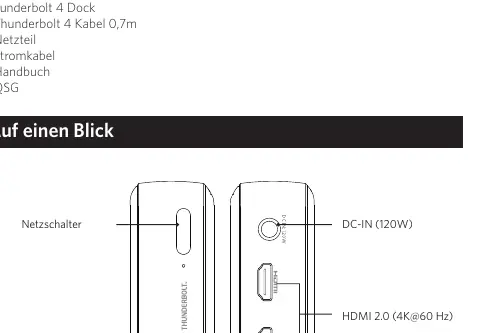
- Thunderbolt 4 Dock
- Thunderbolt 4 cable (0.7m)
- Power adapter
- Power cord
- Manual
- Quick Start Guide
At a Glance
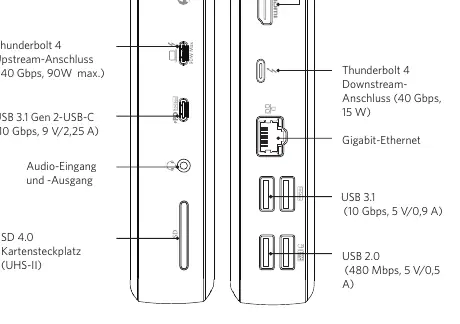
Front Panel: Power Button, Thunderbolt 4 Upstream Port (40 Gbps, 90W Max), USB-C 3.1 Gen 2 Port (10 Gbps), Audio In/Out, SD 4.0 Card Slot (UHS-II).
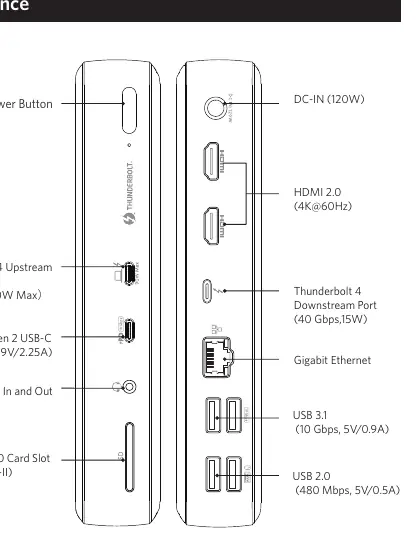
Rear Panel: DC-IN (120W), two HDMI 2.0 Ports (4K@60Hz), Thunderbolt 4 Downstream Port (40 Gbps, 15W), Gigabit Ethernet, two USB 3.1 Ports (10 Gbps), two USB 2.0 Ports (480 Mbps).
Connecting the Dock
- Connect the power adapter to the DC-IN port on the dock and plug it into a power outlet.
- Press the power button; the LED will turn green.
- Connect your laptop to the dock's Thunderbolt 4 Upstream port using the provided Thunderbolt 4 cable.
Monitor Setup
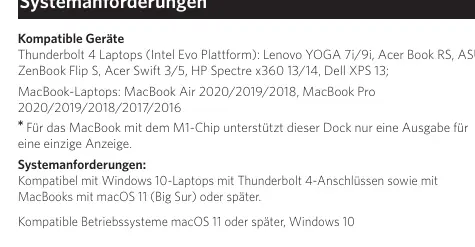
The dock features two HDMI ports and one Thunderbolt 4 Downstream port. You can connect up to three monitors simultaneously. Note that resolution capabilities vary based on the number of monitors and the operating system. For MacBooks with an M1 chip, the dock supports single display output only.
LED Indicator Guide
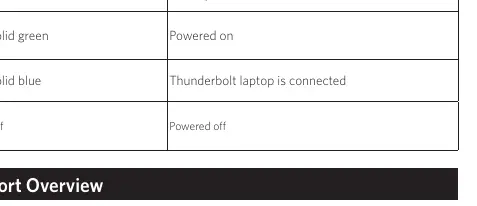
- Solid Green: Powered on
- Solid Blue: Thunderbolt laptop is connected
- Off: Powered off
Specifications
- Size: 186.4 x 73.3 x 33.3 mm
- Weight: 467g
Safety Instructions
- Avoid dropping the device.
- Do not disassemble.
- Do not expose to liquids.
- Use original or certified cables for safe charging.
- Operate in moderate climates only, with ambient temperature not exceeding 40°C (104°F).
- Keep away from open flame sources.
- Clean only with a dry cloth or brush.
Manufacturer information
Anker
Practical help
Common problems
Dock is not charging the laptop
Ensure the power adapter is securely connected to the DC-IN port and a wall outlet, and that the power button is pressed (LED should be green).
Multiple monitors not working on MacBook
If using a MacBook with an M1 chip, the dock only supports single display output.
Before use
- Verify your laptop has a Thunderbolt 4 port (Windows) or runs macOS 11 (Big Sur) or later.
- Ensure you have the provided Thunderbolt 4 cable.
- Connect the power adapter to the dock before connecting to your laptop.
Specs in practice
- Thunderbolt 4 Upstream Port
- Connects to your laptop; provides up to 90W charging.
- Thunderbolt 4 Downstream Port
- Supports daisy chaining, 40 Gbps data transfer, and up to 8K@30Hz or 5K@60Hz monitor output.
- HDMI 2.0 Ports
- Supports video output up to 4K@60Hz.
Images and diagrams
- The front panel contains the power button, upstream Thunderbolt port, USB-C port, audio jack, and SD card slot.
- The rear panel contains the power input, two HDMI ports, downstream Thunderbolt port, Ethernet port, and four USB-A ports.
Model compatibility
- Compatible with Windows 10 laptops equipped with Thunderbolt 4 ports.
- Compatible with MacBooks running macOS 11 (Big Sur) or later.
- MacBooks with M1 chips support single display output only.

Manual page author
Michael Turner
Technical manual editor
Reviews PDF manuals for structure, safety notes, and practical product details so readers can find the right information quickly.