Power / USB Chargers
User Manual for Anker PowerExtend USB Wall Outlet 2-Outlet
Quick guide for installing and using the Anker PowerExtend USB Wall Outlet 2-Outlet (A9321). Includes wiring instructions, safety warnings, and technical specifications.
Quick answers from the manual
Quick answer
- The Anker PowerExtend USB Wall Outlet 2-Outlet (A9321) is a wall-mounted electrical outlet with integrated USB charging ports. It must be installed in a standard single gang wall box by connecting the ground, hot, and neutral wires to their respective terminals. p. 1
Key actions
- Turn off power at the circuit breaker before wiring. p. 1
- Connect wires: Green to green lead, Black to HOT screw, White to WHITE screw. p. 1
Technical specifications
| Parameter | Value | Meaning | Pages |
|---|---|---|---|
| Electrical Rating | 125V~60Hz 15A, 1875W | Power capacity | p. 1 |
| USB Output | 5V 2.4A | Charging output | p. 1 |
Where to find it in the PDF
- Installation and Safety p. 1
- FCC and Support p. 2
Table of contents
Quick guide from the manual
The Anker PowerExtend USB Wall Outlet 2-Outlet (A9321) is designed to replace standard wall outlets, providing two AC outlets and USB charging ports. It must be installed in a standard single gang electrical wall box. Ensure all power is disconnected at the circuit breaker before beginning installation.
Safety warnings
- Indoor use only: Use this device only in dry, indoor locations.
- Wiring: Use only with copper or copper-clad wire.
- Electrical ratings: Do not exceed the specified electrical ratings (125V~60Hz 15A, 1875W).
- Heat sources: Install away from heat-emitting appliances like radiators.
- Safety: Keep children away from the device.
- Power: Always turn off power at the circuit breaker before wiring.
Installation instructions
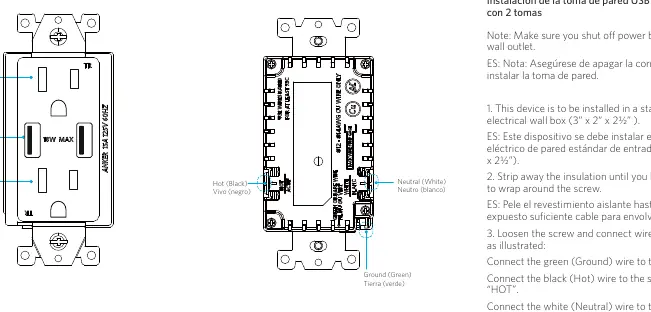
- Ensure power is shut off at the circuit breaker.
- Prepare the wall box: This device is intended for a standard single gang electrical wall box (3" x 2" x 2.5").
- Prepare the wires: Strip away the insulation until you have enough cable to wrap around the screw.
- Connect the wires:
- Connect the green (Ground) wire to the green lead.
- Connect the black (Hot) wire to the screw marked HOT.
- Connect the white (Neutral) wire to the screw marked WHITE.
- Secure the wires: Wrap the wire around the screws tightly and secure them firmly. The tightening torque must be at least 0.8 Nm.
- Mount the outlet: Install the wall outlet into the wall box using the provided screws and mount the wall plate.
- Restore power: Turn the power back on at the circuit breaker.
Technical specifications
- Electrical Rating: 125V~60Hz 15A, 1875W
- USB Output: 5V 2.4A
- Size: 70 x 50 x 45 mm / 2.7 x 2.0 x 1.8 in
Customer service
For FAQs and more information, visit anker.com/support. The device includes an 18-month limited warranty and lifetime technical support. You can contact support via email at [email protected] or by phone using the numbers provided in the manual for your region.
Official resources from the manual
Manufacturer information
Anker
Practical help
Common problems
Device not working after installation
Ensure power is restored at the circuit breaker and verify that all wiring connections (Ground, Hot, Neutral) are secure and correctly attached to the corresponding terminals.
Before use
- Turn off power at the circuit breaker
- Verify you have a standard single gang electrical wall box (3" x 2" x 2.5")
- Use only copper or copper-clad wire
- Ensure you have a screwdriver for tightening terminals to at least 0.8 Nm
Specs in practice
- Electrical Rating
- 125V~60Hz 15A, 1875W maximum load
Images and diagrams
- The wiring diagram illustrates connecting the green wire to the green ground lead, the black wire to the HOT terminal, and the white wire to the WHITE terminal.
Model compatibility
- Intended for indoor use only.
- Requires a standard single gang electrical wall box.

Manual page author
David Miller
Documentation analyst
Organizes user manual content into clear summaries, with attention to model details, product context, and everyday usability.