Computers / Keyboards Input
Anko 2.4GHz Keyboard & Mouse User Manual
Quick guide for the Anko 2.4GHz Keyboard & Mouse. Learn how to set up the USB receiver, install batteries, adjust DPI settings, and use multimedia function keys.
Quick answers from the manual
Quick answer
- To set up, remove the USB receiver from the keyboard's battery compartment, plug it into your computer, and insert 2x AAA batteries into both the keyboard and mouse. p. 2
Key actions
- Adjust cursor speed p. 2
- Use multimedia functions p. 2
First start
- Initial setup procedure p. 2
Technical specifications
| Parameter | Value | Meaning | Pages |
|---|---|---|---|
| Operating Range | 10m | Wireless range | p. 1 |
| Power Supply | 2x AAA | Battery requirement per device | p. 1 |
Where to find it in the PDF
- Specifications p. 1
- Operation p. 2
- Warranty p. 3
Table of contents
Manual images
Click an image to enlargeQuick guide from the manual
This document provides instructions for setting up and using the Anko 2.4GHz Keyboard & Mouse. The device connects via a USB receiver and requires AAA batteries for operation.
Operation Instructions
Follow these steps to set up your keyboard and mouse:
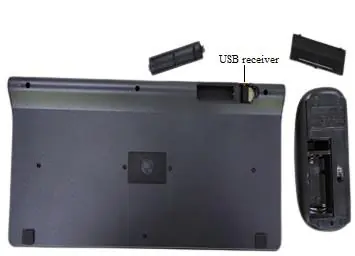
- Locate the USB receiver: Open the battery compartment on the keyboard to find the USB receiver.
- Connect: Plug the USB receiver into an available USB port on your computer.
- Install batteries: Insert 2x AAA batteries into the keyboard and 2x AAA batteries into the mouse separately.
Key Functions
The keyboard and mouse offer several functional features:
- Mouse DPI: The mouse includes a DPI button with 3 speed settings. Press the button to cycle through and adjust the cursor movement speed.
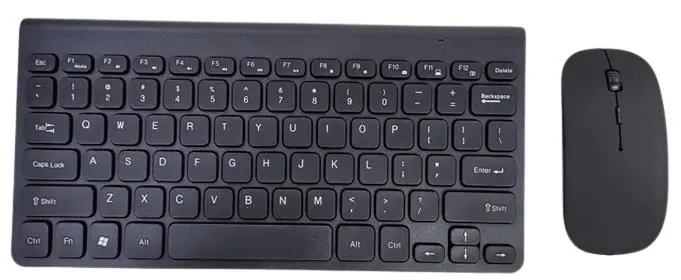
- Multimedia Keys: The F1 through F12 keys serve dual purposes. They function as standard keys when pressed directly, or as multimedia keys when pressed in combination with the Fn key.
Technical Specifications
Both the keyboard and mouse share the following specifications:
- Operating Range: 10 meters
- Power Supply: 2x AAA batteries per device
- Operating Temperature: -10°C to +55°C
- Button Life: More than 3 million clicks
- Working Current: ≤10mA
The keyboard features 78 keys, while the mouse is equipped with 4 buttons.
Compatibility
This device is compatible with the following operating systems:
- Windows XP SP3 / VISTA / 7 / 8 / 10
- Mac OS X 10.4 or later
Warranty Information
This product comes with a 12-month warranty from Kmart Australia. Please retain your receipt as proof of purchase. For assistance, contact the Customer Service Centre at 1800 124 125 (Australia) or 0800 945 995 (New Zealand), or visit Kmart.com.au.
Official resources from the manual
Manufacturer information
Anko
Practical help
Common problems
Keyboard or mouse not responding
Ensure the USB receiver is securely plugged into the computer's USB port and that fresh AAA batteries are correctly installed in both devices.
Before use
- Remove the USB receiver from the keyboard battery compartment
- Plug the USB receiver into a computer USB port
- Insert 2x AAA batteries into the keyboard
- Insert 2x AAA batteries into the mouse
Specs in practice
- 2.4G Operating Range
- The wireless connection works up to 10 meters from the receiver.
Images and diagrams
- The USB receiver is stored inside the keyboard's battery compartment.
- The keyboard layout shows the Fn key and F1-F12 keys for multimedia control.
Model compatibility
- Supports Windows XP SP3, VISTA, 7, 8, 10
- Supports Mac OS X 10.4 or later

Manual page author
Michael Turner
Technical manual editor
Reviews PDF manuals for structure, safety notes, and practical product details so readers can find the right information quickly.