Electronics / Gaming Peripherals
Installation Guide for AORUS RTX 5060 Ti AI BOX
Quick installation and setup guide for the AORUS RTX 5060 Ti AI BOX. Includes hardware connection steps, software requirements, cooling tips, and configuration settings for optimal performance.
Table of contents
Manual images
Click an image to enlargeQuick guide from the manual
The AORUS RTX 5060 Ti AI BOX is an external graphics solution designed to enhance laptop or desktop performance. To ensure optimal operation, verify your system meets the Windows 11 (25H2 or later) requirements and that your computer supports external GPUs via Thunderbolt. Proper ventilation is critical for performance, and software drivers must be installed for full functionality.
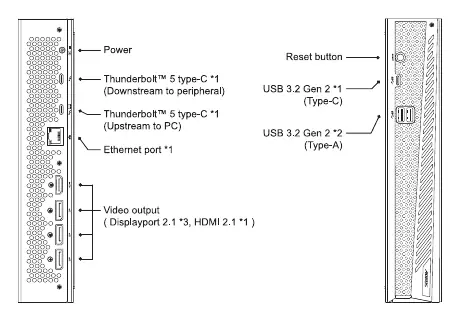
Package contents
- AORUS RTX 5060 Ti AI BOX (includes graphics card)
- Box stand
- Thunderbolt 5 cable (800mm, USB Type-C)
- Power cord
- Power adapter
- Installation guide
System requirements
- Laptop or Desktop PC with a Thunderbolt port supporting external GPU functionality.
- Operating System: Microsoft Windows 11 version 25H2 or later.
- Confirm Thunderbolt 5 compatibility with your computer manufacturer.
Hardware installation
- Connect the AI BOX to a 100–240V power outlet using the provided power adapter and cord.
- Connect the AI BOX to your laptop or desktop PC using the included Thunderbolt 5 cable.
- Connect an external monitor to the AI BOX via DisplayPort or HDMI for enhanced performance.
- Connect peripherals (keyboards, mice, headsets, storage) to the available Thunderbolt 5, USB Type-A, or USB Type-C ports.
- Connect an Ethernet cable to the Ethernet port for a stable wired network connection.
Software installation
To ensure smooth installation and optimal configuration:
- Ensure your operating system is updated to Microsoft Windows 11 version 25H2 or later.
- Download and install the Desktop NVIDIA driver from the official GIGABYTE support website.
- For advanced personalization and system monitoring, download and install the GIGABYTE CONTROL CENTER (GCC) software.
Cooling and ventilation
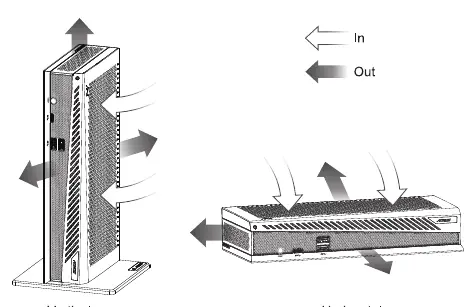
For optimal cooling, ensure the area around the AI BOX remains clear. Poor ventilation can lead to excessive heat buildup, which may affect the graphics card performance. Ensure that both intake and exhaust ports remain unobstructed in either vertical or horizontal orientation.
Configuration and settings
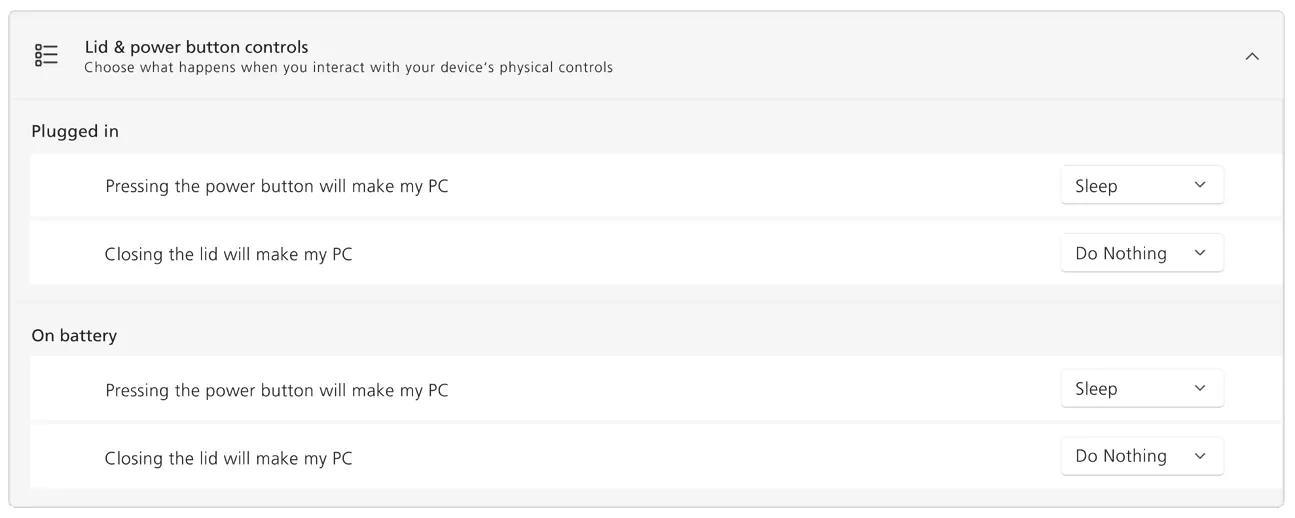
Laptop Lid Settings: To continue using your laptop with the lid closed, navigate to "Lid & power button controls" in Windows settings and set "Closing the lid will make my PC" to "Do nothing".
ErP LPS Compliance Mode: This mode reduces electricity consumption when the computer is off or in sleep mode. It can be enabled via the GIGABYTE Control Center (under the performance tab) or by pressing and holding the Reset button for 4 seconds.
Safety information
- Operating Temperature: +10°C to +35°C.
- Storage Temperature: -40°C to +70°C.
- Operating Altitude: up to 3000M.
- Do not disassemble the AI BOX during operation.
Manufacturer information
AORUS
Practical help
Common problems
Device not detected or performance issues
Confirm Thunderbolt 5 compatibility with your computer manufacturer and ensure Windows 11 version 25H2 or later is installed.
Overheating or thermal throttling
Ensure the area around the AI BOX is clear and that intake/exhaust ports are not obstructed.
Laptop goes to sleep when lid is closed
Change Windows power settings: Navigate to 'Lid & power button controls' and set 'Closing the lid will make my PC' to 'Do nothing'.
Before use
- Verify PC has a Thunderbolt port supporting external GPU.
- Update Windows 11 to version 25H2 or later.
- Ensure power outlet provides 100-240V.
- Clear space around the device for proper airflow.
- Download latest NVIDIA drivers from GIGABYTE website.
Specs in practice
- Thunderbolt 5
- High-speed interface for data, video, and power delivery.
- Power Delivery (PD 3.0)
- Provides 100W fast charging for the connected laptop.
- ErP LPS Compliance
- Eco-design mode to reduce power consumption in sleep or off states.
Images and diagrams
- I/O Ports: Shows location of power, Thunderbolt 5 (upstream/downstream), Ethernet, and video outputs (DP/HDMI).
- Airflow: Illustrates intake and exhaust paths for vertical and horizontal orientations.
Model compatibility
- Requires Windows 11 version 25H2 or later.
- Thunderbolt 5 compatibility must be verified with the PC manufacturer.

Manual page author
David Miller
Documentation analyst
Organizes user manual content into clear summaries, with attention to model details, product context, and everyday usability.