Baby / Baby Monitors
User Manual for Arenti 14T Smart Baby Monitor
Quick guide for the Arenti 14T Smart Baby Monitor. Learn how to set up your camera, pair the monitor, use smart features like motion detection, feeding reminders, and troubleshoot common connection issues.
Table of contents
Manual images
Click an image to enlargeQuick guide from the manual
The Arenti 14T Smart Baby Monitor is a dual-mode system that connects to both a dedicated monitor and a smartphone app. This guide provides essential steps for installation, pairing, and utilizing smart monitoring features.
Product Overview
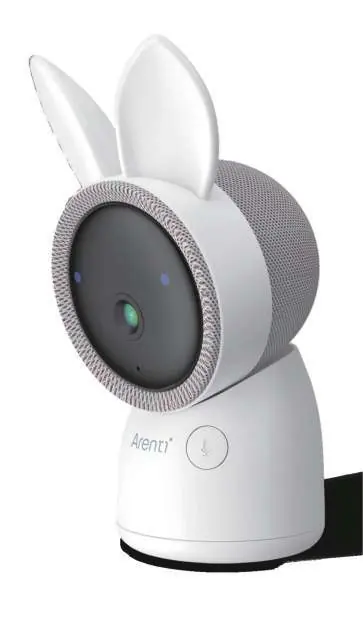
The system includes a camera and a monitor. The camera features a status light, microphone, speaker, and SD card slot. The monitor includes a screen, navigation buttons (Menu, Direction, OK, Call, Back), and a zoom function.
Installation
The camera can be placed on a flat surface or mounted on a wall. When wall mounting, ensure the wall can support at least 3 times the weight of the camera. Avoid pointing the camera directly at glass windows to prevent glare from infrared LEDs.


Connection to App
To connect the camera to the Arenti App:
- Ensure your Wi-Fi network is 2.4GHz (5GHz is not supported).
- Download the Arenti App and register an account.
- Reset the camera using the provided pin until the status light flashes red quickly.
- Follow the in-app instructions to add the device and scan the QR code with the camera.
Monitor Usage
The camera and monitor are generally paired by default. If connection fails, follow these steps:
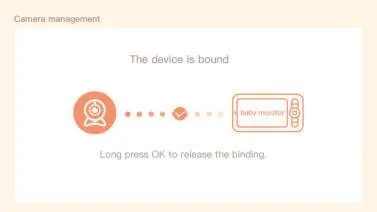
- Pairing: Press the Menu button on the monitor, select Camera, choose the camera channel, and press the pairing button on the camera until a tone sounds. Press OK on the monitor to finalize.
- Camera Selection: Use the zoom button on the home page to switch between Cam1 and Cam2.
- Rotation: Use the direction buttons on the monitor to adjust the camera angle.
Smart Features
Access these features via the monitor menu:
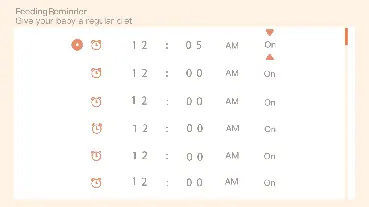
- Feeding Reminder: Set up to 10 feeding times per day.
- Smart Care: Configure motion, noise, and cry detection with adjustable sensitivity.
- Temperature and Humidity: Monitor room conditions and set out-of-range alerts.
- Night Light: Adjust lighting mode and color via the monitor.
Settings and Maintenance
General settings such as brightness, time, language, and sleep mode can be adjusted in the monitor menu. You can also manage SD card storage and check for firmware upgrades via the Device Information menu.
Troubleshooting
If the camera appears offline, ensure it is powered on, check your Wi-Fi connection, move the camera closer to the router, or remove and re-add the device in the app. For further assistance, contact [email protected].
Manufacturer information
Arenti
Practical help
Common problems
Failed to access live video / Camera offline
Ensure the camera is powered on, check that the Wi-Fi network is stable, move the camera closer to the router, or delete and re-add the camera in the Arenti App.
Camera not pairing with monitor
Ensure the distance between the camera and monitor is under 200m. Press the pairing button on the camera until a tone sounds, then press OK on the monitor.
Wi-Fi connection failure
The camera only supports 2.4GHz Wi-Fi networks. Ensure your router is not set to 5GHz only.
Before use
- Check that the installation wall can support at least 3 times the camera's weight.
- Ensure your Wi-Fi network is 2.4GHz.
- Download the Arenti App on your smartphone.
- Charge the monitor fully before first use.
- Keep the camera away from metal objects and microwave ovens to avoid signal interference.
Specs in practice
- Angle of view
- 100° field of vision.
- Local storage
- Supports Micro SD cards up to 256GB.
Images and diagrams
- Blinking red light (slow): Waiting for network connection.
- Solid blue light: Camera is working correctly.
- Solid red light: Camera is out of work/error.
Model compatibility
- Requires iOS 9 or Android 5.0 and above.
- Only supports 2.4GHz Wi-Fi networks.

Manual page author
Emily Carter
User documentation editor
Prepares concise manual descriptions and highlights the most useful setup, operation, and maintenance information for readers.