Electronics / IP Phones
User Manual for VTech RM5756HD 5” Smart Wi-Fi Video Monitor
Quick guide for the VTech RM5756HD 5” Smart Wi-Fi Video Monitor. Learn how to set up your baby unit, connect to Wi-Fi, install the mobile app, mount the camera, and use monitoring modes.
Table of contents
Manual images
Click an image to enlargeQuick Start Guide
The VTech RM5756HD 5” Smart Wi-Fi Video Monitor allows you to monitor your baby via the parent unit or the MyVTech Baby Pro mobile app. Before first use, charge the parent unit for 12 hours. Ensure your Wi-Fi router is 2.4GHz 802.11 b/g/n for optimal connectivity.
Device Overview
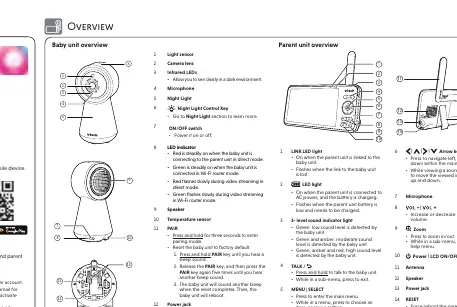
Baby Unit
- Light sensor & Camera lens: Captures video and adjusts for light conditions.
- Infrared LEDs: Enables night vision.
- Night Light: Can be controlled remotely or manually.
- PAIR key: Used for pairing and factory resets.
Parent Unit
- Navigation keys: Used to move through menus and zoom.
- Talk key: Press and hold to speak to the baby unit.
- Sound indicator: Visual representation of sound levels detected.
- Power/LCD ON/OFF: Controls screen power and unit power.
Installation and Setup
Powering the units: Use only the provided power adapters. Connect the baby unit to a power outlet and slide the switch to ON. The parent unit has a built-in rechargeable battery; charge it for 12 hours before the first use.
Positioning: Place the baby unit at least 3 feet (1 meter) away from the baby. Ensure the parent unit is also at least 3 feet away from the baby unit to prevent high-pitched screeching noise.
App Connectivity
To access the monitor remotely, download the MyVTech Baby Pro app from the App Store or Google Play Store. Follow the in-app instructions to create an account and pair your camera. The app requires Android 6.0+ or iOS 12+.
Wall Mounting
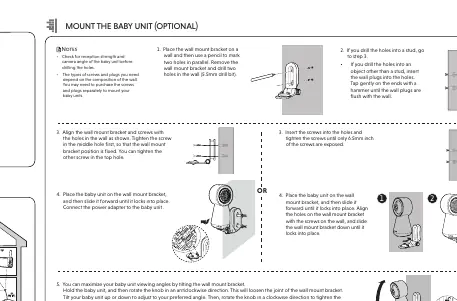
- Mark two parallel holes on the wall using the bracket.
- Drill holes (5.5mm bit) and insert wall plugs if not drilling into a stud.
- Align the bracket and tighten screws.
- Slide the baby unit onto the bracket until it locks.
- Adjust the angle by rotating the knob on the bracket.
Monitoring Modes
- Single Mode: Displays one baby unit in full screen.
- Split Mode: Displays all paired baby units simultaneously.
- Patrol Mode: Transitions between different baby units every 10 seconds.
Troubleshooting
- Screen is black and white: The baby unit has activated night vision due to low ambient light.
- Baby unit offline: Check your Wi-Fi router and network settings.
- Cannot hear sound: Increase the parent unit speaker volume or check sound sensitivity settings.
- High-pitched noise: Move the parent unit further away from the baby unit.
Practical help
Common problems
Screen is black and white
The baby unit has activated night vision due to low ambient light; this is normal.
Baby unit shows offline
Check your Wi-Fi router and network settings. Ensure the baby unit is within range.
Cannot hear sound/baby crying
Increase the parent unit speaker volume or check if the sound sensitivity level is set too low.
High-pitched screeching noise
Ensure the parent unit and baby unit are at least 3 feet (1 meter) apart.
Before use
- Charge the parent unit battery for 12 hours before first use.
- Ensure your Wi-Fi router is 2.4GHz 802.11 b/g/n.
- Download the MyVTech Baby Pro app.
- Test sound reception before placing the baby unit.
- Keep all cords at least 3 feet away from the baby.
Specs in practice
- Baby unit power
- 5V DC, 1000mA output.
- Parent unit power
- 5V DC, 2A output.
- Operating range
- Varies based on environmental conditions.
Images and diagrams
- Baby Unit: Shows camera lens, night light, and LED indicators.
- Parent Unit: Shows navigation keys, zoom, talk button, and sound indicators.
- Wall Mount: Step-by-step drilling and bracket installation.
Model compatibility
- Requires 2.4GHz Wi-Fi network.
- App requires Android 6.0+ or iOS 12+.

Manual page author
David Miller
Documentation analyst
Organizes user manual content into clear summaries, with attention to model details, product context, and everyday usability.