Computers / PC Components
ASUS Graphics Card Installation Guide
A comprehensive installation guide for ASUS graphics cards, covering hardware installation, power supply connections, display setup, and driver installation.
Quick answers from the manual
Quick answer
- To install your ASUS graphics card, power off and unplug your PC, insert the card into the PCIe slot until it clicks, secure it with screws, connect the necessary PCIe power cables from your PSU, and connect your display cable. p. 2
Key actions
- Install graphics card p. 2
- Connect power cables p. 2, 3
- Install drivers p. 3
Problems and fixes
Power connector looks different
Scan the QR code in the manual for more details.
p. 2Where to find it in the PDF
- Installation Guide p. 2, 3
- Safety Information p. 52, 53, 54
Table of contents
Manual images
Click an image to enlargeQuick guide from the manual
This document provides essential instructions for installing an ASUS graphics card into your computer system. It covers the physical installation, power connection requirements, display device connection, and driver installation. Please ensure your computer is completely powered off and unplugged before beginning the installation process.
Graphics card installation
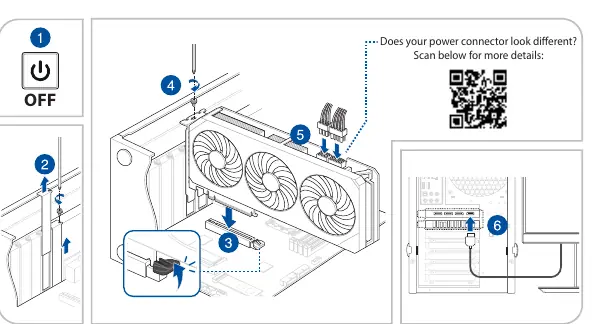
- Ensure your computer is completely unplugged from the power source.
- Remove the chassis cover and locate an open PCIe slot on your motherboard.
- Remove the chassis rear expansion slot covers that correspond to the position of your graphics card.
- Insert the graphics card into the motherboard PCIe slot until you hear a click, indicating it is properly seated.
- Secure the graphics card to the chassis using the required number of screws.
- If your graphics card requires auxiliary power, connect the PCIe power cables from your power supply unit (PSU) to the card. If an adapter cable is included with your card, ensure you use it to connect the card to the PSU.
- Connect your display device to the graphics card.
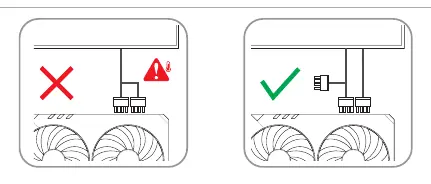
Power connection warning
Important: Always use separate PCIe cables for each power connection on the graphics card. Do not use both ends of a PCIe splitter cable, as this may cause damage to the hardware.
Connecting display devices
Connect your display device to the graphics card using a compatible cable. Supported connection types include:
- D-Sub
- DVI
- DisplayPort
- HDMI
- Type-C
Driver installation
After installing the hardware, you must install the latest drivers for your graphics card:
- Visit the official ASUS support website at https://www.asus.com/support/.
- Search for your specific product model.
- Download and install the latest driver version.
Safety information
When handling computer components, ensure you are working in a safe environment. Keep the product away from dust, humidity, and extreme temperatures. Do not attempt to repair the power supply unit yourself if it is damaged; contact a qualified service technician or your retailer.
Official resources from the manual
Manufacturer information
ASUSTeK Computer Inc.
Practical help
Common problems
Power connector looks different
Scan the QR code provided in the installation section of the manual for specific details regarding your model's power connectors.
Graphics card not detected
Ensure the card is fully seated in the PCIe slot (listen for the click) and that all required PCIe power cables are securely connected.
Display not showing image
Verify that the display cable is connected directly to the graphics card output ports, not the motherboard ports.
Before use
- Ensure the computer is completely unplugged from the power source.
- Verify that your power supply unit (PSU) has sufficient wattage for the graphics card.
- Locate an open PCIe slot on the motherboard.
- Have the necessary screws ready to secure the card to the chassis.
- Ensure you have the correct PCIe power cables available.
Specs in practice
- Auxiliary Power Connector
- Additional power inputs on the graphics card required for operation.
Images and diagrams
- Step 1: Power off and unplug the computer.
- Step 2: Remove expansion slot covers.
- Step 3: Insert card into PCIe slot.
- Step 4: Secure card with screws.
- Step 5: Connect PCIe power cables.
Model compatibility
- Requires a motherboard with an available PCIe slot.
- Use separate PCIe cables for each power connector; do not use splitter cables.

Manual page author
Michael Turner
Technical manual editor
Reviews PDF manuals for structure, safety notes, and practical product details so readers can find the right information quickly.