Tools / Nailing Tools
User Manual for Goobay 79149 2-in-1 Slim 4-Port USB Hub
Quick guide for the Goobay 79149 2-in-1 Slim 4-Port USB Hub. Learn how to connect your devices, achieve maximum 5 Gbit/s transfer speeds, and maintain your hub.
Quick answers from the manual
Quick answer
- The Goobay 79149 is a 2-in-1 USB hub that adds four USB-A 3.2 ports to your device. To achieve the maximum 5 Gbit/s transfer speed, connect the USB-C plug into the USB-A plug via the integrated USB-C socket. p. 2
Key actions
- Connect the USB-C plug to the USB-A plug for 5 Gbit/s speed. p. 2
Problems and fixes
Connection errors
Disconnect and reconnect the devices to the hub.
p. 2Maintenance and reset
- The product is maintenance-free. Use only a dry and soft cloth for cleaning. p. 2
Technical specifications
| Parameter | Value | Meaning | Pages |
|---|---|---|---|
| Max. data transfer rate | 5 Gbit/s | Maximum speed | p. 1 |
| Weight | 31 g | Product weight | p. 1 |
Where to find it in the PDF
- Technical Data p. 1
- Safety and Operation p. 2
Table of contents
Quick guide from the manual
The Goobay 79149 is a 2-in-1 USB hub designed to expand your device's connectivity. Important: To achieve the maximum data transfer rate of 5 Gbit/s, you must connect the USB-C plug into the USB-A plug via the integrated USB-C socket. No software installation is required for operation.
Description and function
This product is a slim 4-port USB hub that adds four USB-A 3.2 ports to a device equipped with a USB-C or USB-A port.
Operating elements
- 1: USB-C plug
- 2: USB-C socket
- 3: USB-A 3.2 plug
- 4: 4x USB-A 3.2 sockets
Preparation
- Check the scope of delivery for completeness and integrity.
- Compare the technical specifications of all devices to ensure compatibility.
Connection and Operation
Note: The USB-C plug (1) must be connected to the USB-A plug (3) via the USB-C socket (2) to achieve the maximum transfer rate of 5 Gbit/s. The arrows on the back of the plugs indicate the direction of insertion.
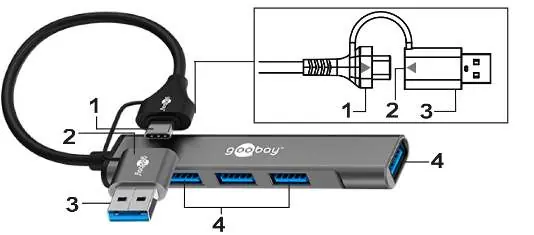
- Connect your device (e.g., laptop) to the USB hub via the USB-C socket (1) or the USB-A socket (3).
- Connect up to four devices to the USB hub's USB sockets (4) using appropriate adapters or connection cables.
- Disconnect all cable connections after use.
Do not disconnect cable connections during data transfer to avoid data loss. If errors occur, disconnecting and reconnecting the devices can help resolve the issue.
Maintenance and Care
The product is maintenance-free.
- Use only a dry and soft cloth for cleaning.
- Do not use detergents or chemicals.
- Store the product in a dry, dust-protected, and cool place when not in use.
- Keep out of reach of children.
Safety Instructions
- For indoor use only.
- Do not open the housing.
- Do not modify the product or accessories.
- Do not short-circuit connectors.
- Do not insert objects into air vents or sockets.
- Avoid extreme conditions such as heat, cold, moisture, direct sunlight, microwaves, vibrations, and mechanical pressure.
- Do not cover the product during use; ensure sufficient space for ventilation.
Manufacturer information
Goobay
Practical help
Common problems
Slow data transfer speed
Ensure the USB-C plug is connected to the USB-A plug via the USB-C socket to enable the 5 Gbit/s transfer rate.
Device not recognized
Try disconnecting and reconnecting the device to the hub.
Before use
- Check package contents for completeness
- Verify compatibility with your host device
- Ensure the environment is dry and indoors
- Do not cover the hub during operation
Images and diagrams
- The diagram illustrates the 2-in-1 connection method where the USB-C plug connects into the USB-C socket of the USB-A plug to enable the 5 Gbit/s mode.
Model compatibility
- Compatible with devices featuring USB-C or USB-A ports.
- No software installation required.

Manual page author
Michael Turner
Technical manual editor
Reviews PDF manuals for structure, safety notes, and practical product details so readers can find the right information quickly.