Computers / KVM Switches
ATEN CS22DP 2-Port USB DisplayPort Cable KVM Switch User Manual
Quick start guide for the ATEN CS22DP 2-Port USB DisplayPort Cable KVM Switch. Learn how to connect your peripherals, install the KVM cables, and operate the remote port selector.
Quick answers from the manual
Quick answer
- The ATEN CS22DP is a 2-port USB DisplayPort KVM switch that allows you to control two computers with one set of peripherals. Switch between computers using the remote port selector button. p. 1
Key actions
- Switching computers p. 1
- Enable monitor re-detection p. 1
First start
- Connect peripherals to the KVM console ports. p. 1
- Connect KVM cables to the computers. p. 1
Problems and fixes
Insufficient power for USB peripherals
Connect a USB cable to the Micro USB power jack to get power from another USB power source.
p. 1Where to find it in the PDF
- Hardware Review and Installation p. 1
Table of contents
Manual images
Click an image to enlargeQuick guide from the manual
The ATEN CS22DP is a 2-port USB DisplayPort KVM switch designed to control two computers using a single set of peripherals, including a keyboard, mouse, monitor, and audio devices. This guide provides the essential steps for hardware installation and operation.
Hardware Overview
The device features the following components:
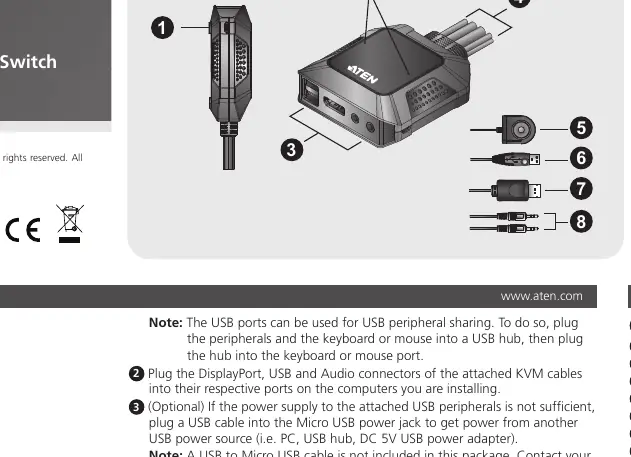
- Micro USB Power Port: Used for auxiliary power if connected USB devices require more power.
- Port LEDs: Indicate the active computer port.
- Console Ports: Connectors for your keyboard, mouse, monitor, and audio devices.
- KVM Cables: Integrated cables to connect to the computers.
- Remote Port Selector: A physical button used to switch between the two connected computers.
Hardware Installation
Follow these steps to set up your KVM switch:
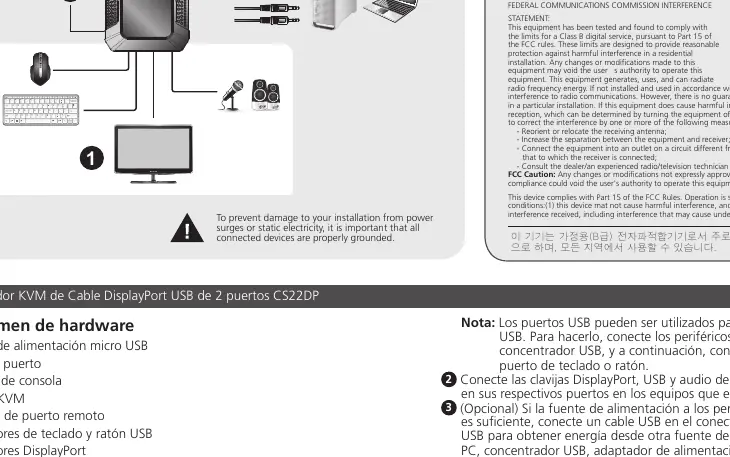
- Connect Peripherals: Plug your USB mouse, USB keyboard, monitor, microphone, and speakers into the corresponding console ports on the CS22DP.
- Connect to Computers: Plug the DisplayPort, USB, and audio connectors of the attached KVM cables into the respective ports on the computers you wish to control.
- Optional Power: If the connected USB peripherals do not receive sufficient power, connect a USB cable to the Micro USB power jack on the CS22DP and plug the other end into an external USB power source (such as a PC, USB hub, or 5V DC power adapter).
Operation
Use the Remote Port Selector button to switch between the two connected computers.
Monitor Re-detection
If you encounter issues with monitor detection, you can trigger a re-detection:
- Long press the remote port selector button for 3 seconds to enable or disable the monitor re-detection mode on the selected PC port.
Troubleshooting and Tips
- USB Peripheral Sharing: You can share USB peripherals by connecting them to a USB hub, then plugging that hub into the keyboard or mouse port on the CS22DP.
- Power Issues: If your USB devices are not functioning correctly, ensure you are using the Micro USB port for additional power, as some computers may not provide enough current through the standard USB connection.
Practical help
Common problems
USB peripherals are not working or are unstable.
The connected USB devices may require more power than the computer port provides. Connect an external USB power source to the Micro USB power port on the CS22DP.
Monitor is not displaying correctly after switching.
Try enabling monitor re-detection mode by long-pressing the remote port selector button for 3 seconds.
Before use
- Ensure all computers and peripherals are powered off before making connections.
- Verify you have a USB to Micro USB cable available if you anticipate needing extra power for peripherals (cable not included).
- Confirm your monitor, keyboard, and mouse use DisplayPort and USB interfaces.
- Ensure you have a USB hub if you intend to share multiple USB peripherals.
Specs in practice
- Micro USB Power Port
- An auxiliary power input used to provide extra current to USB peripherals connected to the KVM switch.
- Remote Port Selector
- A wired button used to switch control between the two connected computers.
Images and diagrams
- The hardware diagram identifies the 8 main connection points, including the Micro USB power port, console ports, and the remote port selector.
- The installation diagram illustrates the connection flow from the KVM switch to the monitor, keyboard, mouse, and the two host computers.
Model compatibility
- Supports USB peripheral sharing via a USB hub connected to the keyboard or mouse port.

Manual page author
Emily Carter
User documentation editor
Prepares concise manual descriptions and highlights the most useful setup, operation, and maintenance information for readers.