Electronics / AV Switchers
AV Link 128.842UK 4K HDMI 2.0 Switch
Quick guide for the AV Link 128.842UK 4K HDMI 2.0 Switch. Learn how to connect your devices, use the remote control, and understand the technical specifications for optimal 4K performance.
Table of contents
Manual images
Click an image to enlargeQuick guide from the manual
This HDMI switch allows you to connect up to 4 HDMI sources to a single display. For optimal performance, especially with 4K content, ensure you use 4K certified HDMI cables. Note the specific cable length limitations: a maximum of 16m combined length for 4K @ 30Hz or Full HD, and a maximum of 8m combined length for 4K @ 60Hz.
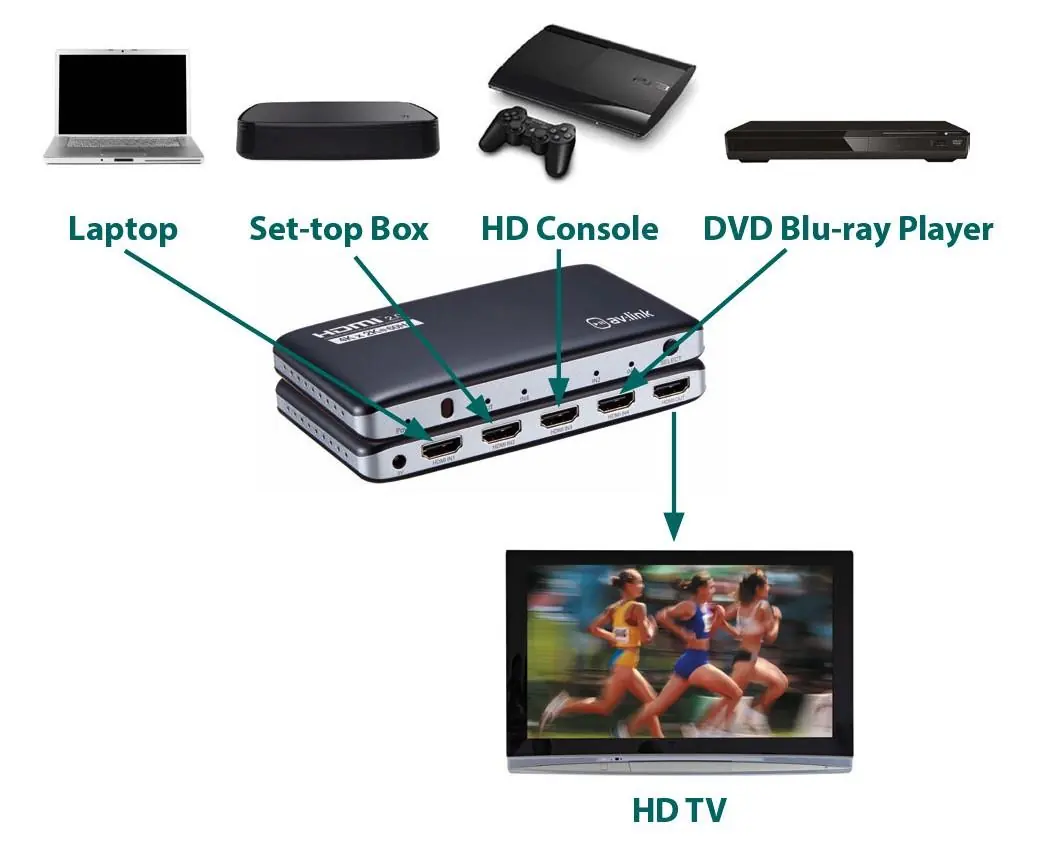
Connection Instructions
Follow these steps to set up your device:
- Connect an HDMI cable from the output port of the switch to the HDMI input of your display device (TV/Monitor).
- Connect up to 4 source devices (e.g., laptop, set-top box, console) to the input ports on the switch using HDMI cables.
- Connect the supplied 5V power adaptor to the unit and plug it into a power outlet.
Operation
You can switch between connected devices using two methods:
- Remote Control: Use the provided IR remote to select the desired input.
- Manual Button: Press the Select button on the front of the unit to cycle through inputs.
The switch features an auto-select function that will automatically switch to the latest live device when powered on. Blue LEDs on the front panel indicate which input is currently active.
Technical Specifications
- HDMI Version: 2.0b
- Video Format: Up to 3840 x 2160 @ 60Hz
- Audio Format: DTS-HD, Dolby-trueHD, DTS, Dolby-AC3, DSD
- Max Bandwidth: 600 MHz
- Power Adaptor: Input 100-240V AC, Output 5V/1A DC
- Dimensions: 136 x 80 x 22 mm
- Weight: 118g
Safety Warnings
- Do not immerse the device in water or expose it to damp conditions.
- Do not use the device if it is damaged.
- Only use the power supply provided by the manufacturer.
- Disconnect the power supply from the mains if the device will not be used for long periods.
- Do not attempt to repair or disassemble the device, as this will invalidate the warranty.
Practical help
Common problems
No signal or poor image quality
Ensure you are using 4K certified HDMI cables and that the total cable length does not exceed 8m for 4K @ 60Hz or 16m for 4K @ 30Hz/FHD.
Device not switching inputs
Ensure the 5V power adaptor is connected and the unit is powered on. Check if the remote control battery (CR2025) is installed correctly.
Before use
- Verify all HDMI cables are 4K certified.
- Ensure the 5V power adaptor is connected to the unit.
- Check that the remote control battery (CR2025) is installed.
- Confirm the display device is set to the correct HDMI input.
Specs in practice
- Max. bandwidth: 600 MHz
- Indicates the data capacity required to support high-resolution 4K video signals.
- Transmission distance
- The maximum combined length of HDMI cables allowed for stable signal transmission at specific resolutions.
- Power adaptor: 5V/1A
- The specific power requirements for the device; only use the provided adaptor.
Images and diagrams
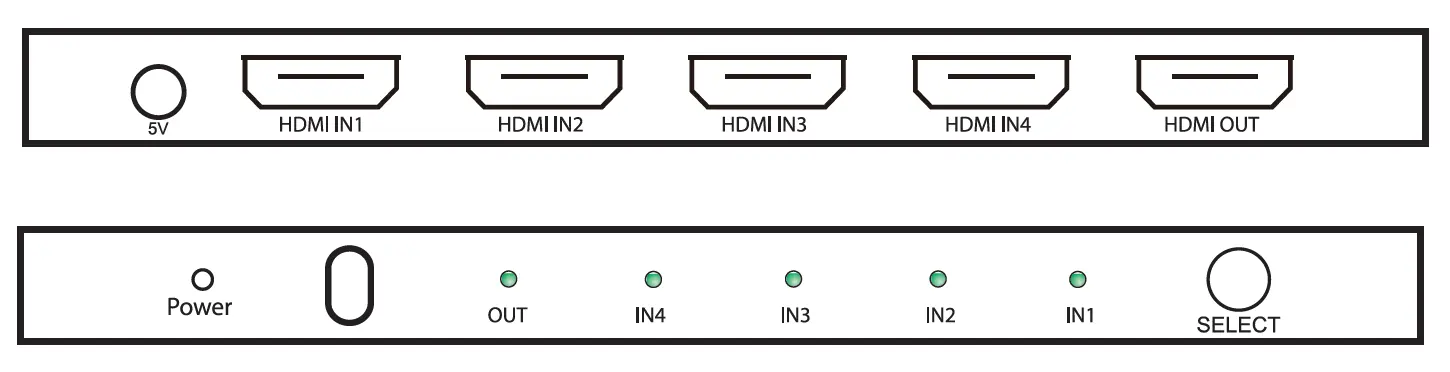
- The rear panel contains the 5V power input, 4 HDMI inputs, and 1 HDMI output.
- The front panel features status LEDs for each input and the 'Select' button for manual switching.
Model compatibility
- Supports HDMI v2.0 signals.
- Compatible with 4K digital TV boxes producing 3840 x 2160 @ 60Hz.

Manual page author
David Miller
Documentation analyst
Organizes user manual content into clear summaries, with attention to model details, product context, and everyday usability.