Lighting / Decorative Lighting
User Manual for AVSL 149.505UK 8-in-1 Universal Remote Control
Quick guide for the AVSL 149.505UK 8-in-1 Universal Remote Control. Learn how to program your remote using direct code entry, brand search, or auto-search methods, and find essential usage and safety instructions.
Table of contents
Manual images
Click an image to enlargeQuick guide from the manual
This manual provides instructions for the AVSL 149.505UK 8-in-1 Universal Remote Control. This device is designed to replace lost or broken remotes and can control up to 8 devices simultaneously, including TVs, DVDs, SAT, and HiFi systems. The manual outlines three distinct programming methods to sync the remote with your equipment.
Getting started
Before using the remote, you must install the batteries:
- Insert 2x AAA batteries (not supplied) into the battery compartment.
- Ensure you observe the correct polarity markings inside the compartment.
Programming methods
There are three ways to configure the remote control for your devices:
1. Direct code set up
- Switch your device on (ensure it is not on standby) and aim the remote towards it.
- Press and hold the corresponding device button (e.g., TV) on the remote for 3 seconds until the power button lights up.
- Enter the four-digit device code from the provided list using the number buttons. The power button light will turn off if the code is valid.
- Aim the remote at the device and press the POWER button. If the device switches off, the remote is set to the correct code.
- Repeat this process for other devices (VCR, DVD, etc.).
2. Search by brand name
- Switch your device on and aim the remote towards it.
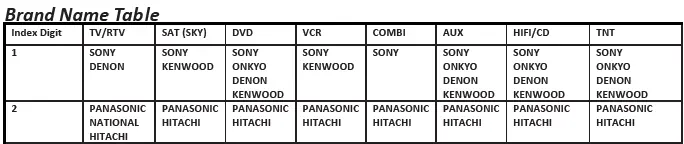
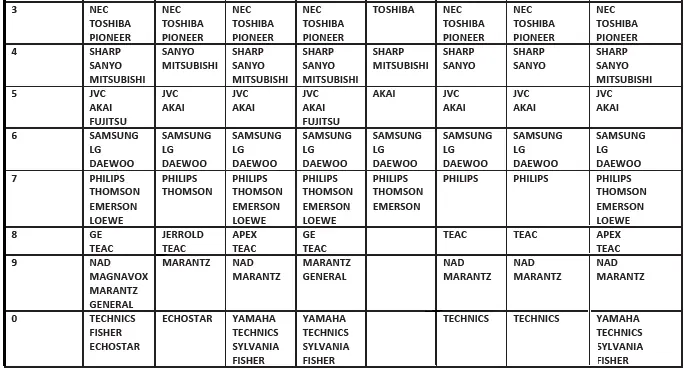
- Press and hold the device button (e.g., TV) along with the corresponding brand number from the Brand Name Table.
- Keep holding both buttons until the light in the Power button stays on. After 2 seconds, it will begin to flash intermittently.
- When the device switches off, release the buttons immediately to save the code and exit search mode.
3. Auto code search
Use this method if your device does not respond to the listed codes or if your brand is not listed.
- Switch your device on and aim the remote towards it.
- Press and hold the device button for 3 seconds until the power button light stays on.
- Press the Power button. The LED indicator will flash, indicating the remote is sending a power on/off signal for every code in its memory.
- When your device turns itself off, press the OK button on the remote to save the code.
Safety and maintenance
- Electrical Safety: Never immerse the device in water, expose it to damp conditions, or subject it to excessive force.
- Damage: Do not use the device if it is damaged.
- Repairs: Do not attempt to repair or take apart the device, as this will invalidate your warranty.
- Disposal: This product is classified as Electrical or Electronic equipment and must be disposed of according to local council guidelines.
Practical help
Common problems
Device does not respond to the remote
Try the auto code search method if the direct code or brand search methods fail.
Remote not working
Check that the batteries are fresh and inserted with the correct polarity.
Smart TV compatibility
Note that this remote may not work with some models of smart TV.
Before use
- Insert 2x AAA batteries (not supplied) observing polarity.
- Ensure the device you want to control is switched on (not on standby).
- Have the device code list ready (if using the direct code method).
- Identify the brand number from the Brand Name Table (if using the brand search method).
Specs in practice
- AAA batteries
- Requires 2x AAA batteries for operation.
Images and diagrams
- The Brand Name Table is used for the 'Search by brand name' method to identify the correct index digit for your device brand.
Model compatibility
- Compatible with most major TV, DVD, SAT, and HiFi brands.
- May not be compatible with some smart TV models.

Manual page author
David Miller
Documentation analyst
Organizes user manual content into clear summaries, with attention to model details, product context, and everyday usability.