Electronics / Projectors
User Manual for Bauhn 1080P Home Theater Full HD Projector AFHDP-0825
Quick guide and user manual for the Bauhn 1080P Home Theater Full HD Projector (AFHDP-0825). Includes setup instructions, connection guide, troubleshooting, and specifications.
Table of contents
Manual images
Click an image to enlargeQuick guide from the manual
This projector is designed for home theater use. Before starting, ensure the projector is placed in a well-ventilated area, away from dust, smoke, and direct air-conditioning. Do not block the ventilation holes. To avoid hearing damage, do not listen at high audio volumes for long periods.
Product Overview
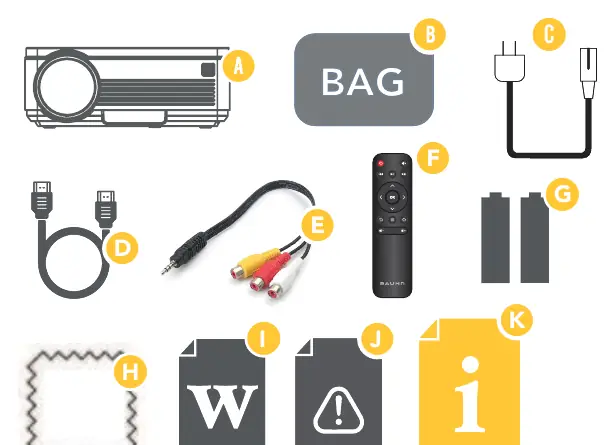
The package includes the projector, carry bag, power cable, HDMI cable, AV adaptor cable, remote control, two AAA batteries, lens cleaning fabric, warranty certificate, and safety warnings.
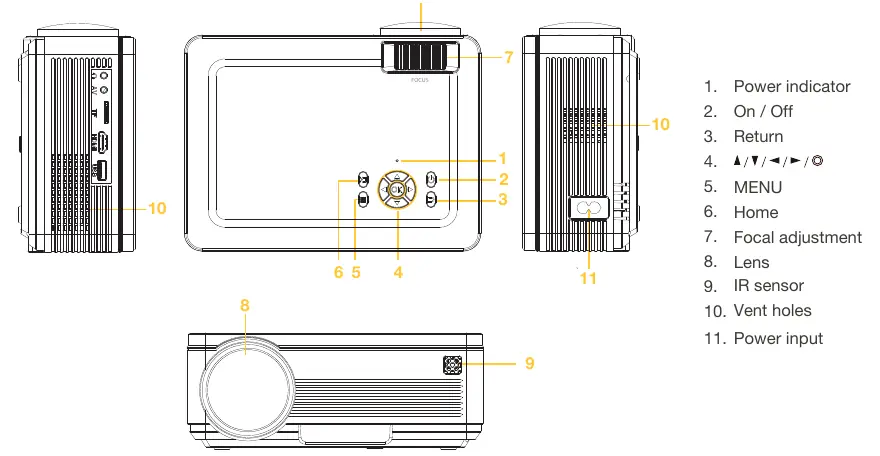
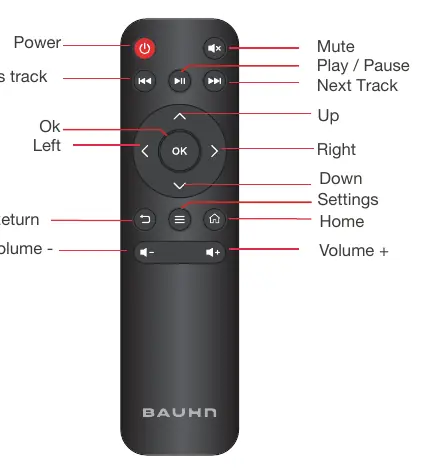
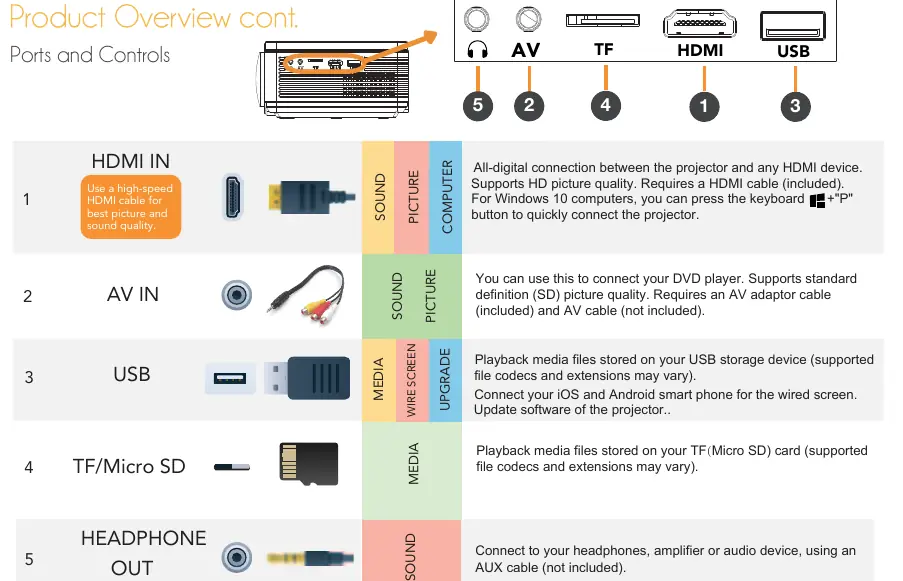
Key Controls: The top of the unit features a focus adjustment wheel, power button, menu, home, return, and navigation buttons. The rear/side panels contain the power input, IR sensor, and various ports including HDMI, AV, USB, TF/Micro SD, and Headphone Out.
Operation
Power On/Off: Connect the power cable and press the power button on the unit or remote. The indicator will glow blue when on and red in standby mode.
Focus and Keystone: Adjust the focus wheel until the image is clear (ensure the distance is more than 1m). Use the Projection Setting menu to correct keystone distortion.
Wired Screen Mirroring: For iOS devices, connect via the USB port using the original charging cable and select 'Trust'. For Android devices, scan the QR code to install the required app, connect via USB, and follow the on-screen prompts to enable screen mirroring.
Distance for Projection
The projector supports various screen sizes based on the distance from the wall or screen:
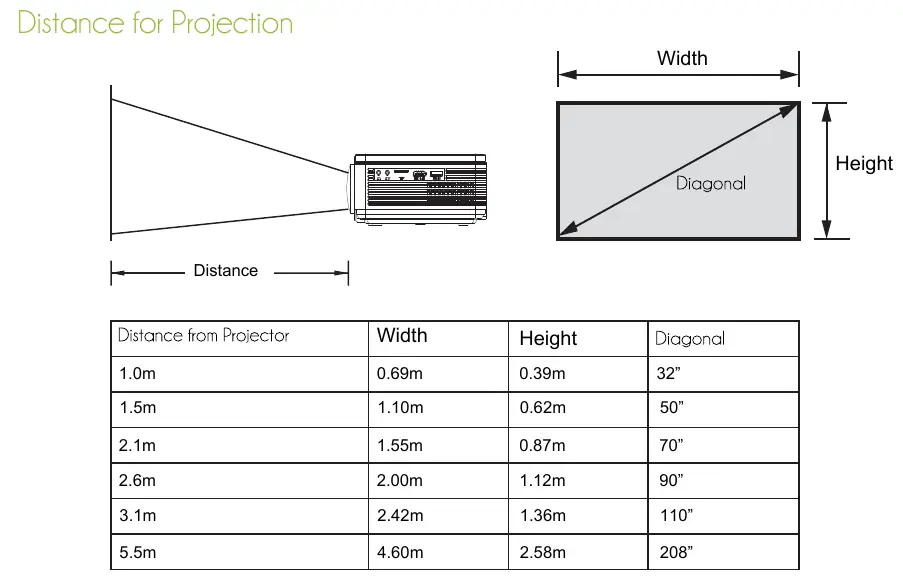
- 1.0m distance: 32-inch screen
- 1.5m distance: 50-inch screen
- 2.1m distance: 70-inch screen
- 2.6m distance: 90-inch screen
- 3.1m distance: 110-inch screen
- 5.5m distance: 208-inch screen
Troubleshooting
If the projector won't turn on, check the power cable connection and the power button. If the image is blurry, ensure the distance is over 1m and adjust the focus. If there is no signal via HDMI, ensure your laptop is set to projection mode. If there is no sound, check that the volume is not muted and that no headphones are plugged into the output port.
Specifications
- Power Supply: AC100-240V 50/60Hz 1.5A
- Resolution: Native 1920 x 1080P
- Brightness: 180 lumens (at 60-inch size)
- Connectivity: HDMI, AV, USB, TF/Micro SD, Headphone Out
- Dimensions: 210 x 152 x 83mm
- Weight: 0.95kg
Practical help
Common problems
Projector won't turn on
Check that the power cable is securely connected and press the power button on the remote or top of the projector.
Projection screen is blurry
Ensure the projection distance is above 1m and adjust the focus wheel until the image is clear.
No signal via HDMI
Ensure your laptop is set to projection mode. Try connecting to another device like a TV stick to verify the projector is working.
No sound from the projector
Check that the source or app is not muted, increase the volume, and ensure no plug is inserted into the headphone port.
Before use
- Ensure the projector is placed in a well-ventilated area.
- Keep the lens clean and free of excessive dust.
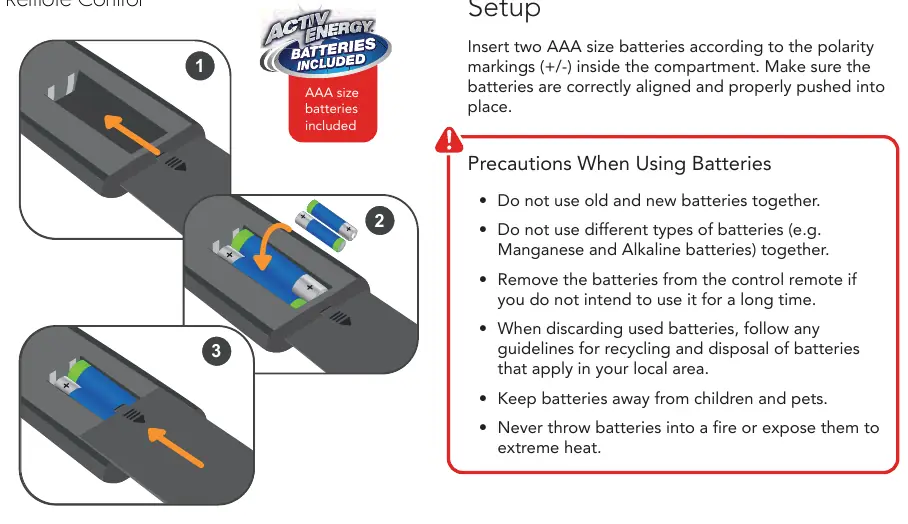
- Insert two AAA batteries into the remote control.
- Ensure the projection distance is at least 1m.
- Choose a projector screen with good gain and contrast for the best experience.
Specs in practice
- Keystone Correction
- Allows for ±15° adjustment to correct image distortion if the projector is not perfectly aligned with the screen.
- Projection Distance
- The range (1m to 5.5m) determines the projected image size (32 to 208 inches).
Images and diagrams
- The ports panel includes AV, TF card slot, HDMI, and USB inputs.
- The remote control includes dedicated buttons for power, volume, playback, and menu navigation.
- The focus wheel is located on the top of the projector near the lens.
Model compatibility
- Supports wired screen mirroring for iOS and Android devices.
- Supports standard definition (SD) via AV input.
- Compatible with media files via USB and TF/Micro SD card.

Manual page author
Michael Turner
Technical manual editor
Reviews PDF manuals for structure, safety notes, and practical product details so readers can find the right information quickly.