Power / Solar Systems
User Manual for Kickass 12V FHD Outdoor Cinema Smart Projector
Quick guide for the Kickass 12V FHD Outdoor Cinema Smart Projector. Learn about installation, setup, Wi-Fi/Bluetooth configuration, projection modes, and troubleshooting.
Table of contents
Manual images
Click an image to enlargeQuick Guide
The Kickass 12V FHD Outdoor Cinema Smart Projector is designed for versatile use, supporting both DC (12V) and AC power sources. For first-time use, insert batteries into the remote, connect to power, and allow the projector to complete its automatic focus and keystone correction. Ensure the projector is placed on a stable surface or mounted securely before operation.
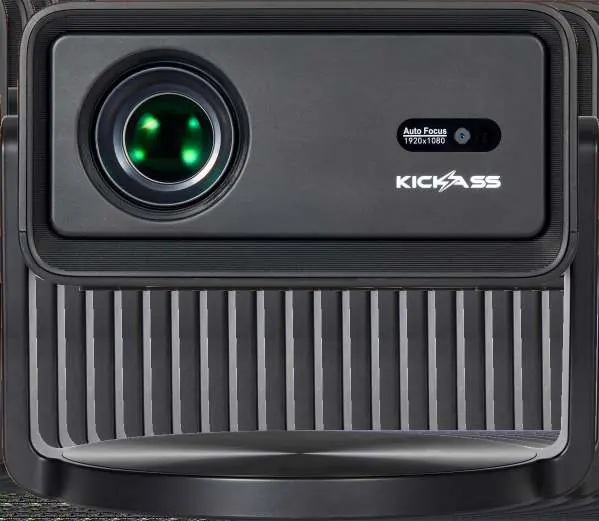
Product Overview
The projector features a lens, camera, IR receiver, and gimbal stand. Rear ports include a 3.5mm audio output, USB port, HDMI port, and DC5525 power input. Air inlets and outlets are located on the sides and back to ensure proper ventilation.
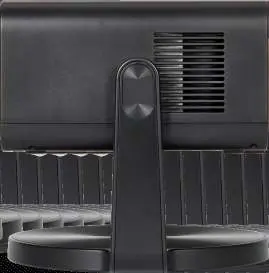
Installation
There are three primary installation methods:
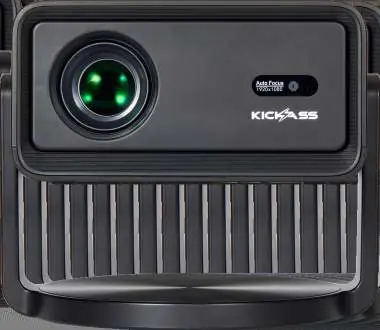
- Free-standing: Place on a stable, level surface and tilt the body to adjust the angle.
- Tripod: Screw the tripod mounting plate into the threaded base and lock onto the tripod head.
- Ceiling-mounted: Use a compatible mount with a 1/4" thread. Ensure the mount supports 1.5kg. Invert the projector and adjust the screen orientation using the Screen Flip button on the remote.
Connectivity and Configuration
Wi-Fi Settings: Navigate to Settings > Network > Wi-Fi Setting. Toggle Wi-Fi to On, select your network, and enter the password using the on-screen keyboard.
Bluetooth Settings: Go to Settings > Bluetooth. Toggle the switch to On to scan for available devices. Select your device to pair.
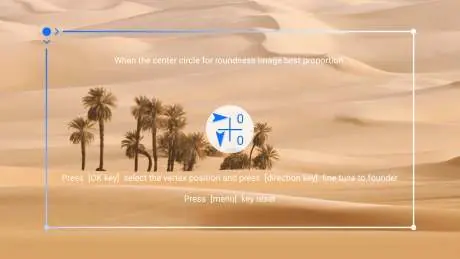
Projection Settings: The projector supports automatic focus and keystone correction. These can be adjusted manually via the Projection menu if needed. Digital zoom is available when automatic obstacle avoidance and screen fit are disabled.
Usage
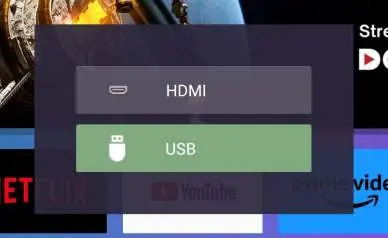
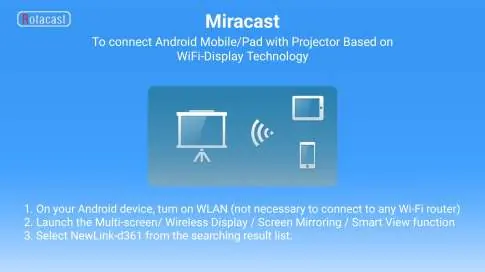
- HDMI: Connect an external device via HDMI cable. Select HDMI as the input source using the remote.
- USB: Insert a USB stick to view files. The File Manager will open automatically.
- Stand-alone: Use the built-in Android system to access pre-installed apps like Netflix and YouTube, or download new apps via the App Store.
- Screen Mirroring: Use the Miracast app for Android or iOSCast for Apple devices to mirror your mobile screen.
Troubleshooting
If the projector does not power on, check the power cable and outlet. For blurry images, adjust the focus using the remote or clean the lens. If Bluetooth or Wi-Fi connections fail, restart the devices and ensure they are within range. For overheating, ensure ventilation openings are clear and allow the unit to cool.
Warranty and Support
For warranty claims, visit supportportal.kickassproducts.com.au. For technical support, contact [email protected].
Official resources from the manual
Manufacturer information
KickAss Products
Practical help
Common problems
Projector does not power on
Ensure the cable (for DC) or power adapter (for AC) is securely connected. Verify the power outlet is functioning and check the cable for damage.
No sound from built-in speakers
Increase the volume using the remote control and confirm that neither the projector nor the source device is muted.
Bluetooth connection fails
Enable Bluetooth on both devices, move them closer together, and try deleting and re-pairing the device.
The projection appears blurry
Adjust the focus using the focus buttons on the remote control and ensure the projector is at an optimal distance from the screen.
USB stick not detected
Ensure the USB stick is formatted to FAT32 or exFAT. NTFS formatted sticks are not supported.
Before use
- Ensure the projector is placed on a stable, flat surface.
- Check for obstructions between the lens and the projection surface.
- Verify the projector is connected to a reliable power source (AC or DC).
- Ensure the remote control has functioning batteries installed.
- Maintain at least 10cm of clearance around all ventilation areas.
Specs in practice
- Operating System
- Android 12 smart system for app support.
- Wireless Connectivity
- Wi-Fi 6 (dual-band, 2.4GHz and 5GHz) for stable streaming.
- Operating Noise Level
- ≤32dB, ensuring quiet operation.
Images and diagrams
- The remote control includes dedicated buttons for Power, Home, Back, Volume, Source, Focus, and Screen Flip.
- The projector rear panel contains the HDMI port, USB port, 3.5mm audio output, and DC5525 power input.
Model compatibility
- Supports HDMI input up to 4K resolution (downscaled to 1080p).
- Compatible with iOS and Android devices for screen mirroring.
- Requires 12V / 6A (minimum) AC-to-DC adapter if using AC power.

Manual page author
Michael Turner
Technical manual editor
Reviews PDF manuals for structure, safety notes, and practical product details so readers can find the right information quickly.