Lighting / Fixtures
User Manual for Brilliant Wonders Smart Sync Program Adapter
Quick guide for the Brilliant Wonders Smart Sync Program Adapter. Learn how to install, wire, set the program style, and sync your LED waterfall lighting.
Table of contents
Manual images
Click an image to enlargeQuick Guide
The Brilliant Wonders Smart Sync Program Adapter is designed to control LED waterfall lighting. It requires a 12VAC input from an approved low-voltage transformer. The adapter must be mounted in a NEMA-approved weatherproof enclosure. It is compatible only with Brilliant Wonders LED Waterfalls and requires connection to an OEM control system or switch.
Installation
Mount the Smart Sync control box in a NEMA-approved weatherproof enclosure. Note that mounting screws are not included. Ensure the enclosure is suitable for outdoor or pool/spa environments.
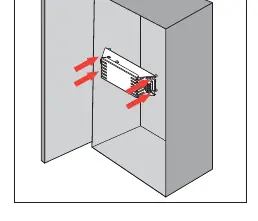
Wiring
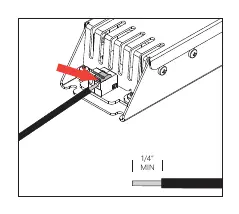
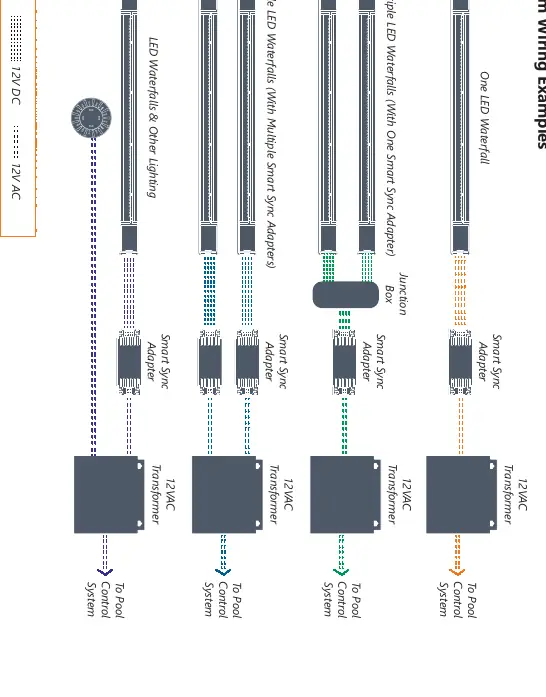
Attach wires to the control box by pressing the button and inserting the wires. Follow the wiring diagram provided in the manual. Always use a Class 2 isolated 12VAC transformer between the pool controls and the Smart Sync box. Ensure the wire ends are stripped properly (1/4 inch minimum).
Program Settings
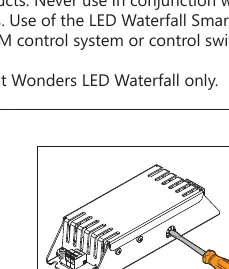
Use a flathead screwdriver to turn the dial on the unit to select the desired program style:
- 1: J-Style
- 2: H-Style
- 3: P-Style
For the 60W model (25677-950-000), you can adjust brightness using the dimmer dial. There are eight brightness settings from 0 to 7, with 7 being the brightest.
Sync Instructions
J-Style: Turn the light ON. To change colors, turn the light OFF and back ON within 3 seconds. To reset to Alpine White, turn the light OFF, wait 4-6 seconds, then turn it ON.
H-Style: Operated by power-cycling. To advance to the next mode, turn the switch OFF and back ON within 10 seconds. To sync multiple lights, wire them to the same switch. If they get out of sync, turn the switch OFF, wait 11-14 seconds, and turn it back ON.
P-Style: Controlled by a standard wall-mount light switch. Cycle the power to activate different light show modes. No special sync instructions are required as they re-sync automatically when powered on.
Practical help
Common problems
Lights are out of sync (H-Style)
Turn the switch OFF, wait between 11 and 14 seconds, then turn the switch back ON.
Cannot change light color (J-Style)
Ensure you are turning the light OFF and back ON within 3 seconds.
Light resets to white unexpectedly
If the light is off for more than 60 seconds (H-Style), it will default to white for 15 seconds before returning to the last mode.
Before use
- Verify you have an approved 12VAC low voltage landscape or pool/spa lighting transformer.
- Ensure the adapter is installed in a NEMA-approved weatherproof enclosure.
- Confirm compatibility: This unit is for Brilliant Wonders LED Waterfalls only.
- Check that you are not using the CMP Brilliant Wonders Colorwheel Control, as it is not compatible.
- Ensure you have an OEM control system or standard wall switch for operation.
Specs in practice
- 36 Watt Model
- Rated Max 3.0A @ 12VAC; controls up to 8ft of LED Waterfalls.
- 60 Watt Model
- Rated Max 5.0A @ 12VAC; controls up to 12ft of LED Waterfalls.
- Power Requirement
- Must use 12VAC input power from an approved Class 2 isolated transformer.
Images and diagrams
- The wiring diagram illustrates the connection from the 12VAC transformer to the Smart Sync Adapter and then to the LED Waterfall.
- The Step 1 diagram demonstrates using a flathead screwdriver to rotate the program selection dial.
Model compatibility
- Not compatible with CMP Brilliant Wonders Colorwheel Control.
- Requires connection to an OEM control system or control switch.
- Each waterfall requires 5 Watts per foot.

Manual page author
Emily Carter
User documentation editor
Prepares concise manual descriptions and highlights the most useful setup, operation, and maintenance information for readers.