Computers / Printers
User Manual for Canon imageRUNNER 1643iF / 1643i
Quick guide for the Canon imageRUNNER 1643iF / 1643i. Learn how to set up your printer, configure network settings, manage fax, scan, and copy functions, and perform basic maintenance.
Table of contents
Manual images
Click an image to enlargeQuick guide from the manual
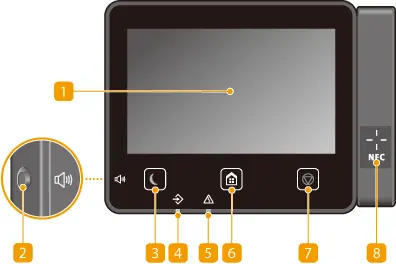
This guide provides essential information for setting up and operating the Canon imageRUNNER 1643iF / 1643i. Before using the machine, ensure it is placed on a stable surface, connected to a power source, and that all protective materials have been removed. The device supports both wired and wireless network connections, which can be configured via the operation panel. Key functions include printing, scanning, copying, and faxing, all of which require initial configuration through the settings menu.
Setting Up
The setup process involves connecting the machine to your network and configuring initial settings. You can use the Setup Guide on the operation panel to walk through the process. Ensure you have your network SSID and key ready if connecting via Wi-Fi. You must also set the correct date and time for accurate logging and scheduling.
Network Configuration
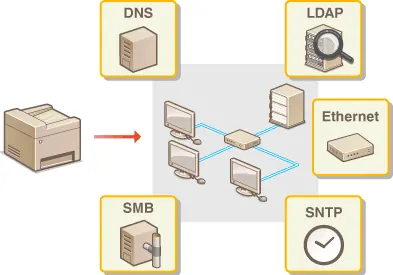
The machine supports both wired LAN and wireless LAN connections. For wired connections, plug the Ethernet cable into the port on the back. For wireless, you can use the WPS push button mode, PIN code mode, or manually select your wireless router. Once connected, you may need to configure IP addresses (IPv4/IPv6) and DNS settings to ensure proper communication with computers on your network.
Fax, Scan, and Copy
To use the fax function, connect the telephone line and register your fax number and unit name. Select the appropriate receive mode based on your needs. For scanning, you can save documents to a computer, USB memory device, or send them via e-mail. Copying functions allow for basic adjustments like sharpness and frame erasure, as well as advanced features like N-on-1 copying and ID card copying.
Printing
You can print documents from a computer by installing the appropriate drivers. The machine supports secure printing, which requires a PIN to release the job, and printing directly from a USB memory device. Ensure your printer ports are correctly configured in your computer's settings.
Maintenance
Regular maintenance includes loading paper correctly in the drawer or multi-purpose tray and specifying the paper size and type. If you encounter issues, check the status monitor screen for error messages. Keep the machine clean and ensure the feeder and interior are free of obstructions.
Manufacturer information
Canon Inc.
Practical help
Common problems
Network connection failure
Verify the LAN cable connection or wireless router settings. Ensure the IP address is correctly configured in the Network Settings menu.
Fax not receiving
Check the telephone line connection and ensure the correct Receive Mode is selected in the Fax settings.
Paper jam
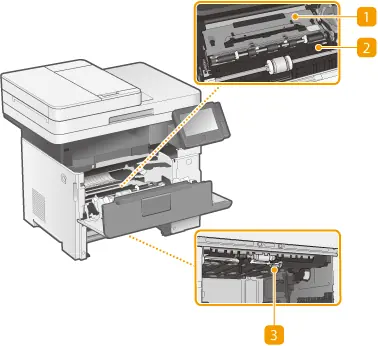
Open the machine covers as indicated in the manual to access the paper path and carefully remove any jammed paper.
Cannot print from computer
Ensure the printer driver is installed correctly and the printer port is configured to match the machine's IP address.
Before use
- Ensure the machine is placed on a stable, level surface.
- Remove all protective tape and packaging materials.
- Connect the power cord securely to a wall outlet.
- Connect the network cable or configure Wi-Fi settings.
- Load paper into the paper drawer or multi-purpose tray.
- Register the fax number and unit name if using fax functions.
Specs in practice
- IPv4/IPv6 Address
- Network identifiers required for the machine to communicate on your local network.
- Receive Mode
- Determines how the machine handles incoming fax calls (e.g., Auto, Manual).
Images and diagrams
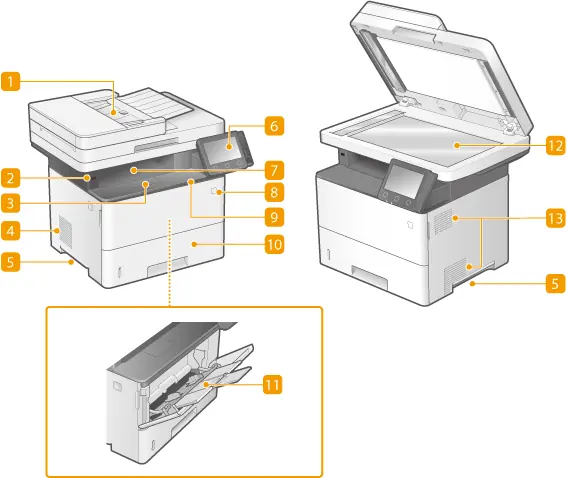
- The front side diagram identifies the multi-purpose tray, paper drawer, and operation panel.
- The back side diagram shows the power and network connection ports.
- The interior diagram highlights areas to access for clearing paper jams.
Model compatibility
- Supports both wired LAN and wireless LAN environments.
- Compatible with mobile devices via AirPrint and other mobile printing applications.
- Supports scanning to shared folders (SMB) and FTP servers.

Manual page author
Emily Carter
User documentation editor
Prepares concise manual descriptions and highlights the most useful setup, operation, and maintenance information for readers.